
Knowledge Base
Articles In This Section
How Workato Actually Works: A Simple BreakdownWorkato Workflow Apps: A Complete OverviewUnderstanding Webhooks in WorkatoWorkato FAQs: The Ultimate List of Common Workato FAQsSyncing your SurveyMonkey Data within WorkatoWhat is WorkatoUnderstanding Workato Custom Connectors Best Practices for Workato Logging SystemGitHub Secret Scanning for Workato Developer API10 Key Benefits of WorkatoHow to Use Workato to Send an Email through Outlook Workato ONE OverviewWorkato HTTP Requests: Complete OverviewBuilding a High-Impact Workato Center of ExcellenceHow to use Data Tables in Workato: Step-by-Step GuideHow to Use Conditional Actions in Your Workato Recipe Creating a New App Connection in WorkatoHow to use Data Tables in Workato: Step-by-Step GuideHow to Manage API Clients and Client Roles in WorkatoHow to Use Workato For Handling FilesSections
How to Create Your First Workato Recipe
In this article we’ll cover how to create a Workato recipe step-by-step. Here are a few concrete examples of what a Workato recipe can do:
✓ When emails are sent to a specific address add the email attachment(s) to your database
✓ When an invoice is generated in your database reformat the information and enter it into Quickbooks Online
✓ When a new row is added in Google Sheets add a record to your Quick Base database
In this article we’ll walk through the 3rd example (Google Sheets > Quick Base) because its quite simple. Once you grasp a simple example you’ll be able to build upon your success to tackle more complex recipes.
At its core, every recipe consists of a trigger and an action. In our Google Sheets to Quickbase example the recipe trigger will be the addition of a new row in our Google Sheet. Our action will be the addition of a new record in Quickbase
Let’s look at how to set this up:
- Sign in to your Workato account
- Make sure you are on the ‘Recipes’ tab and click the green button labeled ‘Create a new recipe’.

- Now select your application (Google Sheets) and your trigger (When a new row is added). The result should look like this:
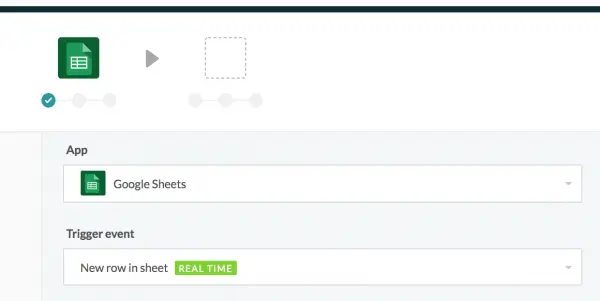
Once complete, click ‘Next’
- Now you will be asked to select a ‘connection’ to your Google Sheets. A connection is simply you supplying information to access your Google Sheets account. If you’ve done so before you can select from an existing connection. Otherwise you will need to create a new one. If you need help setting up one of these connections, check out our article about creating a connection here. Once complete, your connection should appear as shown in the pic below:
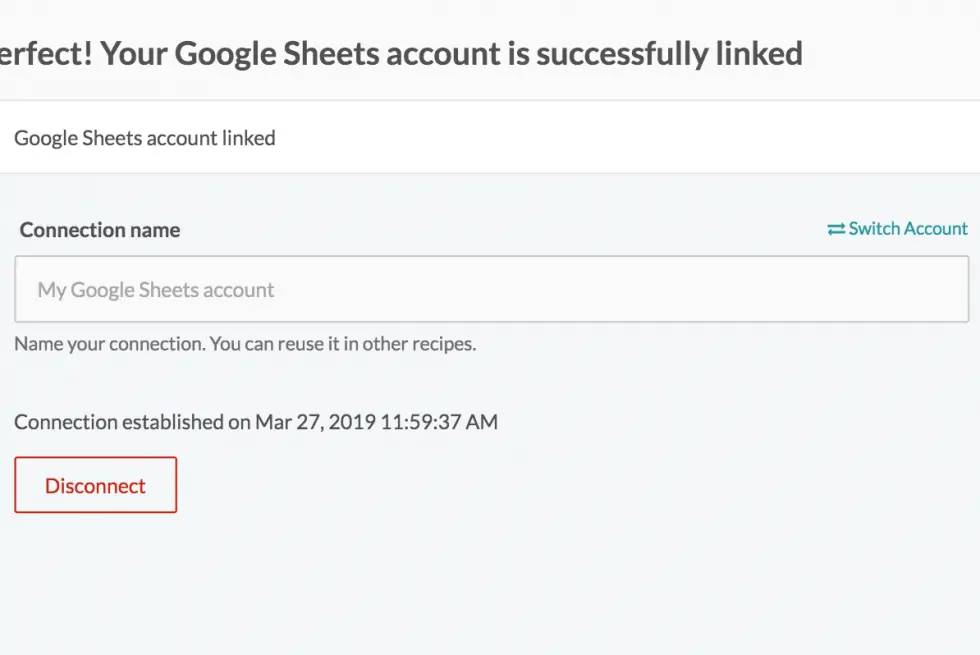
- Once you select your ‘Connection’ you’ll be prompted to select a spreadsheet from your Google Sheets account as well as the sheet/tab in your spreadsheet you wish to use.
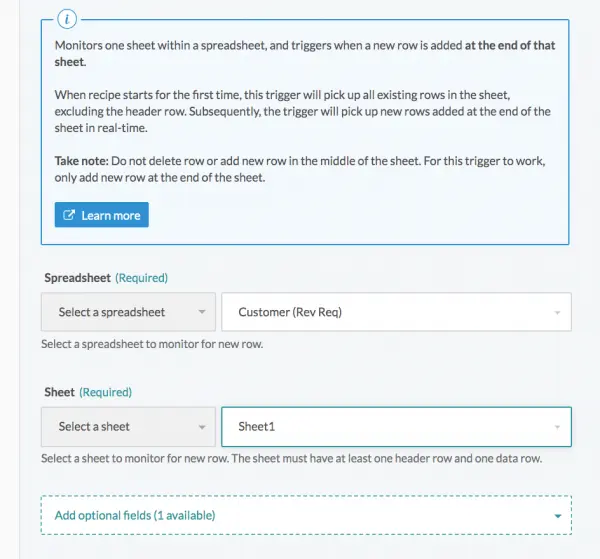
Click ‘Next’
- Now, you’ll tell Workato what app you want your action to take place in and what kind of action you want to perform. In our case, our action is creating a new record in our Quickbase application as shown below:
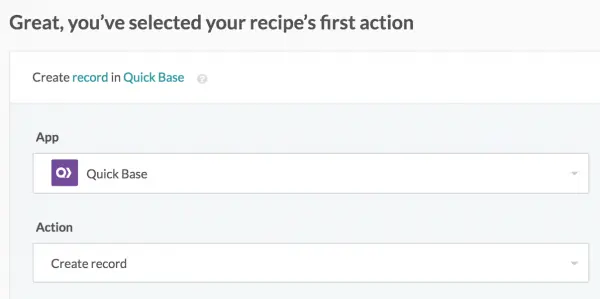
Then click ‘Next’
- Now you will be asked to create a connection for your Quickbase app. Select from your existing accounts. If you have not already created a Quickbase connection do so now. Remember to use the article here to learn how to create a connection.
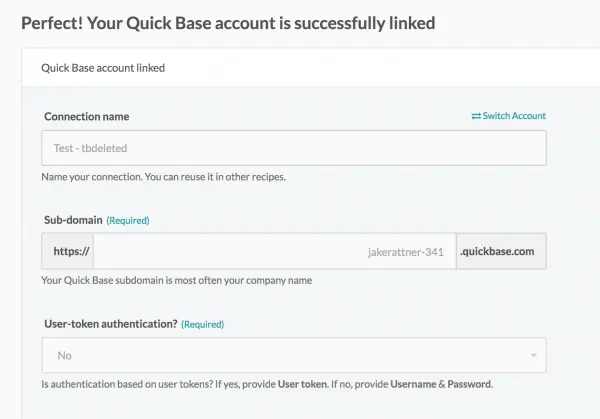
With your connection selected, click next
- Now we’re ready to configure our action. Select your application from the list of applications you have access to. Add an ‘Application Token’ if required. Then, specify the table within your application where you would like to add records.
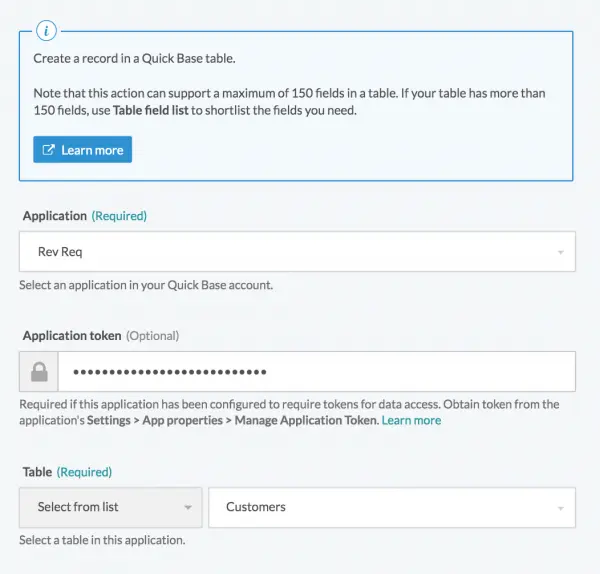
Click ‘Finish’
- Once you have selected your table from the previous step, fields will appear, allowing you to map fields from Google Sheets to Quickbase. Select the fields you’d like to use from the ‘Table field list’:
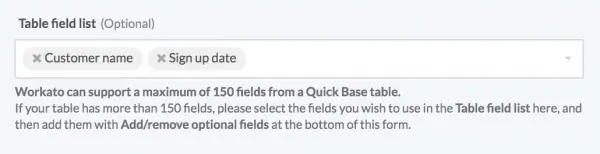
The fields you’ve chosen will appear below the ‘Table field list’. In each Quickbase field choose the Google Sheets field/column whose value you’d like to have entered:
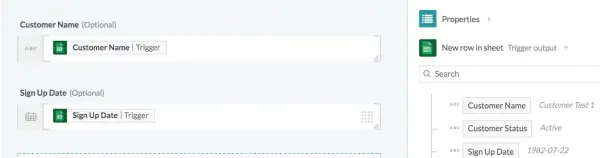
Click ‘Finish’
- If there are no errors in your recipe, you should see the following screen:
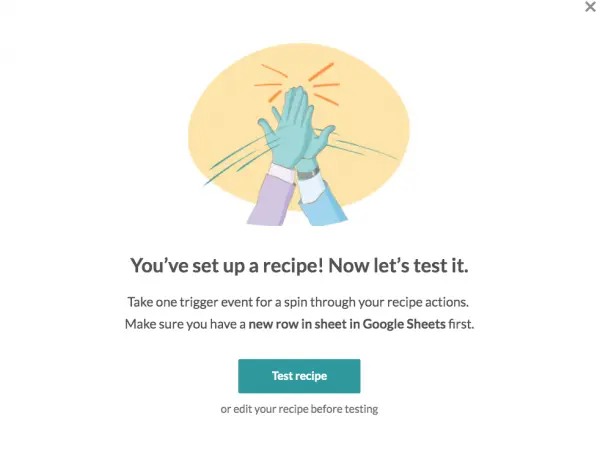
- Click the green ‘ Test Recipe’ button in the above pic. This looks for new rows in Google Sheets and, if one is found, will create a new record in Quickbase. If there are no items in your Google Sheet, no jobs will be processed. If no jobs exist, simply go to your Google Sheet and add one to perform the test.
Congratulations! You’ve now successfully built a recipe in Workato. For more articles and how-tos on Workato click here
- Author: Jake Rattner
- Email: jrattner@quandarycg.com
- Date Submitted: 3/31/2019


Resources


© 2026 Quandary Consulting Group. All Rights Reserved.
Privacy Policy