
Knowledge Base
Articles In This Section
How Workato Actually Works: A Simple BreakdownWorkato Workflow Apps: A Complete OverviewHow to Build Your First Recipe in Workato Getting Started with Data Orchestration in WorkatoUnderstanding Webhooks in WorkatoWorkato FAQs: The Ultimate List of Common Workato FAQsHow to Sync your SurveyMonkey Data within Quickbase using WorkatoWhat is WorkatoUnderstanding Workato Custom Connectors How to use Workato's Logging SystemHow to use GitHub Secret Scanning for your Workato Developer API10 Key Benefits of WorkatoHow to Use Workato to Send an Email through Outlook What is Workato ONEHow to Connect Workato to RingCentralHow to Set Up HTTP Requests in Workato: Built-in and Custom What is an MCP Server and Why It Matters for your AI Foundation How to Build a Workato Center of ExcellenceHow to use Data Tables in Workato: Step-by-Step GuideHow to Use Conditional Actions in Your Workato Recipe How to Set Up a Call Ended Trigger in Workato for RingCentralWhat is Workato ONEHow to Set Up HTTP Requests in Workato (Built-in and Custom)How to use Data Tables in Workato: Step-by-Step GuideHow to Manage API Clients and Client Roles in WorkatoHow to Process File Attachments in WorkatoSections
Quickbase Knowledge Center
Getting Started in QuickbaseQuickbase Fields & Formulas Quickbase Reporting & DashboardsQuickbase Notifications & Subscriptions Quickbase Roles & PermissionsQuickbase TablesQuickbase FormsQuickbase PipelinesGetting Started in QuickbaseQuickbase APIQuickbase Maintenance & Monitoring
WorkatoQuickbase Customizations Quickbase NewsPipefy NewsWorkato NewsAI Knowledge CenterPipefy Knowledge CenterHow to Create a New App Connection in Workato
October 12, 2019

At its core, Workato is a tool for connecting applications. In this article we’ll show you how to create and manage these connections. There are many different applications that you may wish to create a connection for in your Workato account. Some examples include:
- Microsoft Outlook to create or store emails based on a trigger
- SurveyMonkey to capture survey information
- Quickbase to push data from or pull data into your database
In this article we’ll focus on the steps needed to create a connection with Quickbase. Follow these steps for setting up your Quickbase connection in Workato:
PLEASE NOTE: Each connection setup will be different and is based upon the configuration and credential requirements
How to set up a Quickbase Connection in Workato
- On the black ribbon on the top of the page select ‘App Connections’.
- In the ‘App Connections’ page you can view your existing connections and some basic information about each connection such as ‘Status’ and ‘Time connected’.
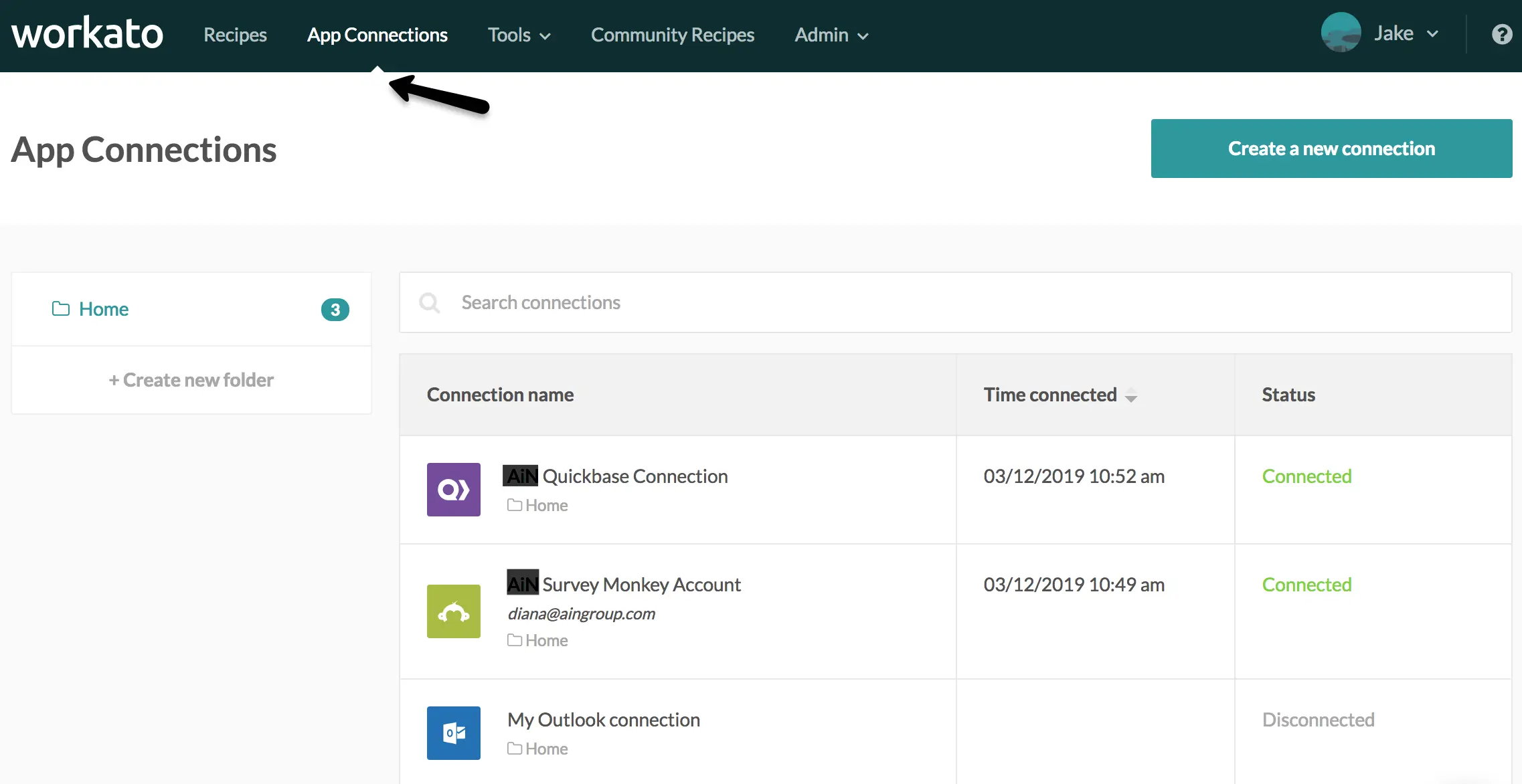
- To create a new connection, click the green button titled ‘Create a new connection’
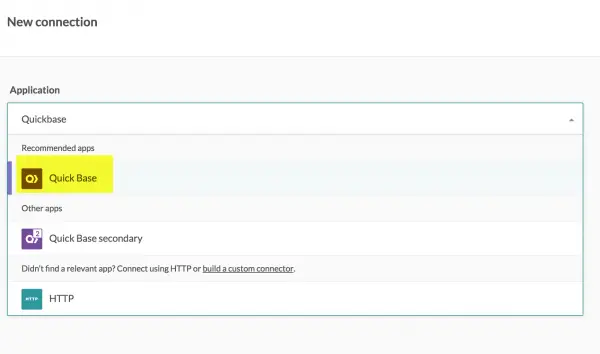
- In the next screen, click the dropdown field labeled ‘Application’.
- A list of applications will display with a suggestion of relevant apps at the top of the list.
- Type in the name of your application and select the app from the list. In this case we’ve typed in “Quickbase”:
- Once selected the page will update with configuration options.
- Give your connection a useful name you can easily remember
- Provide the Quickbase sub-domain.
- This will be the URL shown when you are on the homepage of your Quickbase application.
- It should look something like this: https://yourdomain
- In the next field select the answer ‘yes’ if your application requires an application token.
- If you answered ‘yes’ a new field will appear. Enter your app token in the new field. For more information about app tokens click here.
- If you answered ‘No’, fill in the username and password.
- Next click the green button labeled ‘Link Your Account’:
- If any issues are encountered, the app connection will not be established and an error message will appear to the left of the ‘Link Your Account’ button:

- Once the app is successfully connected a green message will appear to the right of the button and the button label will change to ‘Disconnect’:
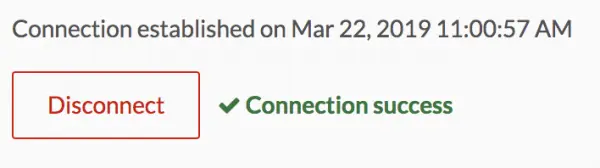
- Clicking this button will now disconnect the app
- Now that you’ve completed your app connection, return to the ‘App Connections’ tab where you can view all of your connections, including the one you have just added.
Please Note: For more articles on getting started with Workato and Quickbase, visit our Knowledge Base
- Author: Jeff Richey
- Email: jrichey@qundarycg.com
- Date Submitted: 3/25/2019


Services
Industries



© 2026 Quandary Consulting Group 2026. All Rights Reserved.
Privacy Policy