
Knowledge Base
Articles In This Section
How Workato Actually Works: A Simple BreakdownWorkato Workflow Apps: A Complete OverviewHow to Build Your First Recipe in Workato Getting Started with Data Orchestration in WorkatoUnderstanding Webhooks in WorkatoWorkato FAQs: The Ultimate List of Common Workato FAQsHow to Sync your SurveyMonkey Data within Quickbase using WorkatoWhat is WorkatoUnderstanding Workato Custom Connectors How to use Workato's Logging SystemHow to use GitHub Secret Scanning for your Workato Developer API10 Key Benefits of WorkatoHow to Use Workato to Send an Email through Outlook What is Workato ONEHow to Connect Workato to RingCentralHow to Set Up HTTP Requests in Workato: Built-in and Custom What is an MCP Server and Why It Matters for your AI Foundation How to Build a Workato Center of ExcellenceHow to use Data Tables in Workato: Step-by-Step GuideHow to Use Conditional Actions in Your Workato Recipe How to Set Up a Call Ended Trigger in Workato for RingCentralHow to Create a New App Connection in WorkatoGetting Started with Data Orchestration in WorkatoWhat is Workato ONEHow to Set Up HTTP Requests in Workato (Built-in and Custom)How to Manage API Clients and Client Roles in WorkatoSections
How to Process File Attachments in Workato
Almost every modern business application stores files.
Whether you're managing engineering drawings, customer contracts, project documentation, invoices, or marketing assets, teams constantly upload, download, revise, and share files across multiple systems. The challenge isn't storing documents—it's ensuring everyone has access to the most current version without requiring manual effort.
Fortunately, Workato makes document automation simple.
Using Workato recipes, you can automatically download files from one application, process them, and upload or distribute them to virtually any connected platform. This eliminates repetitive manual work while ensuring documents are always delivered to the right people at the right time.
How Workato Processes Files
Workato acts as the automation layer between your business applications.
Rather than storing documents itself, Workato retrieves the file from the source application, temporarily processes the file contents during the recipe execution, and then uploads, emails, or transfers the file to its destination.
The typical workflow looks like this:
- A file is uploaded or updated in your source application.
- Workato detects the event.
- Workato downloads the file contents.
- The recipe processes the document.
- The file is uploaded, emailed, archived, or transferred to another system.
Because everything happens automatically, users never have to manually download and redistribute documents.
Common Workato File Automation Use Cases
Organizations use Workato to automate thousands of document workflows every day. Some of the most common include:
- Automatically transfer a signed Scope of Work into a newly created Jira project when an opportunity is marked as, "Won".
- Archive historical project documents from Quickbase into Dropbox or Box for long-term storage.
- Instead of downloading the file manually and attaching it to an email, Workato performs the entire process automatically.
- Email newly uploaded Quickbase documents as Microsoft Outlook attachments to project stakeholders.
- Copy attachments received in a shared Outlook mailbox to a secure FTP or SFTP server.
- Automatically store customer contracts in Microsoft SharePoint, Google Drive, Dropbox, or Box.
- Route invoices to accounting systems after they are uploaded.
- Synchronize compliance documentation across multiple business applications.
- Trigger downstream workflows whenever a new file is received.
These automations eliminate manual document handling while improving collaboration and auditability.
How to Process File Attachments in Workato
Example: Automatically Email a Quickbase Document Using Outlook
Let's walk through one of the most common scenarios.
Business Requirement
- Whenever a new project document is uploaded to Quickbase, automatically email that document as an attachment to everyone involved in the project.
- Instead of downloading the file manually and attaching it to an email, Workato performs the entire process automatically.
Step 1: Create Your Trigger
- Start by defining the event that should launch your recipe.
- In this example, the trigger occurs whenever a new document is uploaded to a Quickbase project.

Step 2: Download the File Contents
- Most applications store documents separately from the record itself.
- Before Workato can email or move the document, it must retrieve the actual file contents.
- With Quickbase, you'll use the appropriate Download File action to access the document.
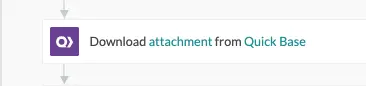
- If your files are stored in Box instead of Quickbase, the process is very similar.
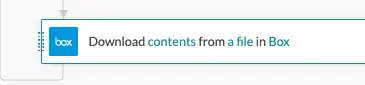
- Once this step completes, Workato now has access to the file contents, making the document available for additional actions.
Step 3: Send the Email Through Outlook
- Next, configure your Outlook Send Email action.
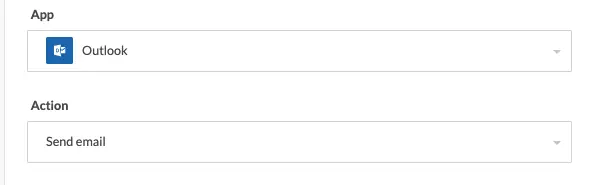
- Within the Outlook action, locate the Attachments section.
- Rather than uploading a local file, simply map the File Contents output from your previous download step.
- Workato automatically includes the document as an email attachment.
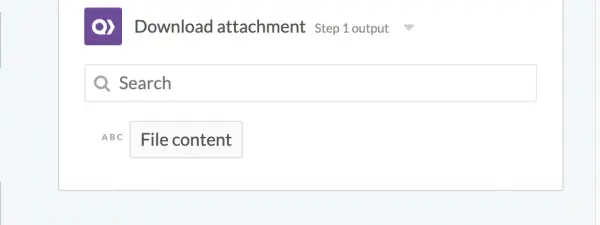
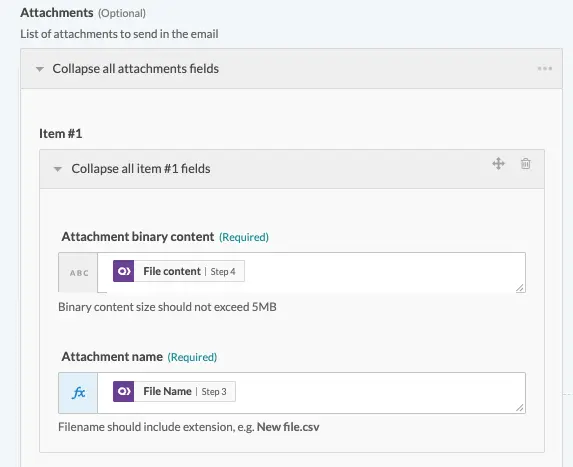
- Once the recipe runs, every stakeholder receives the latest version of the project document without anyone manually downloading or emailing files.
Benefits of Automating File Attachments with Workato
Automating document workflows provides significant operational improvements.
Here are a few key details:
- Save Time: Eliminate repetitive downloading, uploading, and emailing of documents.
- Reduce Human Error: Ensure the correct version of every document is delivered automatically.
- Improve Collaboration: Project teams always receive updated documentation as soon as it's available.
- Strengthen Compliance: Automatically archive files, maintain audit trails, and centralize document storage.
- Increase Productivity: Employees spend less time managing files and more time on higher-value work.
- Build End-to-End Workflows: Document automation becomes just one step within larger business processes such as approvals, notifications, project creation, CRM updates, and compliance reporting.
Best Practices for Workato File Automation
For reliable document workflows, consider these recommendations:
- Store master copies in a centralized document repository.
- Use meaningful file names and consistent versioning.
- Add error handling for missing or corrupt files.
- Log every file transfer for auditing purposes.
- Validate attachment size limits before sending emails.
- Secure sensitive documents using encrypted storage and secure connectors.
- Notify users when file transfers fail.
- Archive previous document versions instead of deleting them.
Workato Supported File Integrations
Workato supports file processing across hundreds of applications, including:
- Quickbase
- Microsoft Outlook
- Box
- Dropbox
- Google Drive
- SharePoint
- OneDrive
- Amazon S3
- FTP/SFTP
- Jira
- Salesforce
- ServiceNow
Because Workato connects to thousands of applications, the same document automation pattern can be reused across nearly any business system.
Our Final Thoughts
Document management is one of the most common—and most time-consuming—business processes organizations face. Manually downloading files, attaching them to emails, moving them between systems, and notifying stakeholders can quickly become repetitive and error-prone.
With Workato, you can automate the entire lifecycle of your documents—from upload to delivery—creating faster, more reliable, and more secure workflows. Whether you're sending Quickbase attachments through Outlook, archiving files to Dropbox, transferring documents to Box, or syncing files across enterprise systems, Workato helps eliminate manual effort while keeping your teams aligned.
As your automation strategy matures, these file-processing workflows can become part of larger end-to-end business processes that improve efficiency, strengthen governance, and enhance collaboration across your organization.
- Author: Logan Lott
- Title: Solution Consultant
- Email: llott@quandarycg.com
- Date Published: June 26, 2026
Top FAQs about Workato File Attachment Automation
1. Can Workato transfer file attachments between applications?
Yes. Workato can automatically download file attachments from one application and upload or transfer them to another. For example, you can move files from Quickbase to Box, Dropbox, SharePoint, Google Drive, Amazon S3, or other supported platforms without manual intervention.
2. How do I send an email attachment using Workato?
To send an email attachment in Workato, first download the file contents from your source application using a file download action. Then, map the downloaded file into the Attachments section of an Outlook or Gmail email action. Workato automatically sends the document as an email attachment during the recipe execution.
3. Does Workato store files permanently?
No. Workato is an automation platform rather than a file storage system. It temporarily accesses file contents while a recipe is running and then transfers the file to its intended destination, such as Box, Dropbox, SharePoint, or another connected application.
4. Which applications can Workato transfer files between?
Workato supports file transfers across hundreds of applications, including Quickbase, Salesforce, Microsoft Outlook, Gmail, Box, Dropbox, Google Drive, SharePoint, OneDrive, Amazon S3, Jira, ServiceNow, FTP/SFTP servers, and many other enterprise systems.
5. Can Workato automatically archive documents?
Yes. Workato can automatically archive documents when specific events occur, such as a project closing, an opportunity being marked as won, or a contract being signed. Recipes can move files into long-term storage platforms like Dropbox, Box, SharePoint, or Amazon S3 while maintaining an audit trail.
6. Can Workato automate document approvals and notifications?
Yes. Workato can trigger document approval workflows by notifying stakeholders when files are uploaded or updated. It can send emails, Microsoft Teams messages, Slack notifications, or create approval tasks in project management systems to streamline document reviews.
7. Is Workato secure for transferring sensitive documents?
Yes. Workato provides enterprise-grade security features, including encrypted data transmission, secure authentication, role-based access controls, audit logging, and compliance certifications. Organizations handling sensitive or regulated data should also follow their internal security and governance policies when designing automation workflows.
8. Can Workato process multiple file attachments?
Yes. Workato can process multiple attachments within a single recipe. Depending on the connector and workflow, recipes can iterate through collections of files, transfer them to another application, archive them, or send them together in an email.
9. What are the benefits of automating file transfers with Workato?
Automating file transfers reduces manual work, eliminates repetitive downloading and uploading, improves document version control, speeds collaboration, minimizes human error, and ensures files are consistently delivered to the correct people and systems.
10. What are common use cases for Workato file automation?
Organizations use Workato to automate a wide variety of document workflows, including:
- Sending Quickbase documents as Outlook email attachments
- Archiving project files to Box or Dropbox
- Uploading contracts to SharePoint after approval
- Transferring customer documents to Salesforce
- Moving invoices into ERP systems
- Saving email attachments to secure FTP servers
- Synchronizing compliance documentation across enterprise applications
- Automatically organizing files based on workflow events
These automations help organizations improve productivity, strengthen compliance, and reduce manual document management across departments.


Industries
Resources


© 2026 Quandary Consulting Group. All Rights Reserved.
Privacy Policy