
Knowledge Base
Articles In This Section
How Workato Actually Works: A Simple BreakdownWorkato Workflow Apps: A Complete OverviewHow to Build Your First Recipe in Workato Getting Started with Data Orchestration in WorkatoUnderstanding Webhooks in WorkatoWorkato FAQs: The Ultimate List of Common Workato FAQsHow to Sync your SurveyMonkey Data within Quickbase using WorkatoWhat is WorkatoUnderstanding Workato Custom Connectors How to use GitHub Secret Scanning for your Workato Developer API10 Key Benefits of WorkatoHow to Use Workato to Send an Email through Outlook What is Workato ONEHow to Connect Workato to RingCentralHow to Set Up HTTP Requests in Workato: Built-in and Custom What is an MCP Server and Why It Matters for your AI Foundation How to Build a Workato Center of ExcellenceHow to use Data Tables in Workato: Step-by-Step GuideHow to Use Conditional Actions in Your Workato Recipe How to Set Up a Call Ended Trigger in Workato for RingCentralHow to Create a New App Connection in WorkatoGetting Started with Data Orchestration in WorkatoWhat is Workato ONEHow to Set Up HTTP Requests in Workato (Built-in and Custom)How to Manage API Clients and Client Roles in WorkatoHow to Process File Attachments in WorkatoSections
How to use Workato's Logging System
Workato Logger is a built-in connector and is a pre-built feature within the Workato platform that is used for auditing, testing, and troubleshooting automation recipes.
This feature allows users to insert specific log messages at various steps within a recipe's workflow to monitor data flow and execution in real-time.
What are the Key Benefits of Using Workato's Logger Feature:
Think of Workato Logger as your recipe “black box"; core key benefits of using Workato logging service:
Custom Message Logging
You can insert "data pills" (variables) into a logger step to record specific values at any point in a recipe's workflow.
Troubleshooting and Debugging
By adding a Logger step, you can log the data pills (specific data points) at any stage of a recipe.
This helps pinpoint exactly where an issue, error, or unexpected value occurs during the workflow, which is especially useful for complex processes or batch operations.
Centralized Logging Service
Log entries from the "Logger by Workato" connector can be sent to the centralized Workato Logging Service, providing a single location to store and search for events across multiple recipes in a workspace.
Being able to have a centralized view allows you to analyze the different dependencies that are affecting records by analyzing the lifecycle of a record as it gets processed over time in multiple recipes and jobs.
Visibility into Batch Processes and Loops
A standard job report only shows the final execution of a step within a loop. Workato's Logging Service, however, provides visibility into every iteration of looped steps, making it much easier to debug complex batch operations.
Log Levels Priority
Assign priority levels—INFO, WARN, or ERROR—to your messages to easily filter them later.
How to use Workato Logging Service
There are two parts to using Workato Logging service:
- Creating the log: Send logs from different recipes and jobs to the centralized logging service
- Viewing the log: View all your logs in a centralized view
PART 1: How to Create the Log in Workato
- Creating the log involves sending logs from different recipes and jobs to the centralized logging service, and adding relevant log-level tags for different types of log entries e.g. errors vs job details.
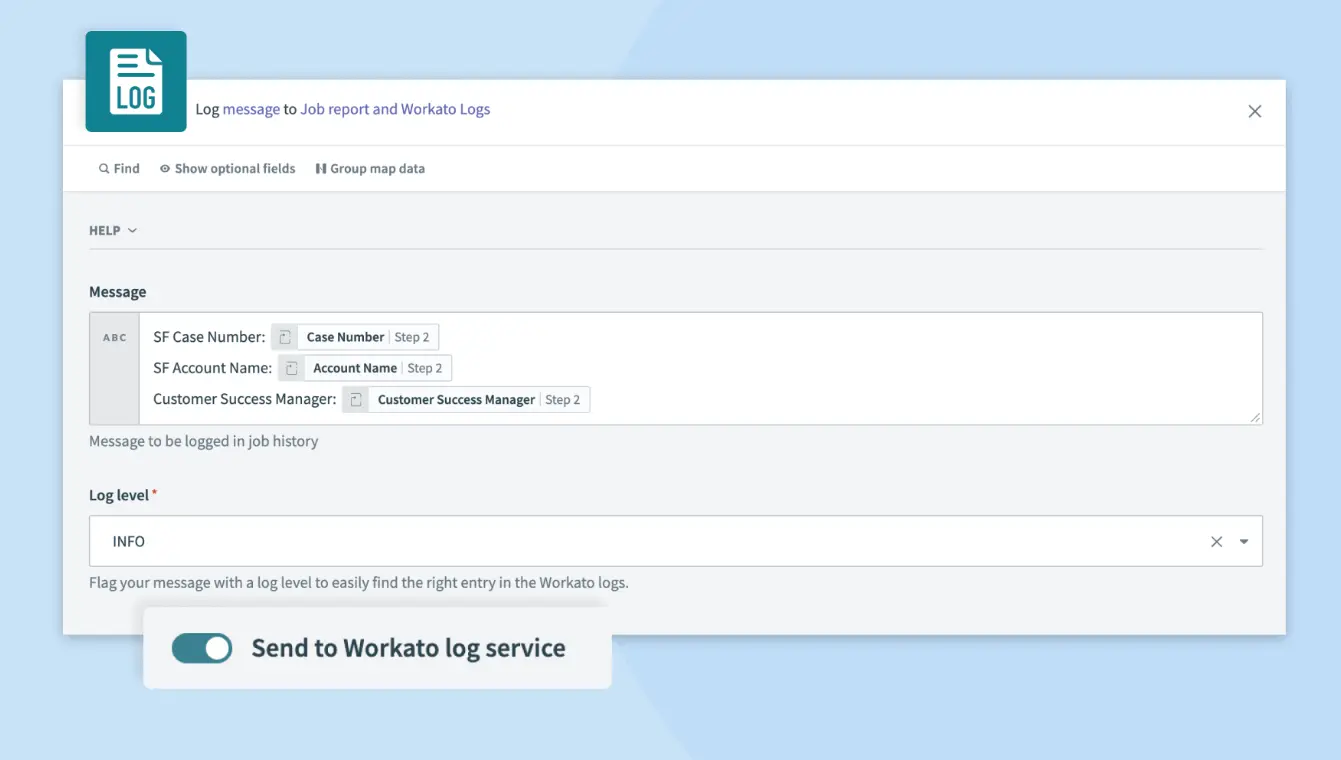
- To do so, turn on the
Send to Workato log servicetoggle in your recipe editor and flag your message with a log level to easily find the right entry in the logs page.
PART 2: How to View the Log in Workato
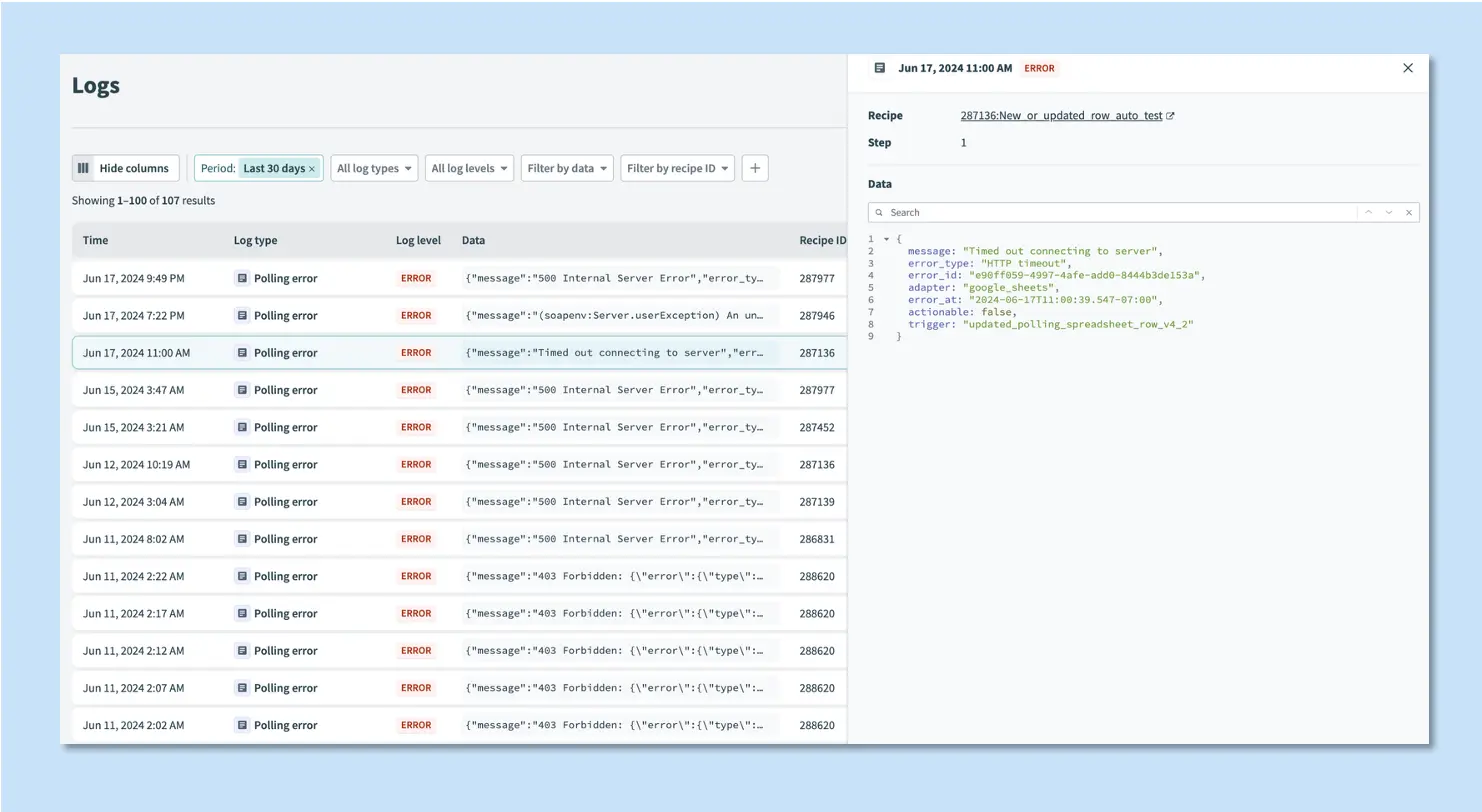
After sending the logs to a centralize platform, you should be able to view them in a centralized view through our logs page.
In this view, you can filter entries by log level, recipe ID, job ID, and step number.
You can also text search across your log data. This allows you to search, audit, and troubleshoot different parts of your recipe.
How to Find the Workato Logs Page in Workato
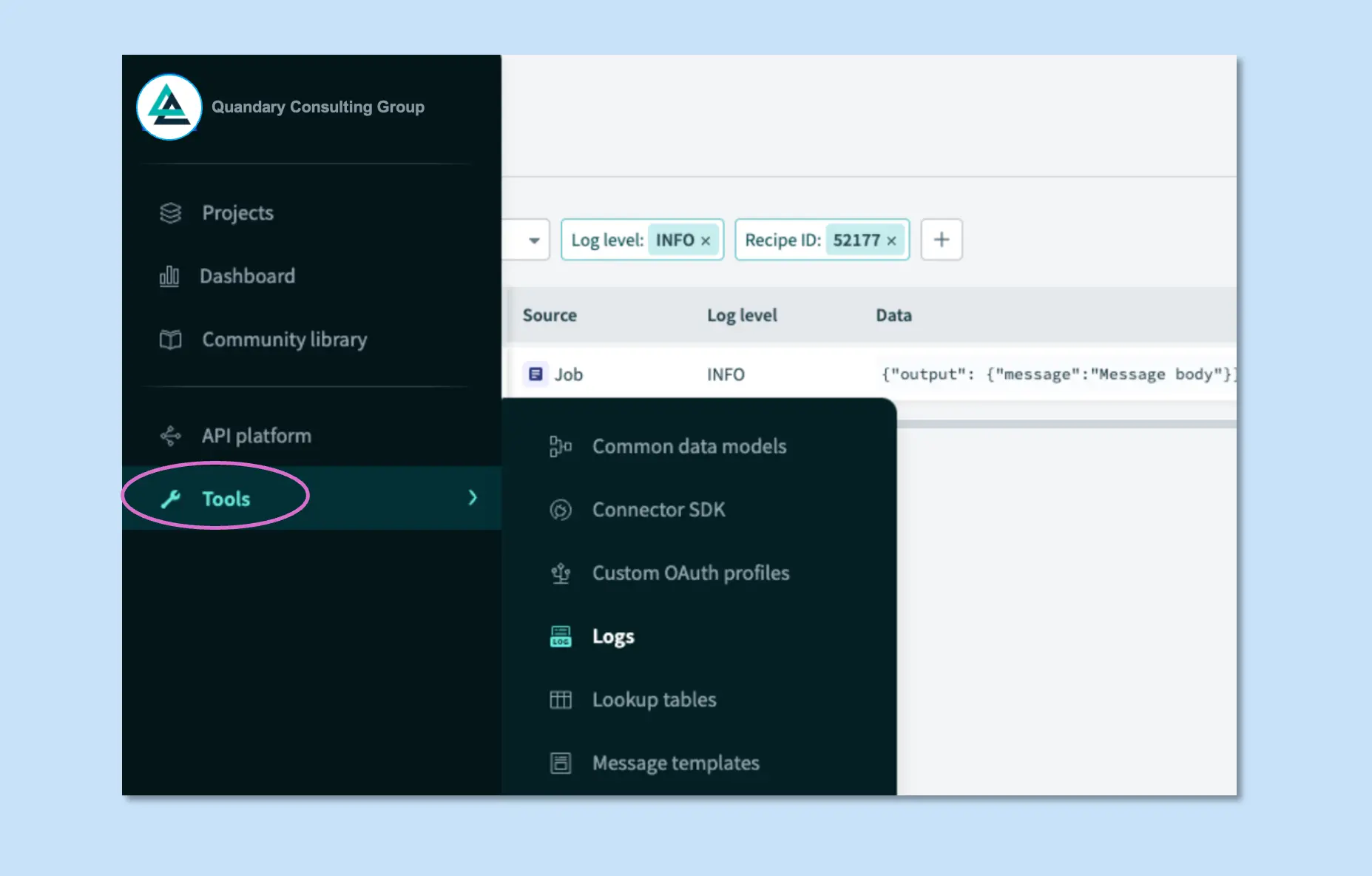
The Workato Logs Page, specifically for the Workato Logging Service, is found by navigating to Tools > Logs in the main menu.
This central repository allows users to view, search, and filter log data from recipes; below are important key details regarding the accessing Workato Logging page:
- Location: Tools > Logs in the Workato application.
- User Role Requirements: Requires Environment admin or Admin roles, or specific Logs privileges.
- Activity Audit: To view platform audit activity, go to Operations hub > Activity audit.
- On-Premise Agents: Logs for on-prem agents are located in %SYSTEMROOT%\System32\LogFiles\Workato.
- Functionality: Enables filtering by job ID, recipe ID, and timeframe, with data retained for a specific period.
Where does Workato Have Data Centers
Each Workato data center is independent, so please ensure you select the correct regional log link (US, EU, JP, SG, AU, IL, or sandbox) if prompted so use the following links to open Workato Logging service for your region:
US Data Center(opens new window)
EU Data Center(opens new window)
JP Data Center(opens new window)
SG Data Center(opens new window)
AU Data Center(opens new window)
IL Data Center(opens new window)
Developer sandbox(opens new window)
How to Audit and Troubleshoot Batch Processes Faster with Workato Logging
As mentioned above, Workato logging service makes it easier to troubleshoot and debug steps which are nested within a loop by providing visibility into each iteration of repeated steps in a batch process.
Additional Resources about Workato's Built-In Logging System
Workato has also created a great video that gives a step-by-step tutorial on how to use Workato logging service to access data from each record in a batch.
- To view the 3 min video, visit: Workato's YouTube tutorial page.
Workato has done an excellent job with breaking down the entire Logging Service process.
- Click here to read the full documentation on Workato logging service to learn more about the feature.
Alternatively, you can dive in-depth into this great Workato feature by watching Workato's Product Hour: Advanced operations with Workato Logging Service.
FAQs about Workato's Built-In Logging System
1. What is the Workato logging service and why is it important?
The Workato logging service is a built-in feature that captures and stores log data from automation recipes, allowing teams to monitor workflows, debug issues, and audit system behavior. It provides centralized visibility into recipe execution, helping identify errors, track data flow, and improve automation reliability.
2. What should you log in a Workato recipe?
You should log key data points that help diagnose issues and track execution, such as:
- Input and output data (data pills)
- Error messages and failure points
- API responses and status codes
- Key decision logic steps
Logging should focus on meaningful, contextual data rather than everything, as excessive logging can create noise and reduce performance.
3. How do you troubleshoot Workato recipes using logs?
To troubleshoot Workato recipes using logs:
- Use the Logs page to search by recipe ID, job ID, or error level
- Review log entries to trace data flow and identify failures
- Add logger steps at critical points to capture intermediate values
- Use error-level logs to quickly isolate issues
Logging provides visibility into each step of execution, especially in loops or complex workflows, making it easier to pinpoint where errors occur.
4. What are best practices for Workato logging?
Best practices for Workato logging include:
- Use structured and consistent log messages
- Log only relevant data to avoid noise and performance issues
- Avoid logging sensitive information (e.g., PII, credentials)
- Use log levels (INFO, WARN, ERROR) strategically
- Centralize logs for easier monitoring and analysis
Following these practices ensures logs are actionable, secure, and scalable for enterprise automation environments.
- Author: John Orsak
- Title: Senior Solution Delivery Manager | Workato
- Email: jorsak@quandarycg.com
- Date updated: 02/04/2026



© 2026 Quandary Consulting Group. All Rights Reserved.
Privacy Policy