
Knowledge Base
Articles In This Section
How Workato Actually Works: A Simple BreakdownWorkato Workflow Apps: A Complete OverviewHow to Build Your First Recipe in Workato Getting Started with Data Orchestration in WorkatoUnderstanding Webhooks in WorkatoWorkato FAQs: The Ultimate List of Common Workato FAQsHow to Sync your SurveyMonkey Data within Quickbase using WorkatoWhat is WorkatoUnderstanding Workato Custom Connectors How to use Workato's Logging SystemHow to use GitHub Secret Scanning for your Workato Developer API10 Key Benefits of WorkatoHow to Use Workato to Send an Email through Outlook What is Workato ONEHow to Set Up HTTP Requests in Workato: Built-in and Custom What is an MCP Server and Why It Matters for your AI Foundation How to Build a Workato Center of ExcellenceHow to use Data Tables in Workato: Step-by-Step GuideHow to Use Conditional Actions in Your Workato Recipe How to Set Up a Call Ended Trigger in Workato for RingCentralHow to Create a New App Connection in WorkatoGetting Started with Data Orchestration in WorkatoWhat is Workato ONEHow to Set Up HTTP Requests in Workato (Built-in and Custom)How to Manage API Clients and Client Roles in WorkatoHow to Process File Attachments in WorkatoSections
How to Connect Workato to RingCentral
RingCentral is a cloud-based communications platform (often called UCaaS—Unified Communications as a Service). RingCentral combines things like:
- Business phone system (VoIP calling)
- SMS/text messaging
- Video meetings (like Zoom/Teams)
- Team messaging/chat
- Contact center tools (for support/sales teams)
Think of it as your company’s central hub for communication with customers and internally—without needing traditional phone hardware.
Why connect RingCentral with Workato?
Workato is an automation/integration platform. Connecting it to RingCentral lets you automate workflows around calls, messages, and customer interactions. Here’s where it becomes useful:
Automate follow-ups from calls
- Sales rep finishes a call in RingCentral
→ Workato automatically logs it in Salesforce
→ Creates a follow-up task
→ Sends a Slack notification
Trigger workflows from SMS or missed calls
- Customer texts a support number
→ Workato creates a Zendesk ticket
→ Assigns it to the right team
→ Sends an acknowledgment message back
Sync communication data across systems
- Call logs + recordings
→ Automatically stored in CRM or database
→ Linked to the right customer record
This gives better visibility for sales, support, and analytics.
Improve reporting and analytics
- Pull call/SMS data from RingCentral
→ Combine with CRM + marketing data
→ Build dashboards (call volume, response time, conversion)
Real-time alerts and escalation
- Missed call from VIP customer
→ Workato sends alert in Slack/Microsoft Teams
→ Escalates to account manager
→ Triggers callback workflow
How to Connect Workato to RingCentral
Complete the following steps to connect to RingCentral:
Step 1: Sign in to your Workato account.
Step 2: Click Create, then click Connection.
Step 3: Select RingCentral on the New connection page.
Step 4: Enter a name for your connection in the Connection name field.
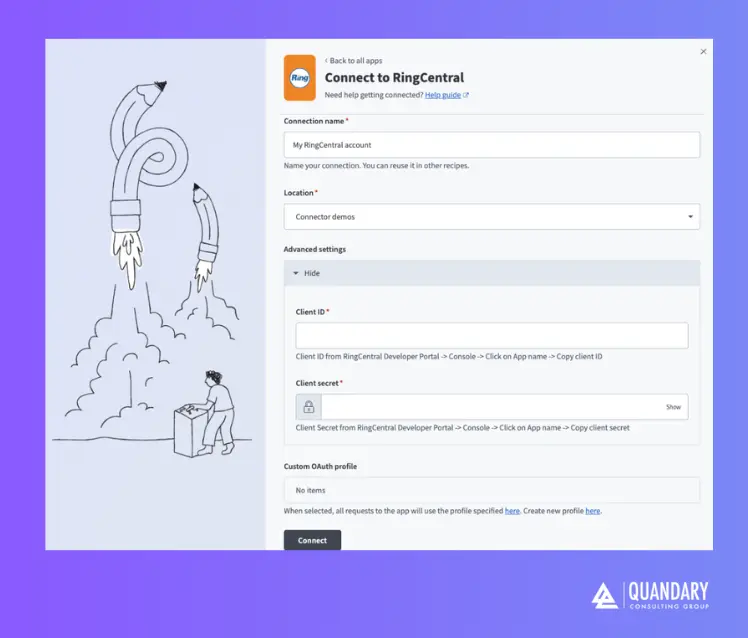
Step 5: Use the Location drop-down menu to specify the project or folder where you plan to store your connection.
Step 6: Expand Advanced settings and enter the Client ID and Client secret associated with your RingCentral app.
- Refer to the Generate a client ID and secret section to learn how to obtain these values.
- Please note: This is an optional step; however, it is strongly recommended that it is completed at this step-up to prevent any connectivity errors in the future.
Step 7: Use the Custom OAuth profile drop-down menu to select a profile to use for this connection.
- Create a new profile
- Please note: This is an optional step; however, it is strongly recommended that it is completed at this step-up to prevent any connectivity errors in the future.
Step 8: Click Connect.
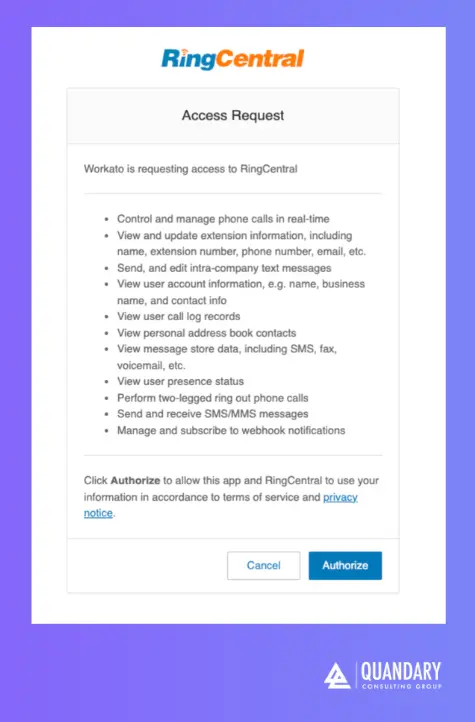
Step 9: Sign in to your RingCentral account in the dialog that appears.
Step 10: Click Authorize to grant Workato or your RingCentral OAuth app access to your account with the following permissions:
- Control and manage phone calls in real-time
- View and update extension information, including name, extension number, phone number, email, etc.
- Send, and edit intra-company text messages
- View user account information, e.g. name, business name, and contact info
- View user call log records
- View personal address book contacts
- View message store data, including SMS, fax, voicemail, etc.
- View user presence status
- Perform two-legged ring out phone calls
- Send and receive SMS/MMS messages
- Manage and subscribe to webhook notifications
How to Generate a Client ID and Secret
Complete the following steps to create a new RingCentral app, which generates a client ID and secret:
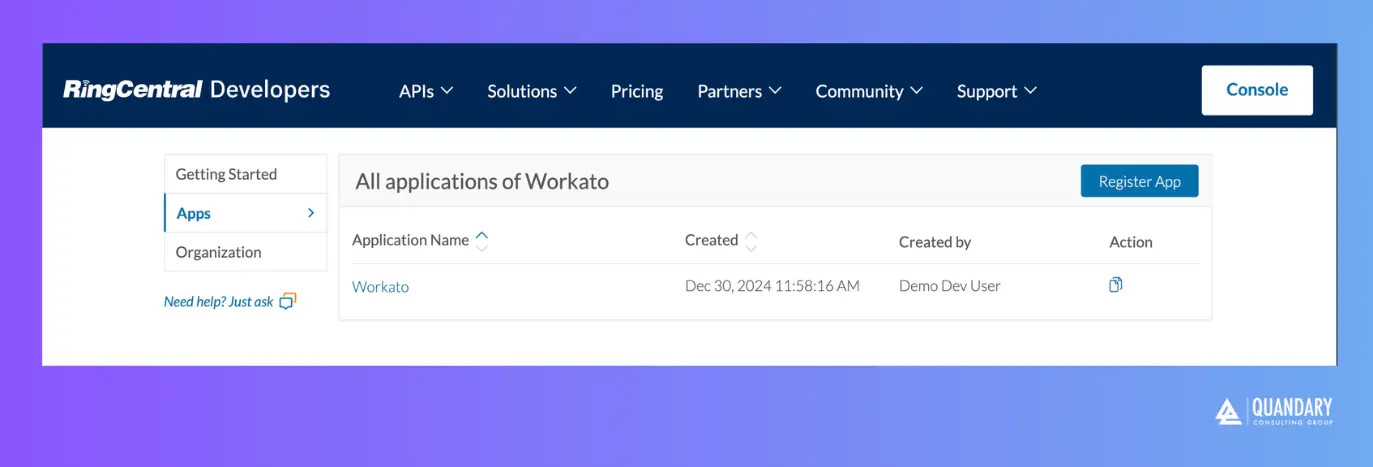
Step 1: Sign in to the RingCentral Developer Portal
Step 2: Click Register App to register a new application
Step 3: Select REST API App as the App Type.
Step 4: Click Next.
Step 5: Enter a name for your app in the App Name field.
- For example,
Workato.
Step 6: Enter a description for your app in the App Description field.
- The description must contain a minimum of 20 characters.
Step 7: Select No in the, "Do you intend to promote this app in the RingCentral App Gallery?" empty field box
Step 8: Select Server-side web app (most common) in the, "From what type of app will you be calling the API?" empty field box
Step 9: Enter the Workato callback URI that corresponds to your data center in the OAuth Redirect URI field:
- US Data Center:
https://www.workato.com/oauth/callback - EU Data Center:
https://app.eu.workato.com/oauth/callback - JP Data Center:
https://app.jp.workato.com/oauth/callback - SG Data Center:
https://app.sg.workato.com/oauth/callback - AU Data Center:
https://app.au.workato.com/oauth/callback - IL Data Center:
https://app.il.workato.com/oauth/callback - CN Data Center:
https://app.workatoapp.cn/oauth/callback
https://app.trial.workato.com/oauth/callback URI is no longer supported.Step 10: Specify whether to enable refresh tokens in the, "Issue refresh tokens?" empty field box.
- When enabled, RingCentral can issue refresh tokens to extend session duration without requiring reauthentication.
Step 11: Select the necessary OAuth 2.0 scopes for your application. The connection requires the following scopes:
- Call Control
- Edit Extensions
- Internal Messages
- Read Accounts
- Read Call Log
- Read Contacts
- Read Messages
- Read Presence
- Ring Out
- SMS
- Webhook Subscriptions
Step 12: Choose one of the following options in the Who will be authorized to access your app? empty field box:
- This app is public and will be callable via any RingCentral customer.
- This app is private and will only be callable using credentials from the same RingCentral account.
FAQs - Connecting RingCentral to Workato
1. What is RingCentral and how does it work with Workato?
RingCentral is a cloud-based business communications platform that supports calls, SMS, video meetings, and team messaging.
When integrated with Workato, it can trigger automated workflows based on communication events—such as logging calls in a CRM, creating support tickets from SMS messages, or sending real-time alerts to internal teams.
2. What are the benefits of integrating RingCentral with Workato?
Integrating RingCentral with Workato helps automate repetitive tasks, improve response times, and centralize communication data.
Businesses can automatically sync call logs, trigger workflows from messages, and connect RingCentral with tools like Salesforce, Quickbase, HubSpot, Zendesk, and Slack for better efficiency and customer experience.
3. How can I automate workflows using RingCentral and Workato?
You can automate workflows by using RingCentral events—such as incoming calls, missed calls, or SMS messages—as triggers in Workato.
- For example, a missed call can automatically create a follow-up task in your CRM, or a customer text message can generate a support ticket and send an instant reply.
4. Which business tools can RingCentral integrate with through Workato?
Through Workato, RingCentral can integrate with a wide range of business applications, including CRM systems like Salesforce and HubSpot, customer support platforms like Zendesk, collaboration tools like Slack and Microsoft Teams, and marketing or analytics platforms.
This allows seamless data flow across your tech stack.
5. Is RingCentral integration with Workato suitable for small and large businesses?
Yes, the RingCentral and Workato integration is scalable for both small businesses and large enterprises.
Small teams benefit from automation and reduced manual work, while larger organizations can build complex workflows, improve cross-team collaboration, and gain deeper insights from communication data.
- Author: John Orsak
- Email: jorsak@quandarycg.com
- Date updated: 03/09/2026




© 2026 Quandary Consulting Group. All Rights Reserved.
Privacy Policy