
Knowledge Base
Articles In This Section
What Are Quickbase Dashboards How to Set Up Personalized Dashboards in QuickbaseHow to Create a Dashboard in QuickbaseHow to add a Webpage Widget (embedded iFrame) to your Quickbase DashboardHow and When to Use Calculated Columns for Quickbase Reports How to Create a Summary Report in QuickbaseHow to Utilize the Dashboard Side Bar in QuickbaseHow to Build an Operations Dashboard in Quickbase How to Color-Coding Rows for Quickbase Reports Using Automations to Log Approval Time and User in QuickbaseHow to Create External Stakeholder Forms, Reports, and Dashboards in QuickbaseHow to Update the Default Table and Report Columns in QuickbaseHow to Organize & Assign Groups to Quickbase ReportsHow to Link Dashboards Together in QuickbaseHow to Create Reports and Charts in QuickbaseHow to use Rich Text to Make your Quickbase Dashboard Dynamic Using Report Formulas as a Filter in a Report in QuickbaseHow to Create a Kanban Report in QuickbaseHow to Organize and Assign Groups to Quickbase ReportsUnderstanding and Setting Up Subscription Emails in Quickbase How to Create an Audit or Change Logs with Automations How to Create a Pie Chart in QuickbaseHow to Build Standard Reports in QuickbaseHow to Add a Report to your Quickbase DashboardSections
How to Use Report Formulas as a Filter in a Quickbase Report
A Report Formula (formerly called a calculated column) can be added to any Quickbase report to dynamically analyze and display data. While similar to a formula field, a report formula exists only within the report where it’s created—making it a flexible, report-specific tool.
If you’re new to Report Formulas in Quickbase, they allow you to:
- Calculate totals (e.g., costs or revenue)
- Display images or formatted values
- Return boolean results based on conditions
- Perform dynamic calculations without modifying your table structure
But there’s a powerful feature many users overlook: You can use Report Formulas as filters in Quickbase reports.
Why Use Report Formulas in Quickbase Report Filters?
Using Report Formulas as filters allows you to create dynamic, logic-driven filtering conditions that go beyond standard field-based filters. This is especially useful when your filtering criteria depend on calculated values rather than stored data.
Common Use Cases for Report Formula Filters
- Filter by Month from a Date Field
Extract the month from a date (e.g., project start date) and filter reports by a specific month like February. - Segment Data into Categories
Group companies into categories such as High, Medium, or Low based on sales thresholds, then filter by those segments. - Identify Risk Conditions
Flag invoices at risk of non-payment using multiple variables, and filter reports to show only high-risk records.
Key Benefits of Using Report Formulas in Filters
- No need to create additional fields in your table
- Enables advanced, logic-based filtering
- Keeps reports flexible and easy to customize
- Improves reporting accuracy and usability
How to Use Report Formulas as a Filter in a Quickbase Report
Let’s look more closely at our first example: _Extract months from dates to allow users to filter by a particular month.
In this scenario we’ll use a formula to determine the month of each of our project start-dates. Then we will use the results of the formula to filter for Projects starting in the month of February.
Currently our report looks like this:
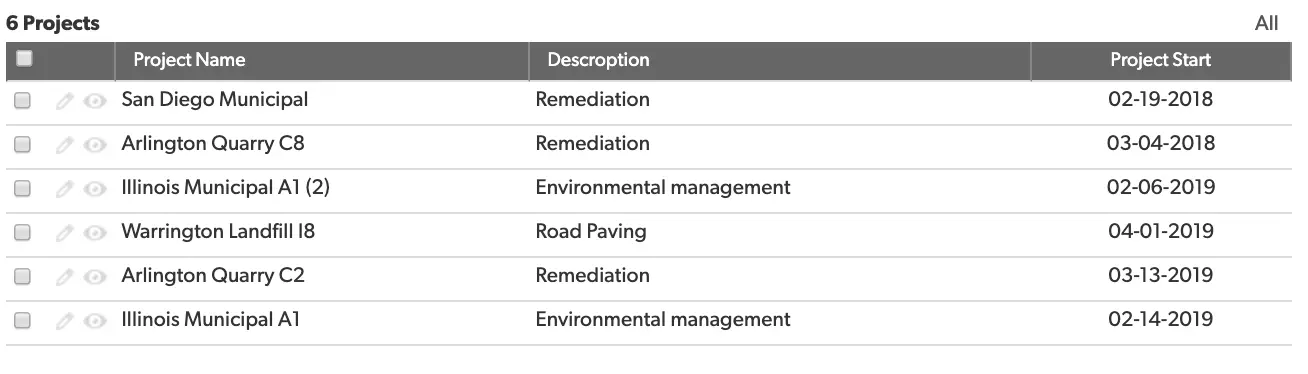
If we wanted to see all the projects starting in February 2019 we could easily set a filter within the report that looked like this:

However, if I expand this filter to look as far back as 2010, I’ll have to add similar filters for one for each year Creating a Report Formula and using it as a filter presents a better option.
Step 1: Click ‘Customize this report’
Step 2: Now we’ll scroll to the middle of our report settings ‘Report Formulas’
- Next, click ‘Add a report formula’
Step 3: In the resulting formula box enter the following formula:
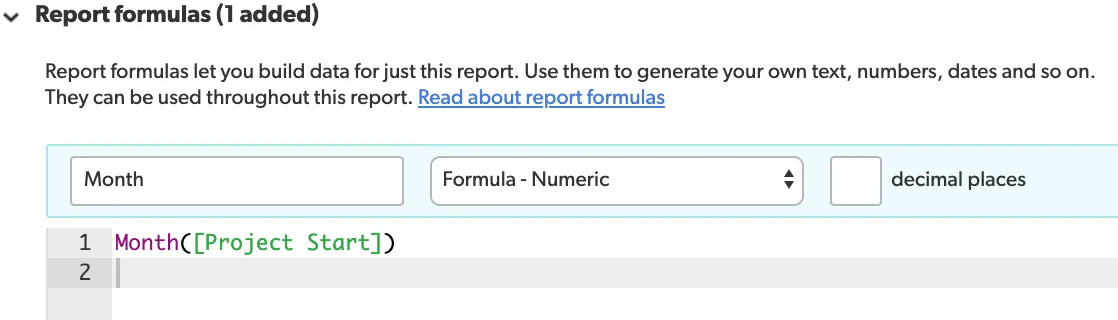
- Make sure to name your formula (in this case we’ve named it ‘Month’).
- Then set your formula type to ‘Formula – Numeric.
Step 4: Once you’ve finished constructing your formula, scroll down to the ‘Filters’ portion of your report settings.
- Select the formula you just created in the fields dropdown and set it equal to ‘2’.
- Your filter should look like this:
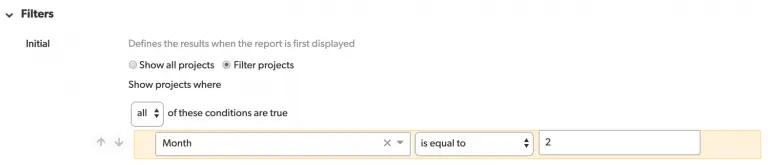
- Our report will now only show projects with a start date in February.
Step 5: Next, click ‘Save’
- Returning to your report, it should look something like this:

- Notice that with our one formula added as a filter, we were able to see all projects starting in February, regardless of year, with just one filter!
By leveraging Report Formulas as filters in Quickbase, you can unlock more powerful, dynamic reporting without changing your underlying database structure.
Frequently Asked Questions: Report Formulas as Filters in Quickbase
1. Can you use a Report Formula as a filter in Quickbase?
Yes, you can use a Report Formula as a filter in Quickbase reports.
Once a Report Formula is added as a column, it becomes available in the report’s filter criteria. This allows you to filter records based on calculated values instead of only stored field data, enabling more dynamic and flexible reporting.
2. What is a Report Formula in Quickbase?
A Report Formula in Quickbase is a calculated column that exists only within a specific report. It works like a formula field but does not modify your table structure. Instead, it performs calculations, logic checks, or formatting directly inside the report for analysis and filtering.
3. What is the difference between a formula field and a Report Formula in Quickbase?
The key difference is scope and storage:
- Formula Field: Stored at the table level and reusable across all reports and forms
- Report Formula: Exists only within a single report and is not stored in the database
Use Report Formulas when you need temporary or report-specific calculations without altering your schema.
4. Why should you use Report Formulas as filters?
Using Report Formulas as filters allows you to:
- Filter by calculated values (e.g., derived dates, categories, risk flags)
- Avoid creating unnecessary fields in your table
- Build more advanced, logic-driven reports
This improves both report flexibility and performance.
5. How do you filter by month using a Report Formula in Quickbase?
To filter by month:
- Create a Report Formula that extracts the month from a date field (e.g.,
Month([Start Date])) - Add the formula as a column in your report
- Apply a filter using that formula (e.g., equals “February” or month number 2)
This method lets you filter by time periods without modifying your original data.
6. Can Report Formulas use conditional logic for filtering?
Yes, Report Formulas support conditional logic (IF statements).
You can create formulas that return values like “High,” “Medium,” or “Low,” or TRUE/FALSE results, and then filter your report based on those outputs.
7. What are common use cases for Report Formula filters in Quickbase?
Common use cases include:
- Categorizing records based on thresholds (e.g., sales tiers)
- Identifying risk conditions (e.g., overdue invoices)
- Extracting date parts (month, year, quarter)
- Flagging records that meet complex criteria
These use cases help create smarter, more actionable reports.
8. Do Report Formula filters affect database data in Quickbase?
No, Report Formulas do not change your underlying data.
They are calculated in real time within the report and only affect how data is displayed and filtered.
9. Are Report Formulas reusable across multiple Quickbase reports?
No, Report Formulas are not reusable across reports.
They are tied to the specific report where they are created. If needed elsewhere, you must recreate the formula or use a table-level formula field instead.
10. When should you use a Report Formula instead of a formula field?
Use a Report Formula when:
- The calculation is only needed in one report
- You want to avoid adding fields to your table
- You need quick, flexible analysis
Use a formula field when the logic needs to be reused across multiple reports or forms.
11. Can you filter on TRUE/FALSE values from a Report Formula?
Yes, boolean (TRUE/FALSE) Report Formulas can be used as filters.
This is especially useful for flagging records that meet specific conditions, such as “Is Overdue” or “At Risk.”
12. Are there limitations to using Report Formulas as filters?
Yes, a few limitations include:
- They only exist within a single report
- They cannot be referenced outside the report
- Complex formulas may impact report performance
However, they are still highly effective for lightweight, dynamic filtering.
- Author: April Barragan
- Title: Solution Consultant | Quickbase
- Email: abarragan@quandarycg.com
- Date Updated: 04/04/2026


Industries
Resources




© 2026 Quandary Consulting Group. All Rights Reserved.
Privacy Policy