
Knowledge Base
Articles In This Section
How to Create User Groups in QuickbaseAdding a new User Role in QuickbaseHow to Share with Everyone on the Internet How to Use and Adjust Roles in Quickbase | BeginnerHow to Switch a Client to a New Quickbase Developer How to Display Information for Certain Roles in QuickbaseHow to Use Conditional Filters in Quickbase for Role-Based Record PermissionsHow to Add New Users to your Quickbase ApplicationHow to Modify or Deny a User's Access in QuickbaseSections
How to Archive Records in Quickbase Using Role Permissions
In Quickbase, users often create records they no longer need to see in daily workflows. The default reaction is to delete those records. However, deleting records permanently removes them from your app—there is no way to recover them later.
This creates significant risks:
- Accidental data loss
- Lack of audit history
- Compliance and reporting issues
A better approach is to archive records instead of deleting them. Archiving allows you to remove records from active use while preserving them for future reference.
What Is Record Archiving in Quickbase?
Record archiving in Quickbase is the process of marking records as inactive (rather than deleting them) using a field such as an “Archived” checkbox or status field. These records can then be hidden from reports, forms, and dashboards using filters and role permissions.
This method is commonly referred to as “soft deletion” and is a best practice for data management in Quickbase apps.
When Should You Use Role Permissions for Archiving?
Using role-based permissions in Quickbase allows you to control who can archive records and who can view archived data.
Common use cases include:
- Project management: Archive materials so they no longer contribute to project costs
- HR systems: Archive terminated employees so users cannot access outdated employee records
- Data retention policies: Archive records based on time (e.g., records older than 2 years)
How User Role Permissions Enable Secure Record Archiving
Role permissions in Quickbase allow you to:
- Grant specific users the ability to archive records
- Restrict a Quickbase user(s) from viewing archived data
- Prevent unauthorized edits or deletions
For example:
- Project managers can archive materials
- Standard users only see active (non-archived) records
- Admins can view all records, including archived ones
Key Benefits of Archiving Records in Quickbase
Archiving records instead of deleting them provides several advantages:
- Data recovery: Archived records can be restored if needed
- Audit compliance: Maintain a complete historical record
- Improved performance: Reduce clutter in reports and dashboards
- Better user experience: Users only see relevant, active data
Best Practice: Use Archiving as a Standard Data Management Strategy
Instead of deleting records, implement a consistent archiving strategy using:
- An “Archived” field (checkbox or status)
- Role-based permissions
- Filtered reports and dashboards
This ensures your Quickbase apps remain scalable, secure, and easy to manage.
Example Use Case: Archiving Project Materials to Control Costs
In this article, we focus on a common Quickbase scenario:
Archiving project-related materials so they no longer impact project costs or active reporting.
By archiving these records:
- They are excluded from cost calculations
- They no longer appear in active project views
- Historical data remains accessible if needed
How to Archive Records in Quickbase Using Role Permissions
Step 1: In the materials table
- Add a checkbox field and name it “Archive”
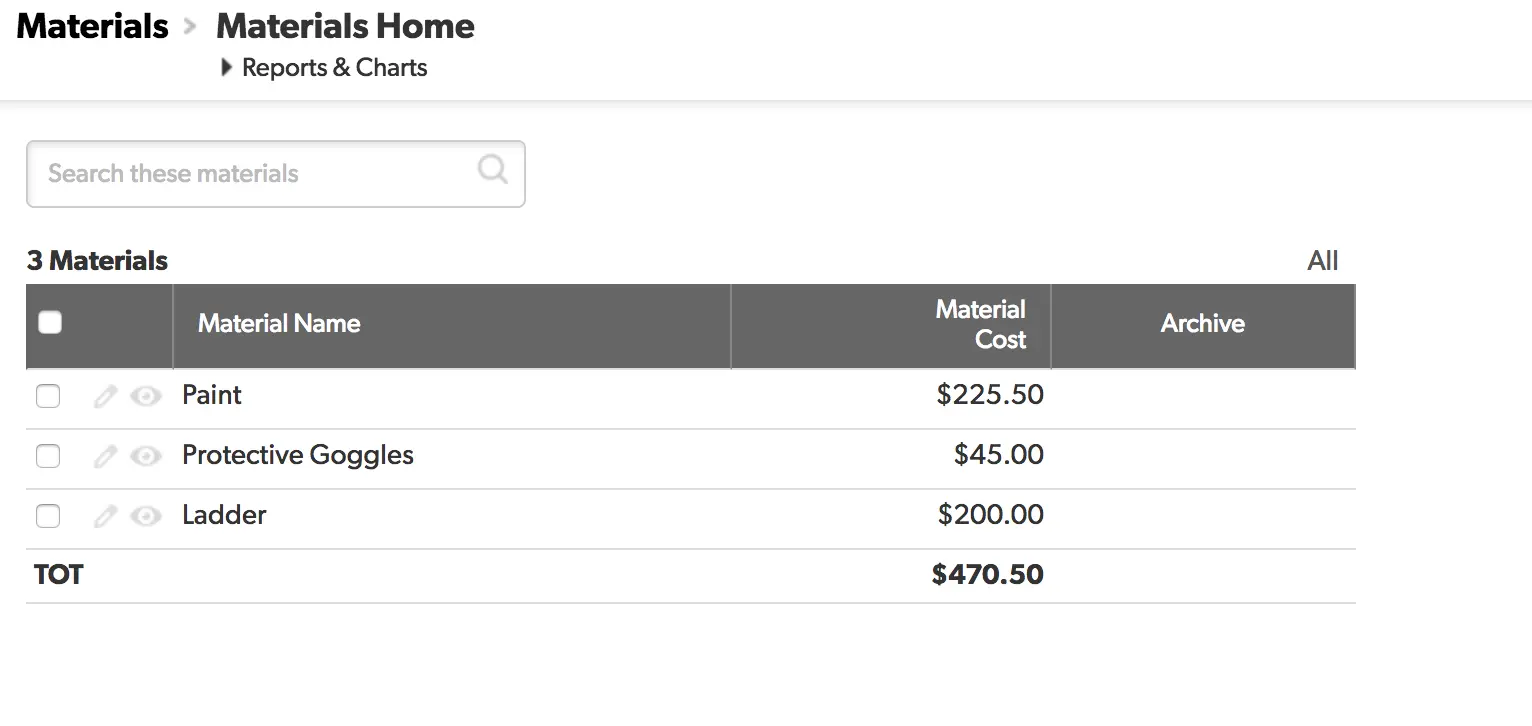
Step 2: Next, go to your materials table and observe the current total in your ‘List All” report
- An overly simplified example might look like this (see below image)
Step 3: Next, go to the table ‘settings’ and click “Access”.
- There you will see permission levels for each user role.
Step 4: For each role, create a custom rule.
- Set the rule so that ‘Archive is not equal to true’:
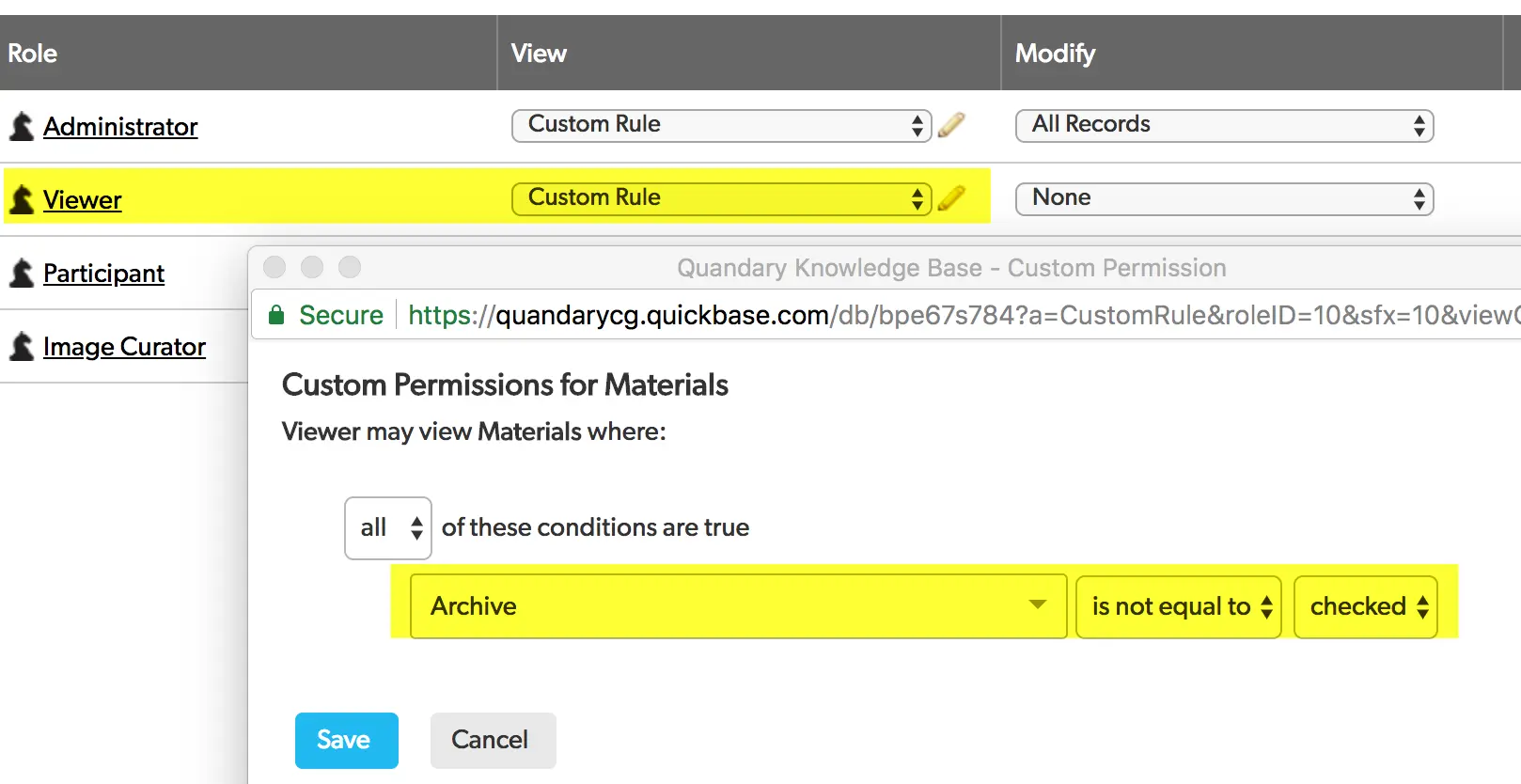
- If you’d like a role (ex. Administrator) to be able to view and/or unarchive you can omit the custom rule, or toggle it off when the use needs to unarchive a record.
Step 5: Return to the table and check your results.
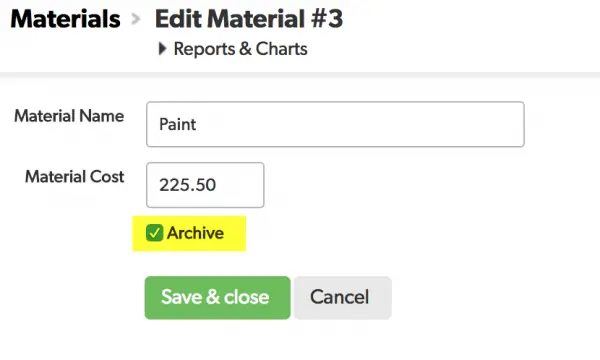
Step 6: Check the “Archive” field you created earlier on one of your table records.
- In our example we’ll archive our paint item.
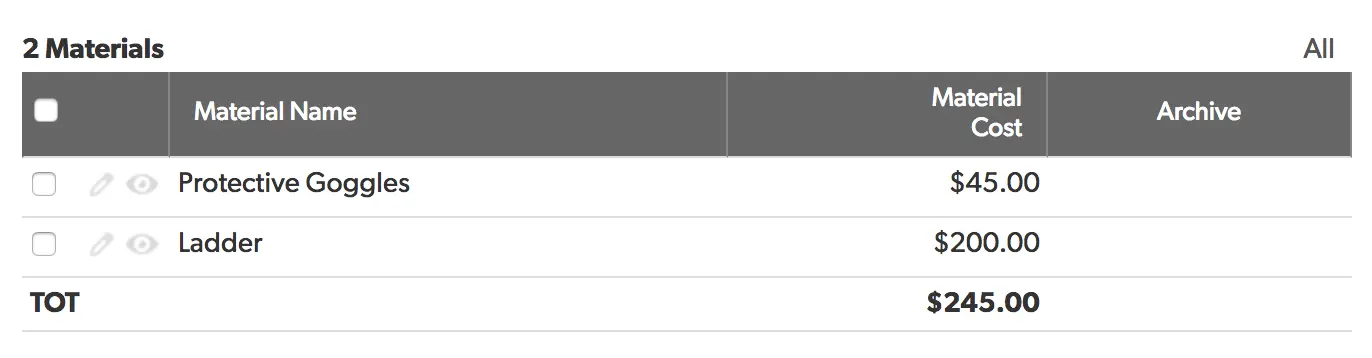
Step 7: Return to your table and note that the ‘Paint item’ is no longer present (see example below)
So why would we remove the item via permissions rather than just using a condition to filter “archive” items from our reports?
- First, we’d have to apply the same filter over and over whenever we create a new report.
- Second, and more importantly, records that a user doesn’t have permission to view are removed globally, meaning that items removed using this method will not be included in reports, lookup fields, formula fields or anywhere else within Quickbase.
In many ways this method is superior to deleting.
- If you delete a record it is gone forever.
- With archiving data in Quickbase, a mistaken archive can easily be corrected by having a role which has permission to view ‘Archived’ records uncheck the archive field on a record.
For more How-To guides on developing in Quickbase, please visit our Quickbase Knowledge Base.
Top FAQs: How to Archive Records in Quickbase Using Role Permissions
1. How do you archive records in Quickbase using role permissions (simple answer)?
To archive records in Quickbase using role permissions, create a dedicated “Archive” role with restricted access and update permissions on specific fields (like an “Archived” checkbox). Then, use a report, form rule, or automation to mark records as archived instead of deleting them.
Key steps:
- Add an “Archived” checkbox field
- Create a role with edit access only to that field
- Restrict visibility of archived records via permissions or filters
- Use pipelines or automations for bulk archiving
2. What is the best way to archive data in Quickbase without deleting it?
The best practice is to use a soft archive method by adding a field such as “Archived = Yes/No” and controlling access through roles and permissions. This preserves historical data while removing it from active workflows.
Why this works:
- Prevents data loss
- Maintains audit trails
- Improves app performance by filtering active records
3. Can Quickbase roles restrict access to archived records?
Yes, Quickbase roles can restrict access to archived records by using record-level permissions and conditional filters. You can configure roles so only admins or specific users can view archived records, while others only see active data.
Example:
- Role A: Can view all records
- Role B: Can only view records where Archived = No
4. How do you automatically archive records in Quickbase?
You can automate archiving in Quickbase using Quickbase Pipelines, form rules, or scheduled automations. These tools update the “Archived” field based on conditions like date, status, or inactivity.
Common triggers:
- Records older than X days
- Status = Completed
- No updates in 90 days
5. What permissions are needed to archive records in Quickbase?
Users need edit permissions on the archive-related field (e.g., “Archived” checkbox) but do not need full delete access. This allows safe archiving without risking permanent data removal.
Recommended setup:
- Remove delete permissions
- Grant limited edit rights
- Use role-based access control (RBAC)
6. How do you hide archived records from reports in Quickbase?
To hide archived records, apply a report filter where “Archived = No.” You can also set this as the default filter in table reports and dashboards.
Best practice:
- Create separate reports:
- Active Records
- Archived Records
7. Is archiving better than deleting records in Quickbase?
Yes, archiving is generally better than deleting because it:
- Preserves historical data
- Supports compliance and auditing
- Prevents accidental data loss
- Allows recovery if needed
Deleting should only be used for unnecessary or duplicate data.
8. How do you bulk archive records in Quickbase?
Bulk archiving can be done using:
- Grid edit (inline editing)
- Quickbase Pipelines
- API integrations
- Import/update via CSV
These methods allow you to update multiple records’ archive status at once.
9. Can you create an archive table in Quickbase instead of using a field?
Yes, you can create a separate archive table and move records using automation or pipelines. However, this approach is more complex and typically used for large datasets or performance optimization.
Pros:
- Cleaner active tables
- Improved performance
Cons:
- More maintenance
- Requires automation logic
10. How does archiving improve Quickbase performance?
Archiving improves performance by reducing the number of active records processed in reports, forms, and automations. Filtering out archived records speeds up queries and enhances user experience.
- Author: Alistair Marsden
- Title: Solution Consultant | Quickbase
- Email: amarsden@quandarycg.com
- Date Updated: 03/01/2026


Resources


© 2026 Quandary Consulting Group. All Rights Reserved.
Privacy Policy