
Knowledge Base
Articles In This Section
User Groups | BEGINNERAdding a new User Role in QuickbaseHow to Share with Everyone on the Internet How to Archive Records Using Role Permissions | INTERMEDIATEHow to Use and Adjust Roles in Quickbase | BeginnerHow to Switch a Client to a New Quickbase Developer How to Display Information for Certain Roles in QuickbaseConditional Filters for Record Permissions Using Roles | INTERMEDIATEDenying User Access | BEGINNERSections
How to Add New Users to your Quickbase Application
If you want someone to interact with an application you created in Quickbase, you need to add them as a user. Otherwise, no one can use the app.
- Quickbase Users can:
- Manage or build apps
- Add, edit, and delete records
- Interact with multiple functionalities to test
- Access applications in any account they have access to
The Quickbase administrator [of your application] will control whether a user can create an application in each account and what type of permissions a user will have based on their role.
There are two ways you can add users to your application.
Adding Users via the Users Page in the Admin Console
- First, you need to get to the Admin Console. You can do this in three ways:
- By clicking on the arrow next to your name on the top right, select “Manage billing account” from the dropdown.
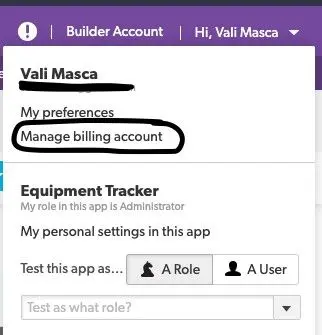
- From the My Apps page, click QuickBase Admin and then click “Manage my account” or “Manage the realm” if you are the realm administrator.

- In the Account Admin section on the My Apps page, you can click “Manage My Account.”
- When you are in the Admin Console, click on the Users Tab on the left-hand side.
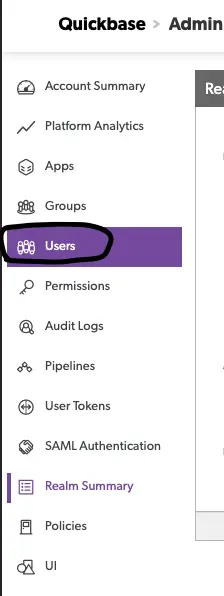
- Next, click the button “+ New User” to add a user.

- After you click the button, you will have an option to enter the email address of the user you want to add.
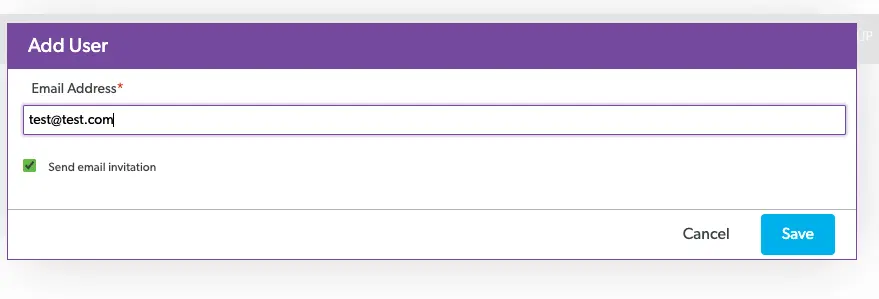
- Final step is to click Save.
How to Add a New User in Quickbase as a Quickbase Admins C
1. If you are the application administrator, you can access the User table at the application level.

2. Once you are there, click on the “+ Share app with new user” button.

3. The third step will be to enter the email address and set the role of the user.
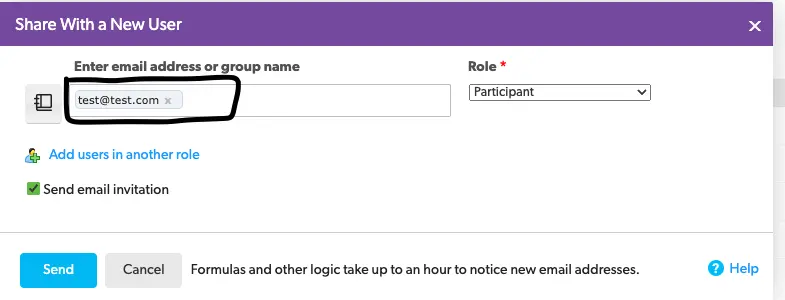
Note: you can add multiple users at the same time before you send the invitation.
4. The last step to add a user this way is to send the invitation by hitting the “Send” button.
Tips for Adding Users to Quickbase Applications
It is important to know what role the new user will play before you add them to your application. This will help determine what type of permissions and access you should give them.
It is also useful to regularly check the users at the Admin Console level to make sure that you remove users who no longer need to be in an app.


Resources


© 2026 Quandary Consulting Group. All Rights Reserved.
Privacy Policy