
Knowledge Base
Articles In This Section
Quickbase Tables vs Fields: Key Differences, Examples, and Best PracticesHow to Use Application Variables (Global Params) in Quickbase How to Create and Add a File Download Button in Quickbase How to Set Up Conditional Drop-downs in Quickbase How to Add Material Lists to a Project Record in QuickbaseUsing Report Formulas as a Filter in a Report in QuickbaseSections
How to use a Formula-URL Field in Quickbase
A Formula-URL field in Quickbase is a calculated field that creates dynamic, clickable links to automate navigation, trigger actions, or connect records and external systems.
Formula-URL fields are a great way to create custom links, helping users navigate to forms and pages within and outside of Quickbase.
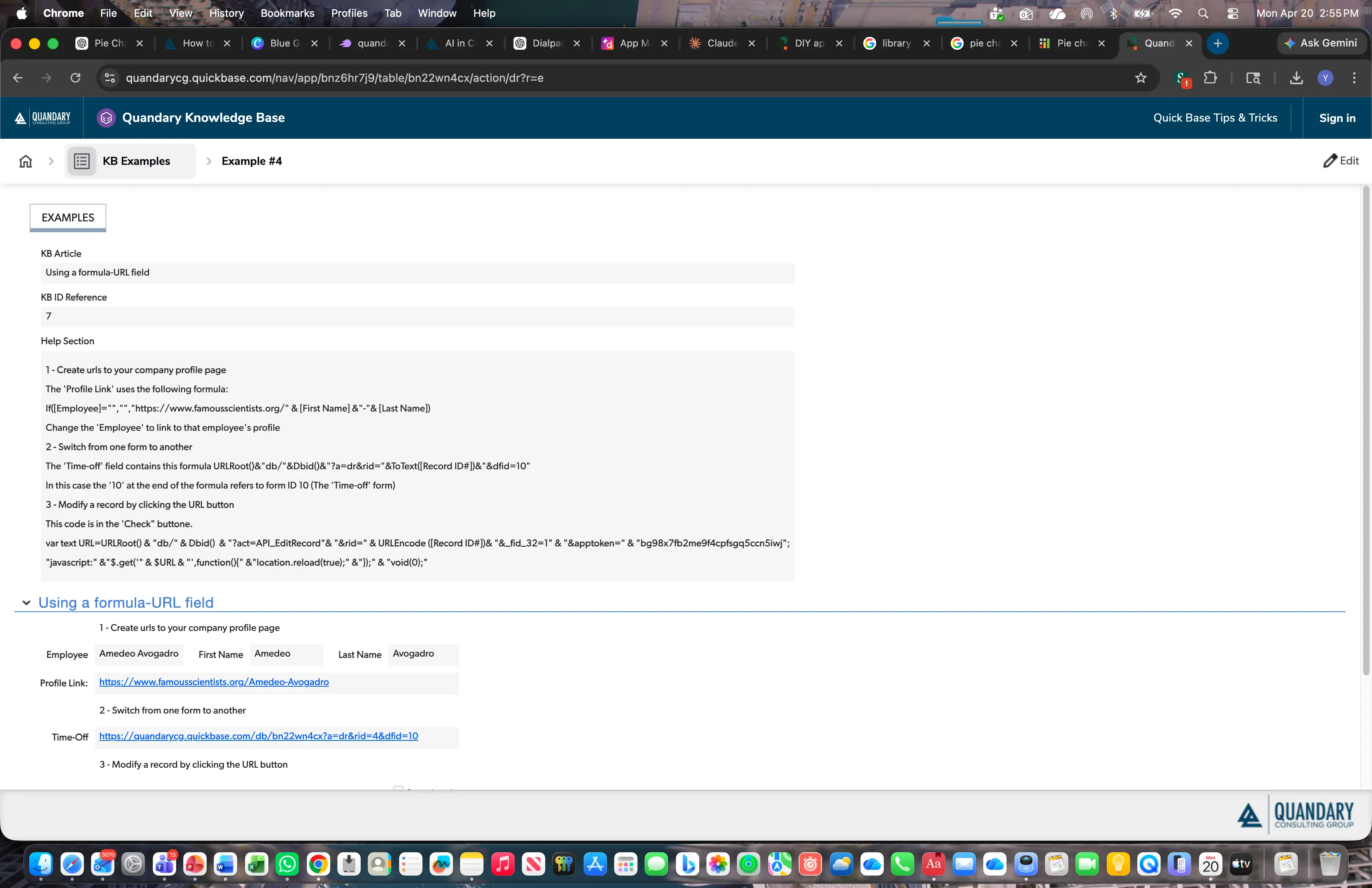
- Create URLs to your company profile page
- Switch from one form to another
- Update a record
How to Create URLs in Quickbase
Say your company stores a biography of each employee on its public website. The link to each profile follows a similar file path. For example, [www.]mycompany.com/profiles/tina_bradley'.
In this case, ‘tina_bradly” at the end of the URL will direct the user to Tina Bradley’s profile
Using an employee’s [FirstName] and [LastName] from their employee record you can construct a URL-Formula creating a link on each employee’s profile using the following formula:
[www.]mycompany.com/profiles/' & [FirstName] &”_”& [LastName]
The first part of the formula is hardcoded with "www[.]mycompany.com/profiles/". Then we use the ‘&’ symbol to append the root URL with the employee’s [FirstName].
After that, we add an underscore with ‘&”_”’. Last we add the last name to the URL string with ‘& [LastName]’
How to Switch One URL Form Another in Quickbase
In this case, suppose you have a table where your company stores time cards. You’d want to show different fields depending on whether the timecard is for regular hours or time-off.
In this case, you can create one form for ‘regular’ time cards and a different form for ‘time-off’ time cards.
Once you’ve created your two forms you can create your formula-URL field in Quickbase:
- Create a Formula-URL field
- Name the field ‘Time-off’
- In the formula area paste this formula: URLRoot()&”db/”&Dbid()&”?a=dr&rid=”&ToText([Record ID#])&”&dfid=YOUR_FORM_ID”
- Once you have your two forms created, open the time card table ‘settings’ and locate the form ID# of your ‘time-off’ form
- Update your formula in step 3 by replacing the last section (YOUR_FORM_ID) with the form ID# you just located. Your formula should now look something like this:
URLRoot()&"db/"&Dbid()&"?a=dr&rid="&ToText([Record ID#])&"&dfid=10"
- Now go to your ‘regular’ time card form and place the formula-URL field you’ve just created on the bottom of the form.
- Now, let’s look at what our Quickbase formula is doing in each component part:
- urlroot(): your Quickbase root URL (https://[companyname].quickbase.com)
- “db/”: in every QBase URL
- dbid(): table ID where you’re adding this field
- “?a=dr: Action = Display Record
- rid=”: tells Quickbase to look for the Record ID
- [record ID#]: brings in the record ID field
- “&dfid=5”:tells the formula to use the form with formID 5
How to Modify a Quickbase Record by Clicking the URL Button
One great feature of Quickbase formula-URL fields (and Rich Text fields) is the ability to create buttons, which can incorporate API capabilities (including things like modifying or adding records).
Let’s say your company has a number of projects. When a project is complete, you’d like the project manager to open the record and click a button to mark the project complete.
In this example, we’ll create a checkbox field called ‘Project Complete’. When checked, the project will be considered complete. Then we’ll create another field to store our button. When the button is clicked it will check the ‘Project Complete’ field.
- Create a checkbox field and name it ‘Completed’
- Create a new formula-URL field. Name it: ‘Mark Project Complete’
- Add the following text to your formula:
URL=URLRoot() & "db/" & Dbid() & "?act=API_EditRecord"& "&rid=" & URLEncode ([Record ID#])&
"&_fid_Your Field ID=1" & "&apptoken=" & "Your app token";
- Now replace ‘Your Field ID’ with the ID of your ‘Completed’ checkbox field and ”Your app token” with the application token from your Quickbase App
So, why create a button to check the ‘Project Complete’ checkbox field? Why not just have the user click the checkbox?
First, by creating a workflow of a button, you can make actions (such as completing a project) more explicit to users.
Second, this is just a basic example that can be used as a building block for more sophisticated buttons. For example, your Quickbase formula might stipulate that the button be shown on a record only if certain conditions are met. For instance, the button might only appear on a project if that project has already been awarded.
If you want to take it to the next step you can start doing such things as inserting JavaScript into your field to redirects, add pop-ups, and a whole variety of cool tricks.
Live Demo in Quickbase
To see a live demo that is interactive in a working Quickbase application
- Visit here to demo examples in this article.
FAQs: How to Use a Formula-URL Field in Quickbase
1. What is a Formula-URL field in Quickbase?
A Formula-URL field in Quickbase is a calculated field that generates clickable links using a formula. It allows users to create dynamic URLs that can link to other records, reports, external websites, or trigger actions inside Quickbase.
2. How do I create a Formula-URL field in Quickbase?
Go to Settings → Fields → New Field → Formula-URL. Then enter a formula that builds your link (using text strings and field values). Save the field, and it will display as a clickable link in your table or form.
3. What are common use cases for Formula-URL fields in Quickbase?
Popular use cases include:
- Linking to related records
- Opening filtered reports
- Triggering buttons (e.g., “Approve,” “Send Email”)
- Connecting to external tools (CRM, marketing platforms, etc.)
These are widely used in U.S. business workflows and global operations dashboards.
4. How do I create a button using a Formula-URL field?
You can turn a Formula-URL into a button by using the URLRoot() function and adding parameters for actions. Then format it with HTML (like <a> tags or button styling) to make it look like a clickable button.
5. Can I pass data between tables using a Formula-URL field?
Yes. You can include query parameters in the URL to pass values (like record ID or field data) between tables, enabling automation and streamlined workflows.
6. How do I link to another Quickbase record dynamically?
Use a formula that references the record ID by combining URLRoot() with the table ID and record ID field. This creates a dynamic link that updates automatically for each record.
7. Why is my Formula-URL field not working?
Common issues include:
- Incorrect syntax in the formula
- Missing required parameters
- Permissions blocking access
- Invalid field references
Double-check your formula structure and user permissions.
8. Can I open links in a new tab using a Formula-URL field?
Yes. Use HTML formatting (for example, target="_blank") within your formula to open links in a new browser tab.
9. Is the Formula-URL field secure in Quickbase?
Yes, but security depends on:
- User permissions
- Role-based access control
- Proper handling of sensitive data in URLs
Quickbase environments in the U.S. and globally rely on these controls for secure app development.
10. What are best practices for using Formula-URL fields in Quickbase?
- Keep formulas simple and readable
- Use consistent naming conventions
- Test links before deployment
- Avoid exposing sensitive data in URLs
- Use for automation and navigation efficiency
- Author: Alistair Marsden
- Title: Solution Consultant | Quickbase
- Email: amarsden@quandarycg.com
- Date updated: 10/28/2025


Resources


© 2026 Quandary Consulting Group. All Rights Reserved.
Privacy Policy