
Knowledge Base
Articles In This Section
Quickbase Tables vs Fields: Key Differences, Examples, and Best PracticesHow to Use Application Variables (Global Params) in Quickbase How to Create and Add a File Download Button in Quickbase How to Add Material Lists to a Project Record in QuickbaseUsing a Formula-URL Field in Quickbase - INTERMEDIATEUsing Report Formulas as a Filter in a Report in QuickbaseSections
How to Set Up Conditional Drop-downs in Quickbase
Conditional Drop-downs in Quickbase are a feature of table-table relationships in Quickbase. In shore, you can effectively filter the results you see in a Related field (referencing your parent table). Plus, you can make the options shown ‘conditional’ on the selection of another field.
To put this in a another way, picture a classic CRM example. You are on the phone with a potential repeat customer (a company you have done business with before), pulling up their company and contact info to enter a new project.
Understanding Conditional Drop-Downs in Quickbase
Step 1. You’ve selected their company from a drop-down for ‘Related Company’.
Step 2. You want to pull up the contact info of who you’re talking to via a field for ‘Related Contact’.
- However, your dropdown has too many values, making it hard to sort through.
It would be nice if (instead of all contacts) you only saw the contacts that worked for the company selected in Step 1. In other words, the options for your ‘Related Contact’ are conditional on what you choose in ‘Related Company’.
To carry out the example above, picture a simple set up similar to below:

Where:
- Companies have many contacts
- Companies have many Projects
- Contacts have many Projects
From our example, we are trying to set up a new ‘Project’, where two of the primary inputs from the diagram will be ‘Related Company’ and ‘Related Contact’.
How to Build a Conditional Drop-down in Quickbase
Our end goal is to make ‘Related Contact’ conditional on ‘Related Company’. As a result, we only see contacts that work for the chosen company.
Step 1. Open the field properties of ‘Related Contact’
- This is the field that we want to limit our options based on the selected company
Step 2. In the section of the field settings screen for ‘Reference field options’ – toggle the box for ‘Conditional Values’
- ‘The values in this field depend on a selection in another field

Step 3. In the first dropdown for ‘A selection in’, select the value in the ‘Projects’ table that you want to make this field conditional on.
- Since we want our Related Contact to be conditional on the value in Related Company, we’ll select that in this example.

Step 4. For the dropdown in ‘Show choices where’, select the field in the ‘Contacts’ table that you are comparing to in Step 3
- As we are trying to only show contacts that work for our selected company, we’ll want that to be the selection here that is entered in the Contacts table.
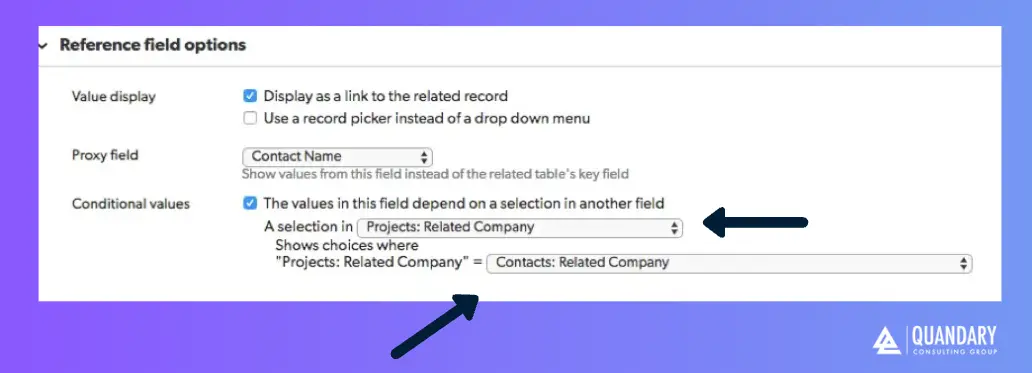
When you make a selection in ‘Related Company’ in your project, you will only be shown Contacts from your Contacts table who are also assigned to that same ‘Related Company’.
For more Quickbase How-To's visit Quandary's Quickbase Knowledge Base
By: Alistair Marsden
Email: amarsden@quandarycg.com
Date Updated: 05/06/2025
FAQs - Quickbase Conditional Drop-downs
1. What are conditional drop-downs in Quickbase?
Conditional drop-downs in Quickbase are fields where the available options change based on a selection in another field.
- They are also known as dependent or cascading dropdowns.
For example, selecting a Client will filter the Contacts drop-down to show only contacts associated with that client.
Quick answer: Quickbase Conditional drop-downs = filtered field choices based on another field’s value
2. How do you create a conditional dropdown in Quickbase?
To create a conditional dropdown in Quickbase, you typically use relationships between tables:
- Create a parent table (e.g., Clients)
- Create a child table (e.g., Contacts)
- Link them using a relationship
- Use the reference field in your form
Quickbase will automatically filter the dropdown based on the selected parent record.
Best practice: Use related tables instead of static lists for scalable, dynamic filtering.
3. Why are conditional drop-downs important in Quickbase apps?
Conditional drop-downs improve data quality and usability by ensuring users only see relevant options.
Key benefits:
- Prevent invalid data entry
- Reduce user errors
- Speed up form completion
- Improve overall user experience
4. What is the difference between conditional dropdowns and standard dropdown fields in Quickbase?
A standard dropdown field shows a fixed list of options, while a conditional dropdown dynamically filters options based on another field.
Quick comparison:
- Standard drop-down = static choices
- Conditional drop-down = dynamic, filtered choices
Always remember: Conditional drop-downs are more powerful and are typically used in apps with related data across multiple tables.


Resources


© 2026 Quandary Consulting Group. All Rights Reserved.
Privacy Policy