
Knowledge Base
Articles In This Section
Quickbase Tables vs Fields: Key Differences, Examples, and Best PracticesHow to Use Application Variables (Global Params) in Quickbase How to Create and Add a File Download Button in Quickbase How to Set Up Conditional Drop-downs in Quickbase Using a Formula-URL Field in Quickbase - INTERMEDIATEUsing Report Formulas as a Filter in a Report in QuickbaseSections
How to Add Material Lists to a Project Record in Quickbase
Table-to-Table connections in Quickbase allow you to link two tables together. One advantage inherent in this process is the ability to create a lookup field that will link records of the child to the parent.
Quickbase has a feature called ‘List Text Summary Fields’ that displays lists of values from child records.
Before this feature, in the past, the only option to show these type of records within a Quickbase report was to add a report link, which displayed something like this:
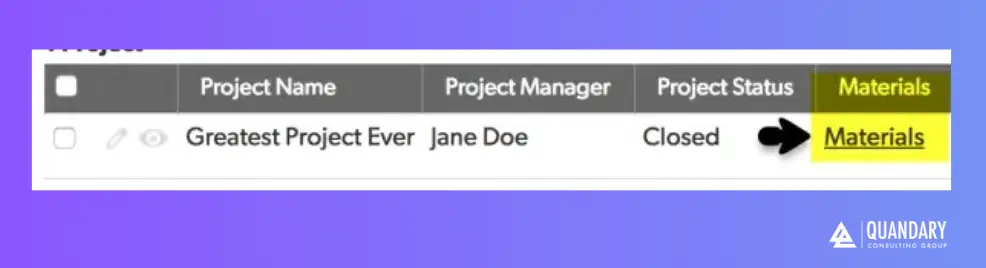
With the ‘List Text Summary’ field, you can actually display the actual text from the child ‘materials’:
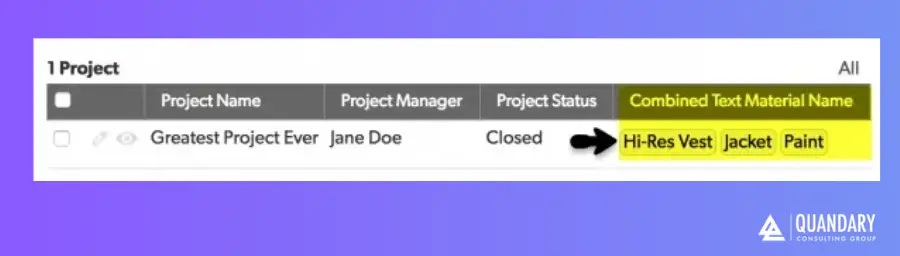
This is a huge improvement and now gives you the ability to use this field to:
- Display all employees in a specific business unit
- Display more than one contact associated on a job
- Display materials lists on a project
In this article, we’ll look at how to display materials on a project record in Quickbase using the combined text field, but the process is essentially the same in each example.
How to Add Material Lists on a Project Record in Quickbase
Step 1: Create a table-to-table relationship in Quickbase between the Project and Materials tables with materials as children to the parent Project.
Step 2: Open your new relationship and add a new ‘Lookup Field’
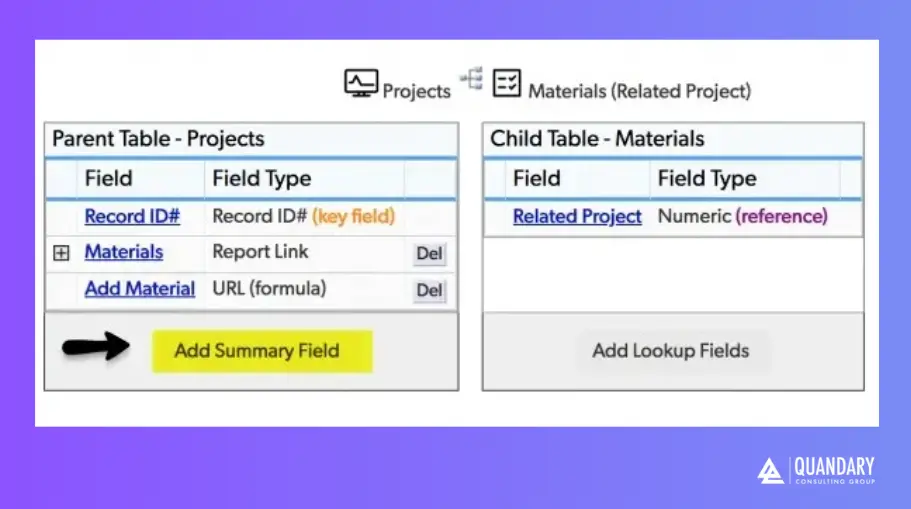
Step 3: Set the new summary field to ‘a summary of a specific field', then select ‘Material Name’ from your field list
- Note that you can also set matching criteria to filter which items are listed based on criteria
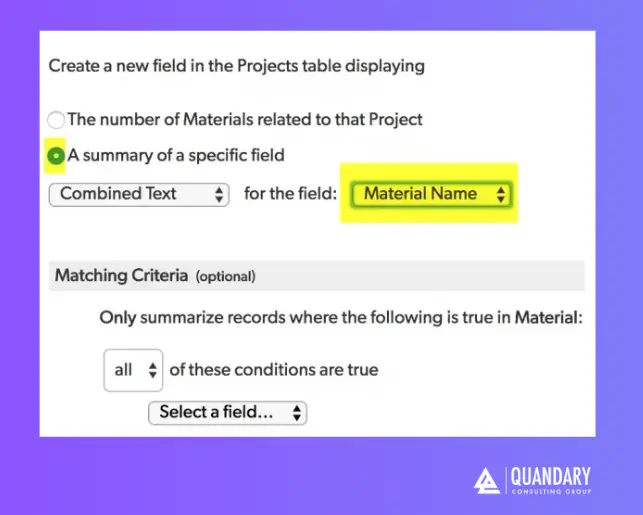
Step 4: Save the field and click ‘Done’ to save your changes to the table-to-table relationship in Quickbase
Step 5: Return to your table and add your new field as a column to your home report
Quick Recap
- Create Projects and Materials tables
- Link them using a parent-child relationship
- Add materials as child records
- Quickbase automatically displays them on the Project record
To learn more about building in Quickbase, please visit our Knowledge Base
By: April Barragan
Email: abarragan@quandarycg.com
Date updated: 06/22/2025
FAQs: Displaying Material Lists on a Project Record in Quickbase
1. How do I link materials to a project in Quickbase?
To link materials to a project in Quickbase, create a parent-child relationship between the Projects table (parent) and Materials table (child). Then use the “Related Project” field in the Materials table to associate each material with a specific project.
Quick answer: Use a relationship + the Related Project field to connect materials to projects.
2. Why aren’t my materials showing on the project record in Quickbase?
If materials are not displaying on a project, check the following:
- The relationship between Projects and Materials is set up correctly
- The material records have a valid Related Project selected
- The embedded report is enabled on the project form
Always remember: Most issues are caused by missing relationships or unlinked records.
3. Can I show total material cost on a project in Quickbase?
Yes, you can display total material cost by creating a summary field in the Projects table. Set it to sum the Cost field from the related Materials table.
This allows you to automatically track total material spend per project.
4. What’s the best way to structure materials in Quickbase for scalability?
The best practice is to store materials in a separate Materials table and link them to Projects using relationships. Avoid storing multiple materials in a single text field.
Why this matters:
- Supports reporting and automation
- Prevents duplicate data
- Improves performance in larger apps


Resources


© 2026 Quandary Consulting Group. All Rights Reserved.
Privacy Policy