
Knowledge Base
Articles In This Section
How to Create a Code Page in Quickbase What is Quickbase and Who Are Their PartnersHow to Navigate the Quickbase 'My Apps' PageHow to Manage and Delete Reports in QuickbaseHow to Use Application Diagram in Quickbase Copying Quick Base App ComponentHow to Create Cross-App Relationships in QuickbaseChanging The Record Title Seen On Forms BeginnerWhat is a Many-to-Many Relationships in QuickbaseHow to Create a Reminder in QuickbaseSections
How to Use Quickbase's Built-in Copy Feature
As you build and enhance Quickbase applications, you'll often encounter situations where you need to create a copy of an existing field, report, form, or other application component.
Rather than recreating everything from scratch, Quickbase allows you to duplicate many application elements with a single click. This saves time, promotes consistency, and provides a safe way to test changes without affecting your production configuration.
Whether you're building a new application, experimenting with formulas, or standardizing reports across your organization, learning how to copy Quickbase components is an essential development skill.
Why is it Best Practice to Copy Existing Components Instead of Rebuilding Them?
Duplicating existing components offers several advantages:
- Save time by avoiding repetitive configuration.
- Preserve existing settings while testing new ideas.
- Standardize forms, reports, and fields across applications.
- Reduce the risk of introducing errors into production.
- Create backup versions before making major changes.
Many Quickbase developers use copied components as a "sandbox" for testing before replacing or updating the original.
Where Can You Copy Components
Most application settings include a Copy option for supported objects. To locate it:
- Open your Quickbase application.
- Navigate to the appropriate table.
- Open Settings.
- Select the component you want to manage, such as:
- Fields
- Forms
- Reports
- Relationships (where applicable)
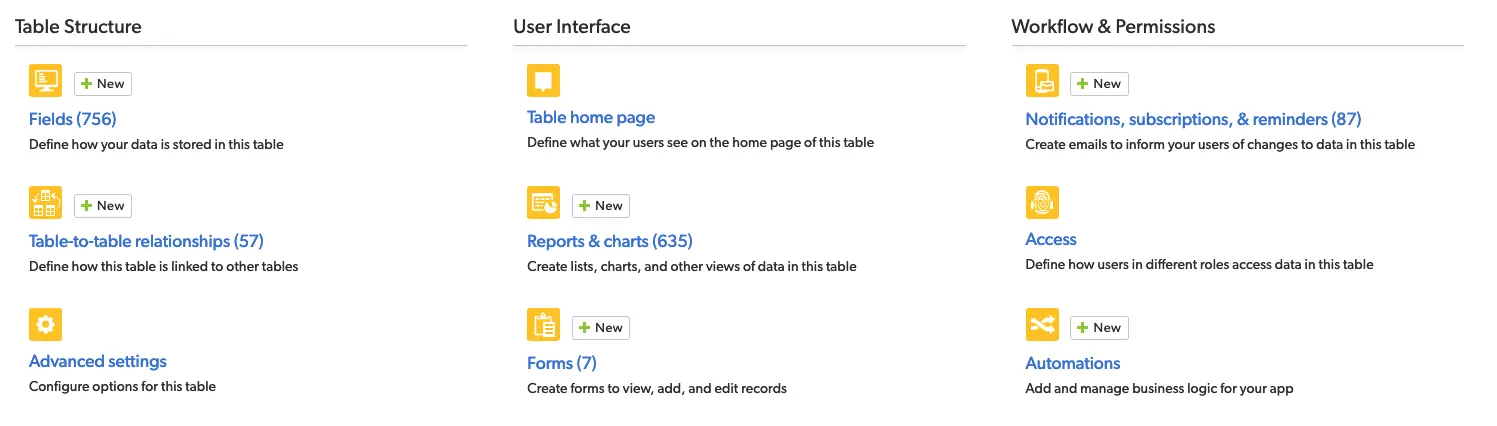
How to Copy a Field in Quickbase
For this example, we'll use the Fields page.
- Open the Fields list and locate the field you want to duplicate.
- On the far right side of the field, you'll find the Copy icon.
- Clicking this icon creates a duplicate of the selected field while preserving nearly all of its existing configuration.
The copied field becomes a new field that you can edit independently of the original.
How to Copy a Quickbase Report
The same process works for reports. When you copy a report, Quickbase duplicates its:
- Selected columns
- Filters
- Sorting
- Grouping
- Report type
- Display settings
Instead of rebuilding the report from scratch, you only need to make the changes unique to the new version. This can significantly reduce development time, especially for complex reports.
How to Copy a Quickbase Form
Forms can also be duplicated, making it easy to create variations for different user groups or business processes.
For example, you might create:
- An internal employee form
- A customer-facing form
- A simplified mobile form
- A manager approval form
By starting with a copy of an existing form, you only need to adjust the elements that differ.
What Actually Gets Copied?
Depending on the component you're duplicating, Quickbase copies most of the existing configuration.
For example, copying a formula field typically preserves:
- Formula logic
- Field type
- Formatting
- Display settings
- Field properties
After the copy is created, you can safely modify the duplicate without changing the original field. This is particularly useful when testing complex formulas or creating multiple fields with similar calculations.
Key Use Cases for Quickbase's Built-In Copy Feature
Copying components is especially helpful when you need to:
- Test a new formula without affecting production.
- Create multiple reports with similar filters.
- Build department-specific forms.
- Experiment with different layouts.
- Create backup versions before major changes.
- Standardize application design.
- Speed up application development.
Because each copied component is independent, you can freely edit, test, or delete it without impacting the original.
Best Practices, Tips, & Additional Resources
Best Practices
To get the most value from Quickbase's copy functionality:
- Rename copied components immediately to avoid confusion.
- Test copied formulas before deploying them to production.
- Delete unused copies to keep your application organized.
- Use copied reports as templates instead of rebuilding similar reports.
- Create copies before making major structural changes.
- Follow consistent naming conventions for copied components.
Tips to Keep in Mind When Developing
- Although copying components is a powerful time-saving feature, remember that the copied item becomes a separate object.
- Any future changes made to the original component will not automatically update the copy, and changes made to the copy will not affect the original.
- Because of this, it's important to review copied components periodically to ensure they remain accurate and up to date.
Additional Resources
To learn more about customizing your Quickbase applications, explore these related guides:
- How to Add Fields in Quickbase
- How to Create User-Friendly Forms
- How to Build Reports in Quickbase
- Quickbase Form Design Best Practices
- Creating Dashboards in Quickbase
- Quandary's Quickbase Knowledge Center
Key Takeaways
Quickbase's built-in Copy feature is one of the simplest ways to accelerate application development. Instead of recreating fields, forms, reports, and other components manually, you can duplicate existing objects, preserve their configuration, and safely customize them for new use cases.
Whether you're testing new ideas, creating standardized templates, or speeding up development, copying components is a best practice that helps you build more efficiently while reducing the risk of unintended changes.
- Author: Logan Lott
- Title: Solution Consultant | Quickbase
- Email: llott@quandarycg.com
- Date Published: June 11, 2026
Top 10 FAQs about Copying Fields, Forms, Reports, and Other Components in Quickbase
1. Can you copy a field in Quickbase?
Yes. Quickbase allows you to copy many field types directly from the Fields settings page. When you duplicate a field, Quickbase creates a new field with the same configuration as the original, including its field type, properties, and—in the case of formula fields—the existing formula. The copied field can then be modified independently without affecting the original.
2. What happens when I copy a formula field in Quickbase?
When you copy a formula field, Quickbase duplicates the field and preserves the existing formula, formatting, field properties, and display settings. This makes it easy to test new calculations or create similar formulas without having to rewrite complex expressions from scratch. Changes made to the copied field do not affect the original field.
3. Can I copy a report in Quickbase?
Yes. Quickbase allows you to duplicate reports, making it easy to reuse existing report configurations. When a report is copied, Quickbase retains its columns, filters, sorting, grouping, report type, and display settings. You can then customize the copied report to meet your specific reporting needs while leaving the original unchanged.
4. Can I duplicate a form in Quickbase?
Yes. Forms can be copied to create multiple versions for different users or business processes. For example, you might create separate forms for internal employees, external customers, managers, or mobile users. Copying a form saves time by allowing you to modify an existing layout rather than building a new one from scratch.
5. Why should I copy a component instead of creating a new one?
Copying an existing component is often faster and more reliable than rebuilding it manually. It helps maintain consistency across your application, reduces development time, minimizes the risk of configuration errors, and provides a safe way to test changes before applying them to production. Many developers use copied components as templates for future work.
6. Does changing a copied field affect the original?
No. Once a field, report, or form has been copied, it becomes a completely separate component. Any changes you make to the duplicate do not affect the original, and updates to the original are not automatically reflected in the copy. This separation makes copying ideal for testing and experimentation.
7. What Quickbase components can be copied?
Depending on the feature and your permissions, Quickbase allows you to copy several application components, including:
- Fields
- Reports
- Forms
- Dashboards (where supported)
- Certain application objects and configurations
If a component supports duplication, you'll typically see a Copy icon or option within its settings page.
8. Is copying components a best practice in Quickbase development?
Yes. Many experienced Quickbase developers use the Copy feature as part of their development workflow. Duplicating components before making major changes provides a backup, simplifies testing, and accelerates development. It's especially useful when creating standardized reports, forms, or calculated fields across multiple applications.
9. Can I delete a copied component later?
Yes. Copied components can be edited, renamed, or deleted just like any other Quickbase object. If you create a duplicate for testing purposes and no longer need it, you can safely remove it without affecting the original component. Before deleting any component, verify that it is not referenced by forms, reports, relationships, automations, or pipelines.
10. What are the best practices for copying components in Quickbase?
To keep your applications organized and maintainable, consider these best practices:
- Rename copied components immediately so they're easy to identify.
- Test copied formulas thoroughly before deploying them to production.
- Use copies as templates for similar reports, forms, or fields.
- Remove unused duplicates to reduce clutter.
- Follow consistent naming conventions throughout your application.
- Document significant configuration changes for your development team.
- Verify that copied components don't unintentionally reference outdated fields or business logic.
11. Can copying components help speed up Quickbase development?
Absolutely. Reusing existing fields, reports, and forms significantly reduces development time. Instead of recreating complex configurations manually, developers can duplicate an existing component and make only the necessary modifications. This approach improves consistency and helps standardize application design across an organization.
12. Should I copy a component before making major changes?
Yes. Creating a copy before modifying a complex field, report, or form is considered a best practice. It provides a fallback if your changes don't work as expected and allows you to compare the new version with the original. This is particularly valuable when updating complex formulas, redesigning forms, or modifying reports used by multiple teams.
13. Does copying a field also copy its data?
No. Copying a field duplicates the field's configuration, not the data stored within it. The new field starts empty (unless it's a calculated field, which generates values based on its formula). If you need to populate the new field with existing record values, you'll need to perform a separate data migration or use an automation, pipeline, import, or Grid Edit process.


Services
Industries



© 2026 Quandary Consulting Group 2026. All Rights Reserved.
Privacy Policy