
Knowledge Base
Articles In This Section
How to Create a Code Page in Quickbase What is Quickbase and Who Are Their PartnersHow to Navigate the Quickbase 'My Apps' PageHow to Use Application Diagram in Quickbase Copying Quick Base App ComponentHow to Create Cross-App Relationships in QuickbaseHow to Use Quickbase's Built-in Copy Feature Changing The Record Title Seen On Forms BeginnerWhat is a Many-to-Many Relationships in QuickbaseHow to Create a Reminder in QuickbaseSections
How to Manage and Delete Reports in Quickbase
How to Display a List of Reports in Quickbase Apps
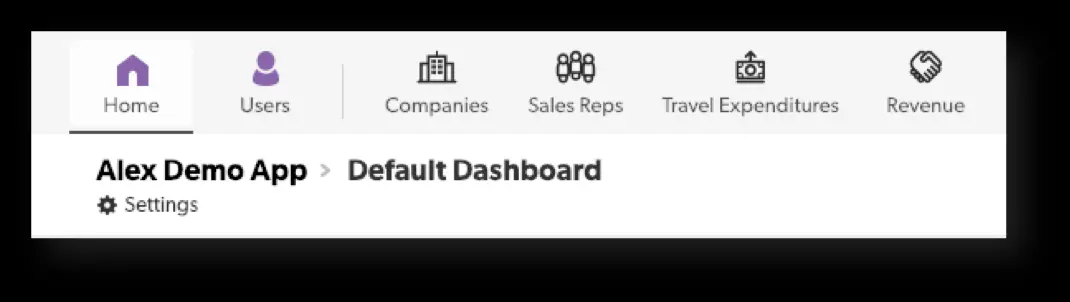
- From the app Home Page (Top left), click Settings, under the app name.
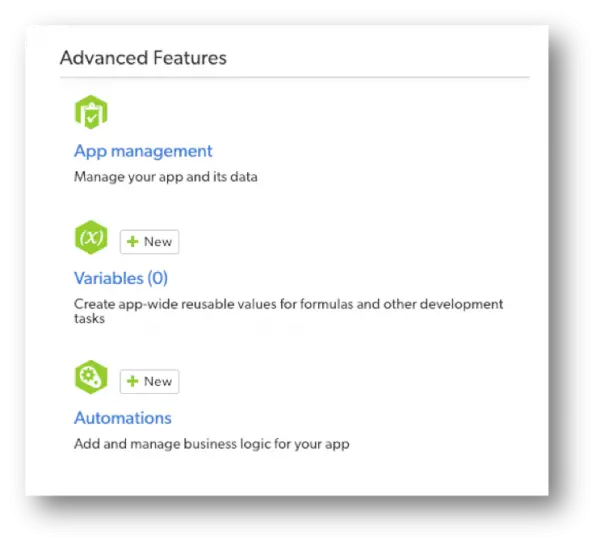
- Click on App management, under Advanced Features.
- Slightly scroll down and under Manage App Contents, click Manage reports.
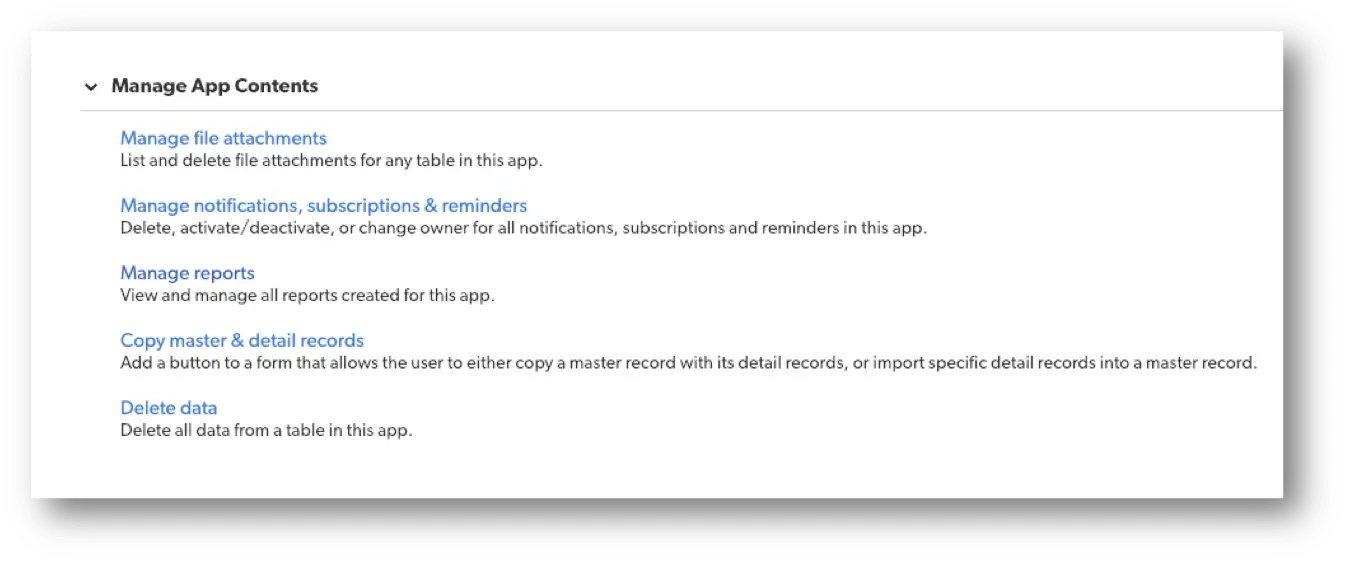
From this page, you can manage all reports for all tables in your app. This includes both common and personal reports.
How to Limit the Number of Reports Shown in the List
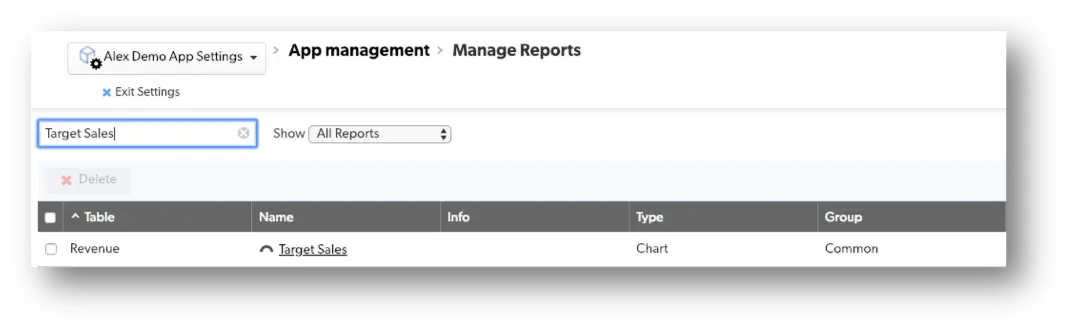
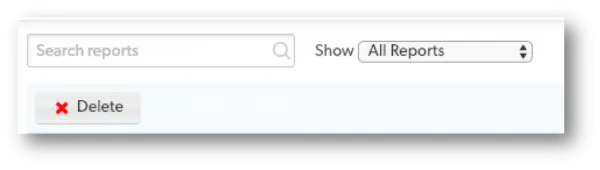
If you have many reports, use the Search reports box at the top left of the list to enter a search term.
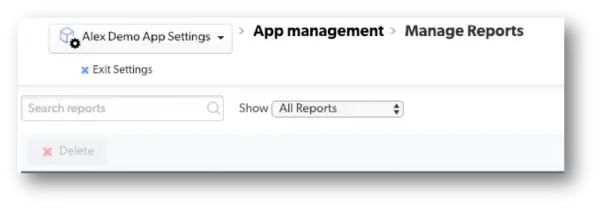
The search term limits the reports shown to ones whose report name, table name, or owner contain that term.
Example:
If you search for a chart named, “Target Sales,” in the search reports box, you can see how it filters directly by the name specified in the report box.
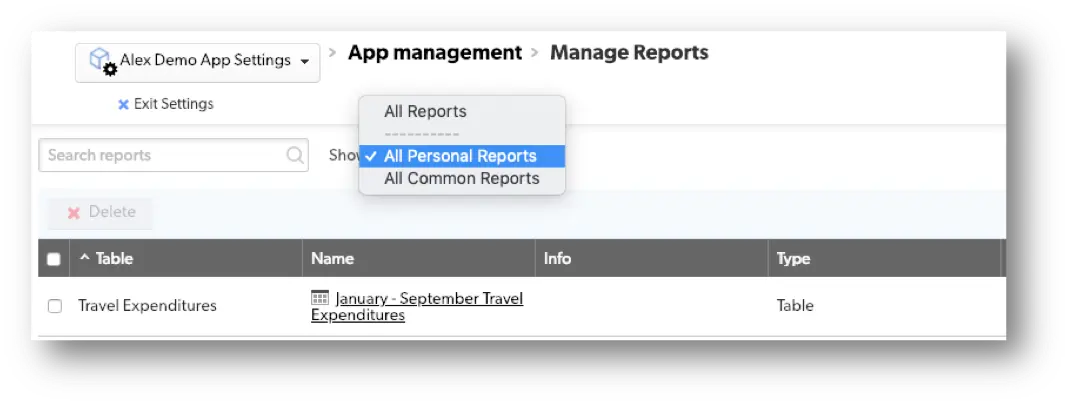
You can also use the Show dropdown to display reports, common reports, or all reports (the default setting).
Example:
In the example above, I selected All Personal Reports which shows all the related personal reports. In this case, we only have one report that matches this criterion.
Managing Individual Reports
✓ Use the icons at the right of each item in the list of reports to view, copy or delete that report. ✓ Click the report name to customize the report. ✓ Click New report or chart at the top right of the Page Bar to create a new report.
Deleting Multiple Reports
1. Display the list of reports in the app.
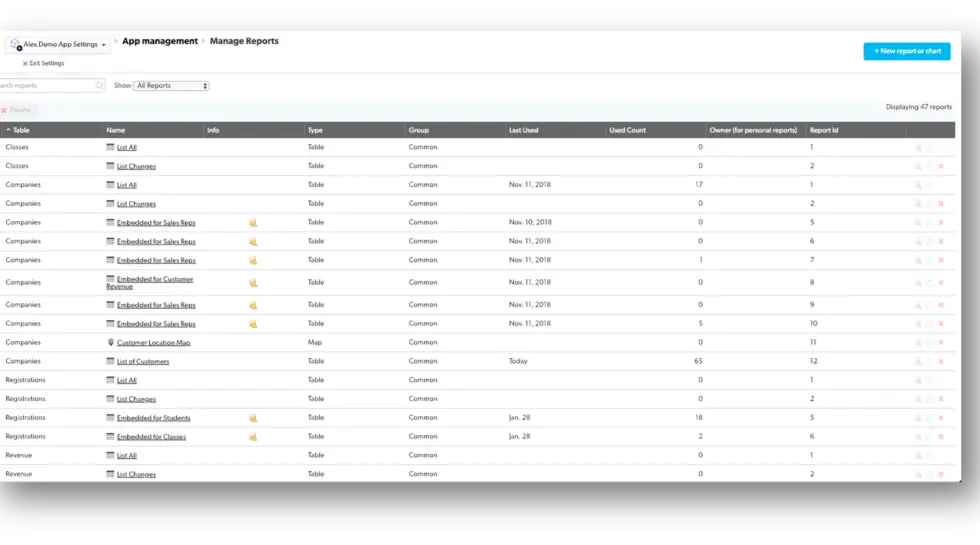
2. Select the checkbox next to the name of each report you want to affect.
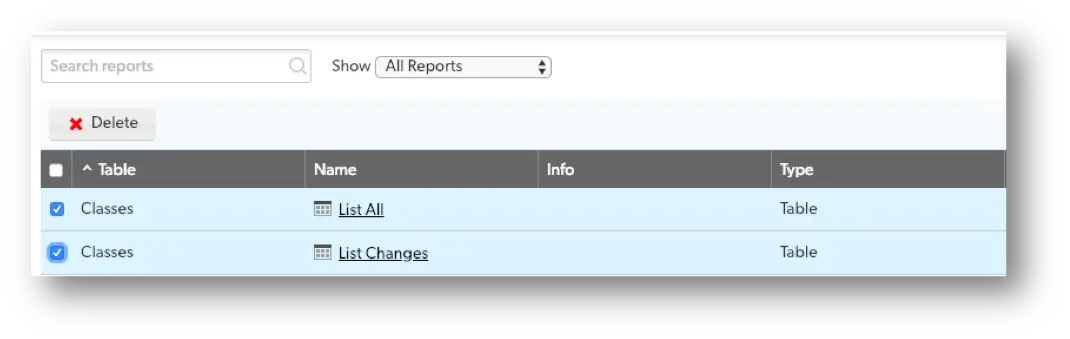
3. Click Delete on the dialog to confirm the deletion.
To learn more about Admin / Application Set Up / Security, please follow this link: Admin / Application Set Up / Settings.
- Author: Alex Skudrovskis
- Email: askudrovskis@quandarycg.com)
- Date Submitted: 2/19/2019


Services
Industries


© 2026 Quandary Consulting Group 2026. All Rights Reserved.
Privacy Policy