
Knowledge Base
Articles In This Section
How to Use Tables and Fields in QuickbaseHow to Use Application Variables (Global Params) in Quickbase How to Set Up Conditional Drop-downs in Quickbase How to Add Material Lists to a Project Record in QuickbaseHow to use a Formula-URL Fields in Quickbase Using Report Formulas as a Filter in a Report in QuickbaseSections
How to Create and Add a File Download Button in Quickbase
Quickbase buttons are great to manipulate your own data; but have you ever thought to use buttons to download a file attachment!?
Like me, you might have thought to yourself, "Why go through the process of creating a button when Quickbase makes it easy for me to just use the file attachment link?"
The Benefits of Creating a File Download Button in Quickbase
Creating a file download button in Quickbase can make an app noticeably easier to use.
- A download button in Quickbase gives users a direct, obvious way to access attached files without opening extra forms or hunting through records. This saves time, reduces clicks, and makes the workflow feel more polished.
- It can also improve consistency. Instead of relying on users to understand where file attachments live in a record, a button creates one standard action: click and download. This is especially helpful for teams working with invoices, contracts, reports, images, or generated documents.
- Another benefit is better process flow. A button can be placed exactly where users need it, such as in a dashboard, table report, or form rule. This makes file retrieval part of the workflow rather than a separate task.
- It can also support automation and integration. For example, if files are generated dynamically or linked from another process, a download button can act as the final step that lets users retrieve the output immediately.
- From a user experience standpoint, it makes the app feel more like a finished business tool and less like a database interface. Small conveniences like this often improve adoption and reduce support questions.
How to Create and Add a Download File Button in Quickbase
Step 1. Select the table where you want to create the download file button (Preferably the same table where you have the file attachment field(s) located).
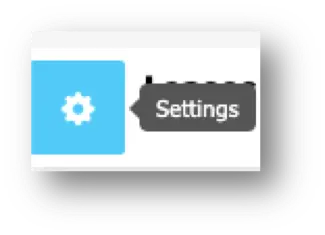
Step 2. Go to settings, and create a new field.
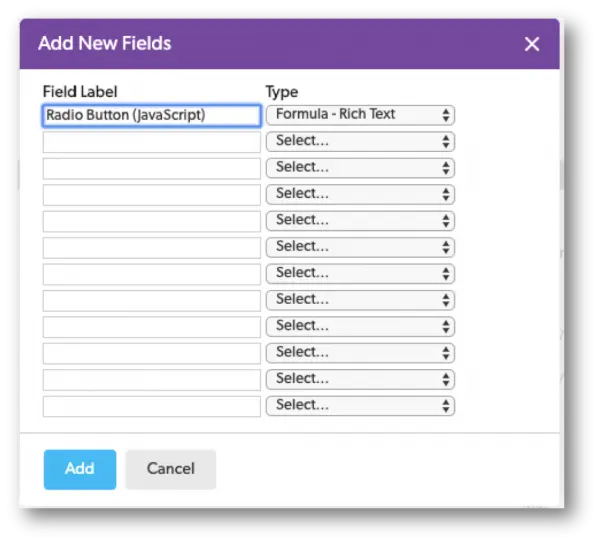
Step 3. Select the Rich-Text Formula field type and name it Download File.
Step 4. Open your Rich-Text Formula field.
Step 5. In the first line below, we are creating the url link.
- The “31” is the field ID for the File Attachment field, yours will likely be different.
- The “v0” at the end refers to the latest version of the file attachment.

Step 6. In the second line below, we are creating the visuals of the button and referencing the URL link in line one.
- You will want to make sure to include “$url” in your formula.
- That way, when the button is clicked on, it can reference your file attachment link and initiate the download.

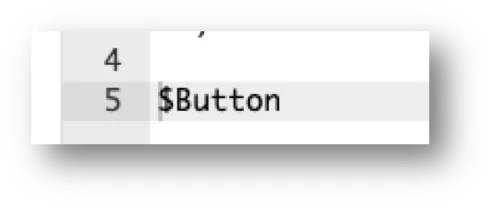
Step 7. Lastly, insert your declaration at the end of your formula.
Visual Examples of File Download Buttons in Quickbase
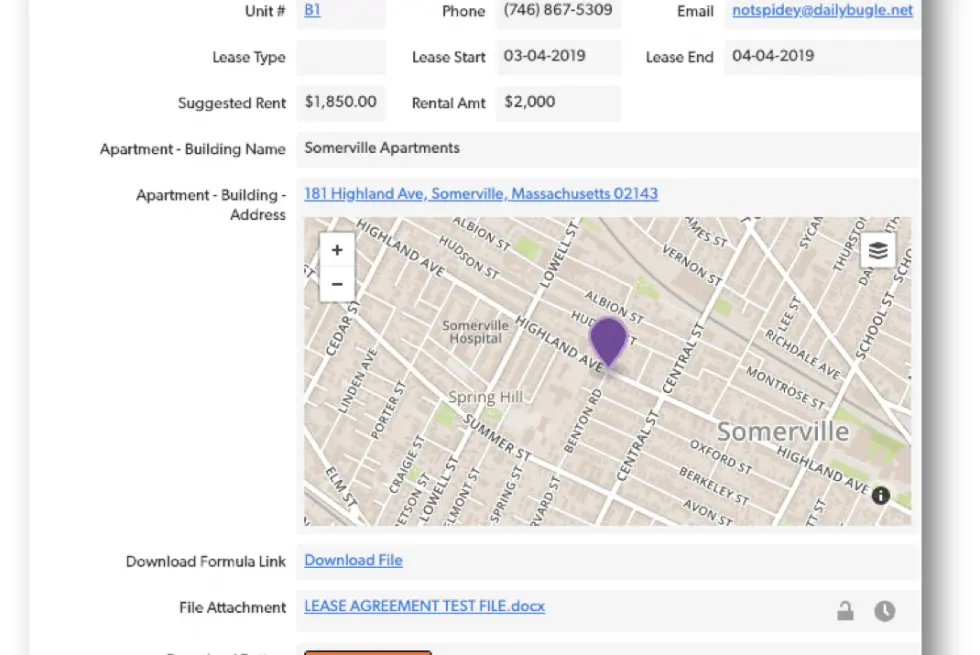
Quickbase File Download Button | In 'Quickbase Form' view
Quickbase File Download Button | In 'Edit Field' mode
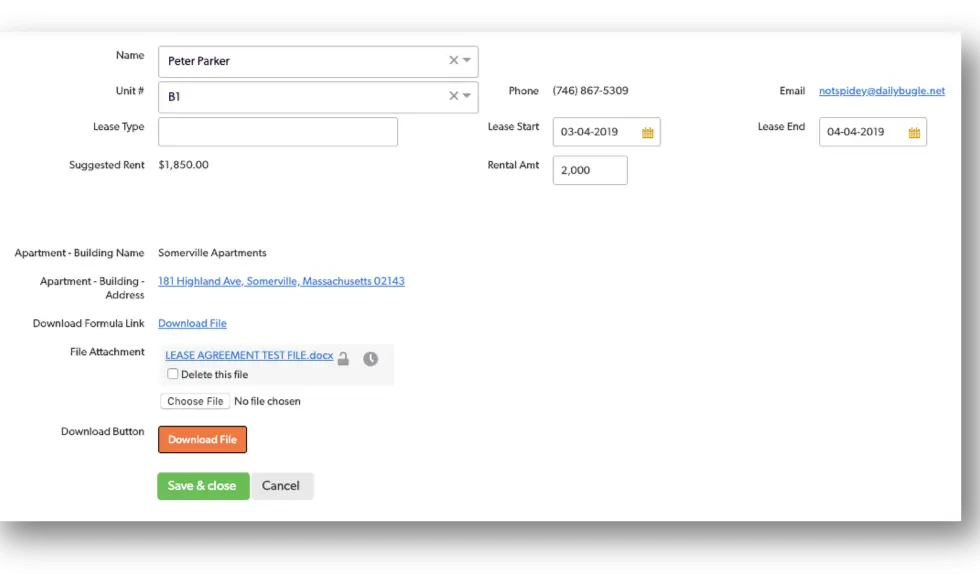
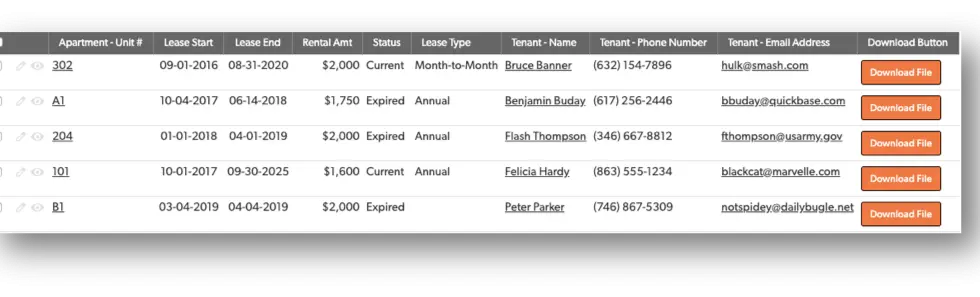
Quickbase File Download Button | In 'Quickbase Report' view
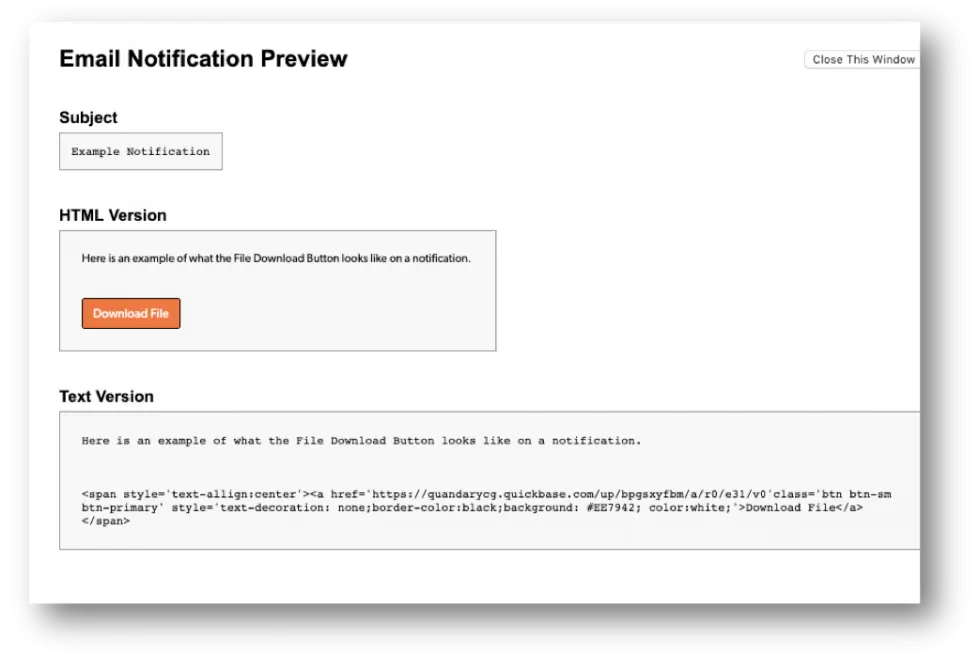
Quickbase File Download Button | In 'Notification' format
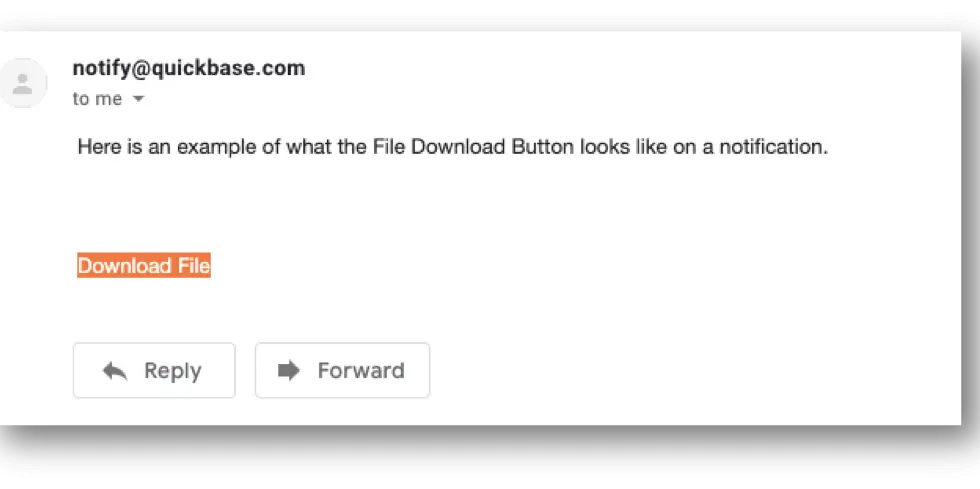
Quickbase File Download Button | In 'Quickbase Email' format
By: Jeff Richey
Email: jrichey@quandarycg.com
Date Updated: 09/02/2025


Industries
Resources


© 2026 Quandary Consulting Group. All Rights Reserved.
Privacy Policy