
Knowledge Base
Articles In This Section
How to Create a Code Page in Quickbase What is Quickbase and Who Are Their PartnersHow to Manage and Delete Reports in QuickbaseHow to Use Application Diagram in Quickbase Copying Quick Base App ComponentHow to Create Cross-App Relationships in QuickbaseChanging The Record Title Seen On Forms BeginnerWhat is a Many-to-Many Relationships in QuickbaseHow to Create a Reminder in QuickbaseSections
How to Navigate the Quickbase 'My Apps' Page
The My Apps page is your central hub for accessing, organizing, and managing every Quickbase application you have permission to use within your organization's realm.
Whether you're a new user or an experienced administrator, becoming familiar with the My Apps page is one of the first steps toward efficiently navigating Quickbase.
Understanding Two Key Quickbase Concepts
Before exploring the My Apps page, it's helpful to understand two core Quickbase terms.
Quickbase Realm
A realm is your organization's secure Quickbase environment. It contains all of your organization's applications, users, permissions, and account settings.
Think of a realm as your company's Quickbase workspace.
Quickbase App
An app is a collection of related tables, reports, dashboards, automations, and forms designed to manage a specific business process.
Examples include:
- Customer Relationship Management (CRM)
- Project Management
- Human Resources
- Inventory Management
- Accounting
- Service Requests
Organizations typically organize their Quickbase environments in one of two ways:
- Store all business processes inside a single comprehensive application.
- Create multiple applications dedicated to different departments or workflows.
How to Access the 'My Apps' Page From Your Quickbase Realm
Log into Quickbase
- Click the “My Apps” icon in the upper-left corner of the screen (in the top navigation bar)
Once selected, you’ll be taken to your My Apps dashboard.
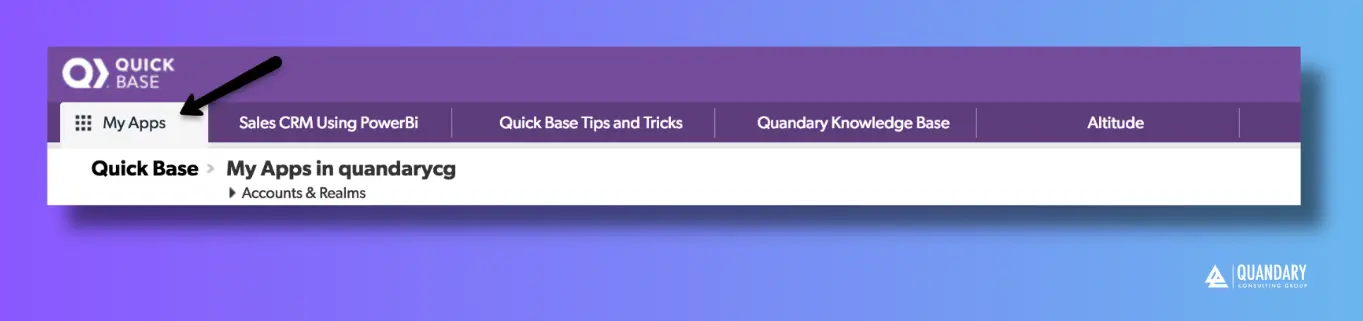
The My Apps page allows you to:
- View all apps you have access to
- Switch between display formats
- Organize apps using categories
- Search and filter apps
- Add new apps
- Remove apps from your view
- Access account-level settings (if permitted)
When you open the My Apps page, you’ll see a grid of applications.
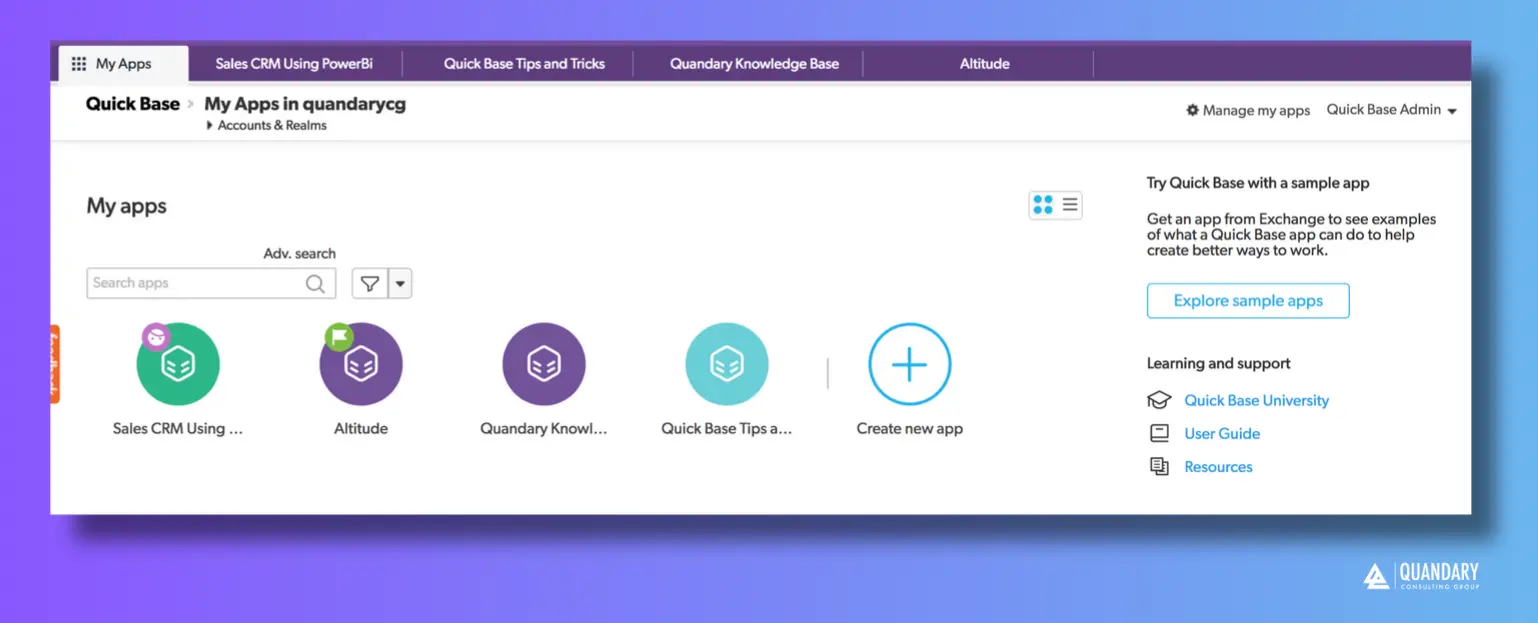
Grid View (default view)
- Displays app names and icons
- May include an access indicator showing your permission level
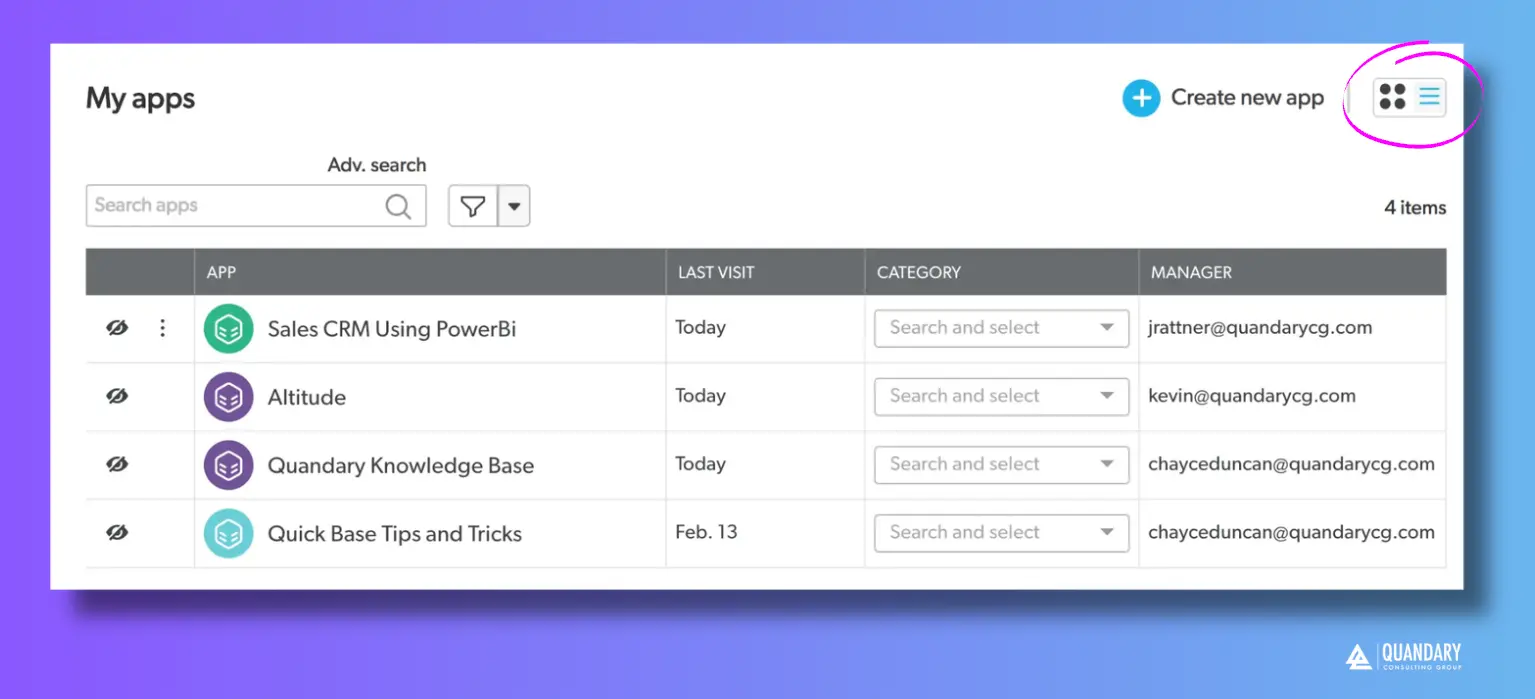
List View (Custom View)
If you would prefer to change the layout, you can switch to List View; to do so:
- Click the list icon (in the image directly Above, reference the three horizontal lines that is circled by a bright pink circle)
List view provides additional details, including:
- Last visited date
- App category
- App manager
How to Organize Apps Using Categories
As your Quickbase environment grows, organizing applications into categories makes navigation much easier.
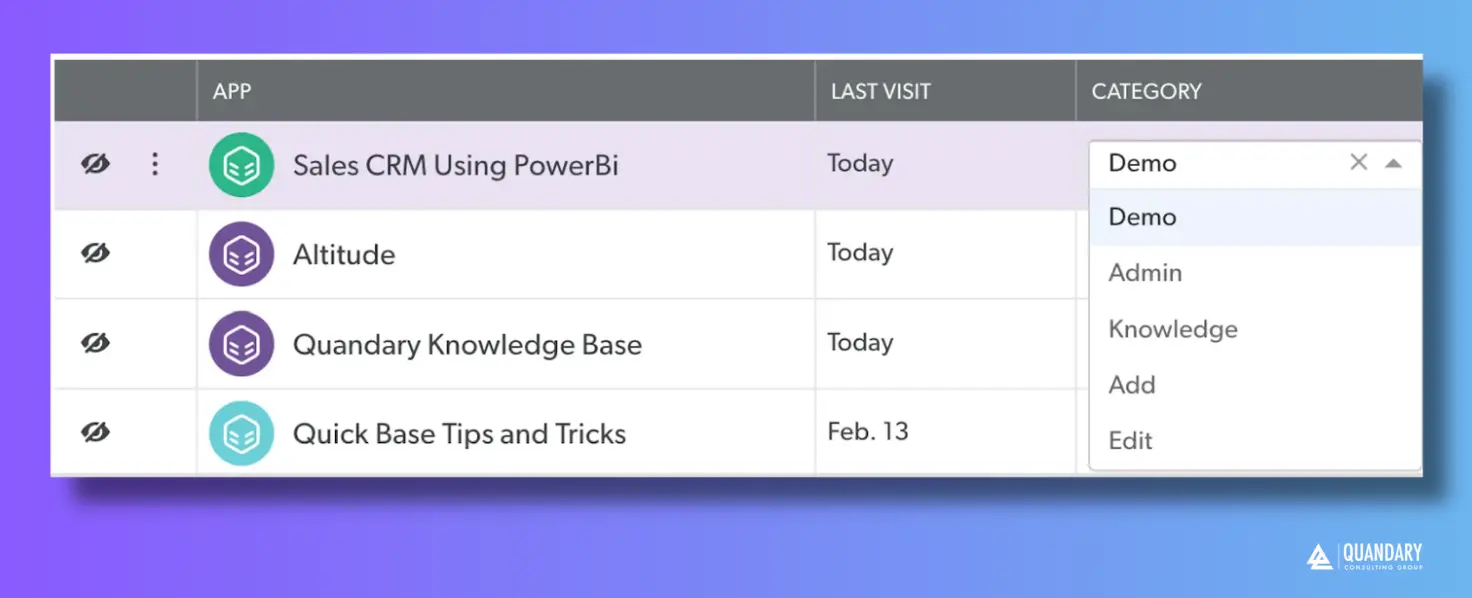
To assign or edit a category:
- Switch to List View.
- Locate the Category column.
- Select the category drop-down for the desired application.
- Choose an existing category or select:
- Add to create a new category
- Edit to modify existing categories
Examples of useful categories include:
- Sales
- Finance
- Human Resources
- Operations
- Marketing
- IT
- Customer Service
Using categories helps users quickly locate the applications they use most frequently.
How to Find an App in Your Realm
Quickbase provides two ways to quickly locate apps:
Filter by Category:
- Click the filter (funnel) icon next to the search bar
- Select one or more categories
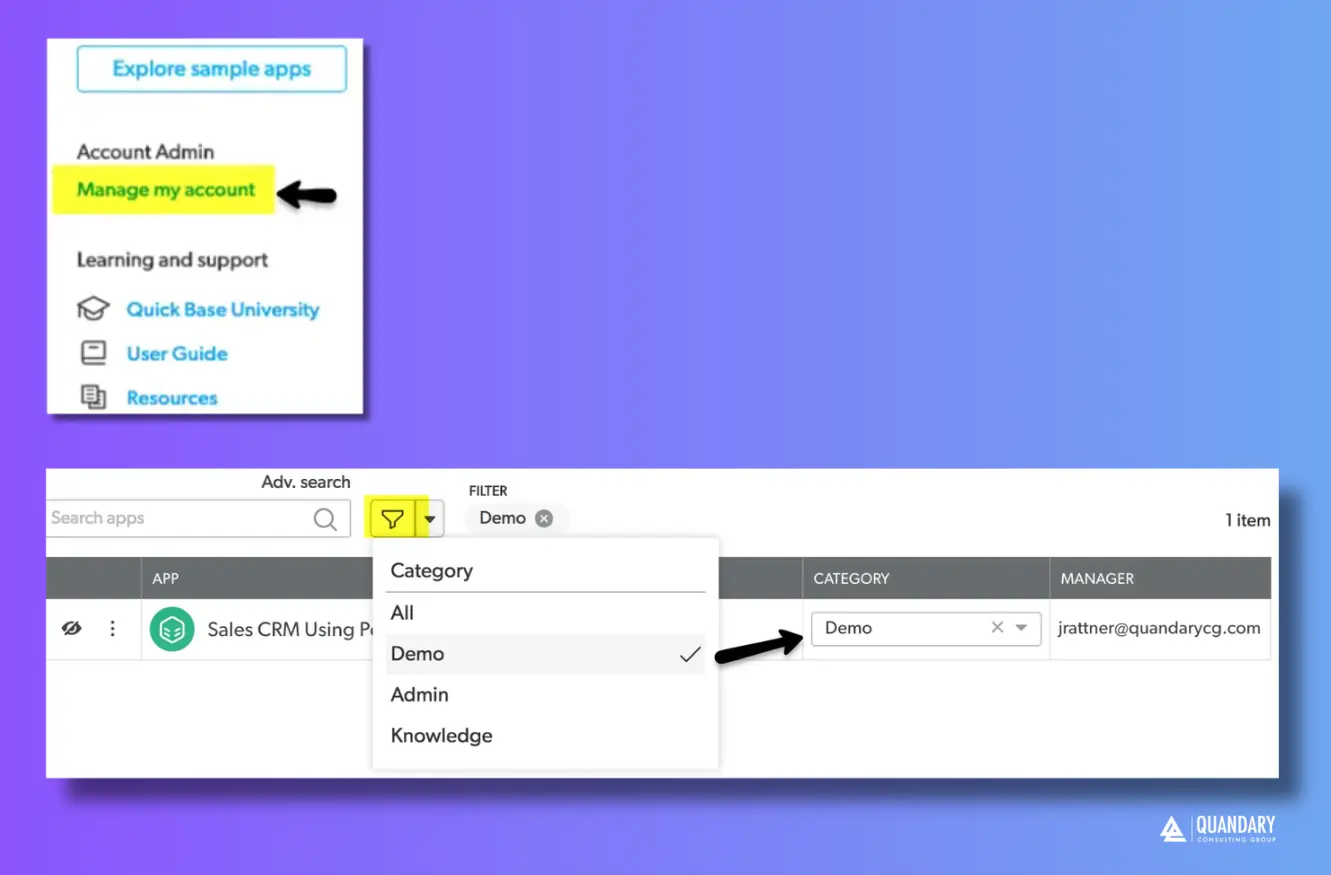
Search by Name:
- Use the search bar to type the name of the app
These tools are especially useful in environments with many applications.
How to Add an App to Your Realm
You can create or explore apps directly from the My Apps page.
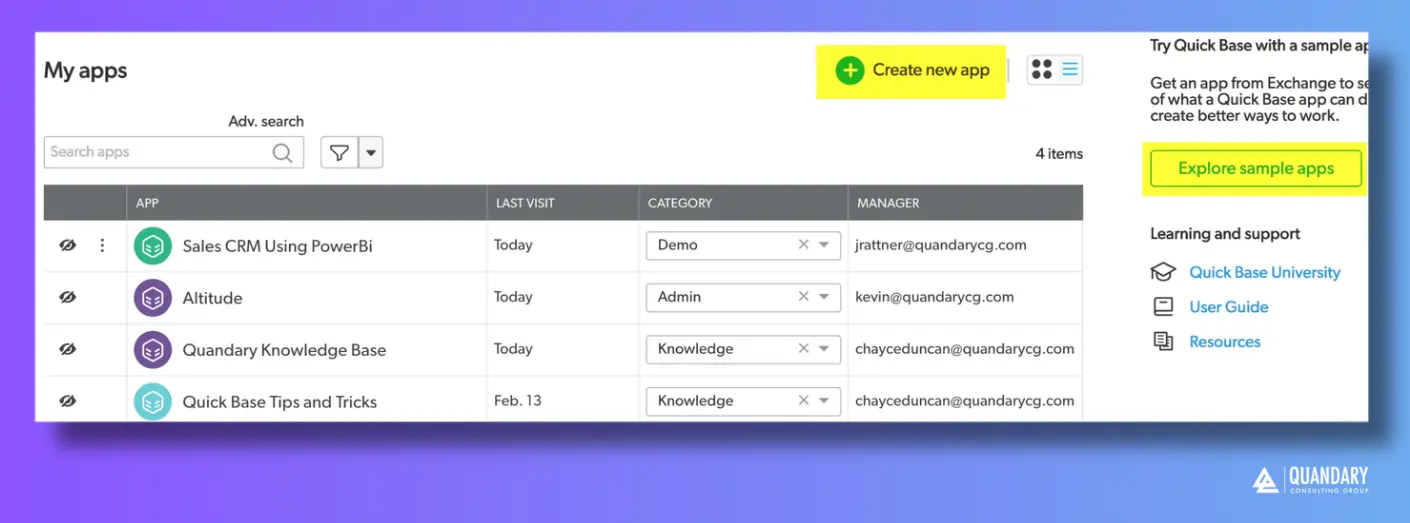
To add an app:
- Click Add App
- Choose to:
- Create a new app
- Use a template
- Explore sample applications
How to Remove an App from Your View
If your My Apps page feels cluttered, you can remove apps from your personal view (without deleting them).
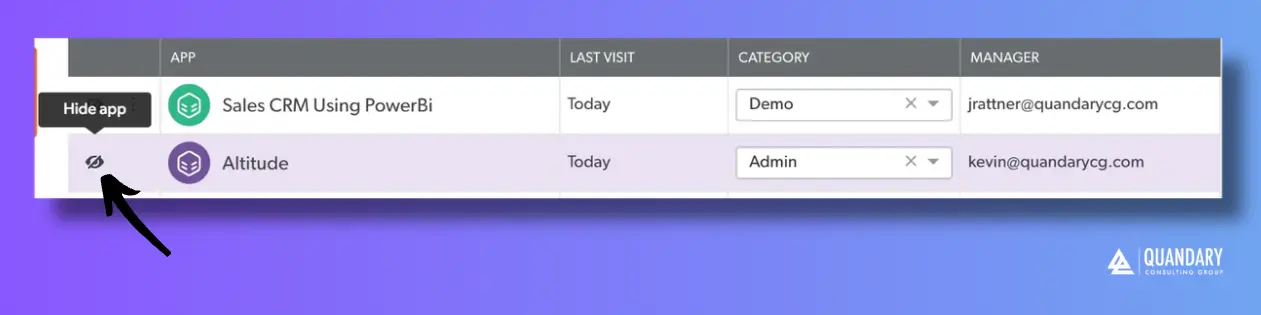
To remove an app:
- Find the app you want to hide
- Click the eye icon next to the app
This helps keep your dashboard focused on the apps you actively use.
How to Manage Your Quickbase Account (Realm Managers Only)
If you are a Realm Manager, you’ll see a Manage My Account option.
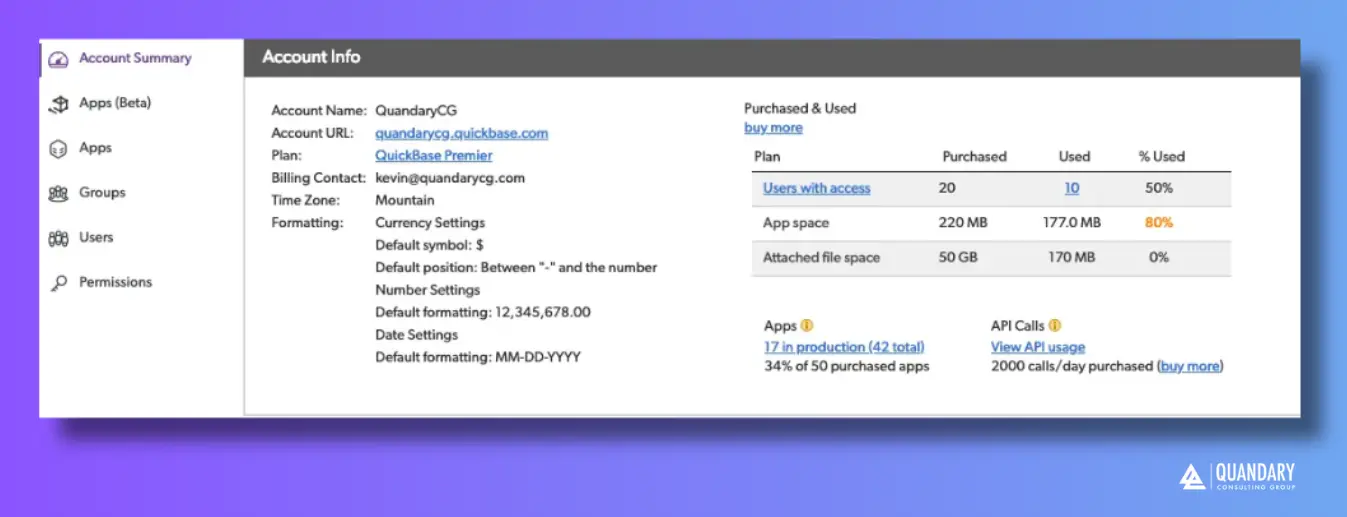
From this area you can:
- View every application in the realm
- Manage users and groups
- Configure user permissions
- Review billing information
- Manage integrations
- Configure security settings
- Access realm-wide administration tools
These features are only available to users with the appropriate administrative permissions.
Best Practices & Quick Tips
Managing Your 'My Apps' Page in Quickbase
To keep your Quickbase environment organized and easy to navigate:
- Create meaningful application categories.
- Hide applications you no longer use regularly.
- Use List View when managing multiple applications.
- Take advantage of search and filters to quickly locate apps.
- Periodically review your applications to ensure they remain organized.
- Follow consistent naming conventions across all applications.
Common 'My Apps' Tasks
The My Apps page is designed to help users quickly perform everyday tasks, including:
- Opening frequently used applications
- Finding newly shared apps
- Creating new applications
- Organizing apps into categories
- Hiding unused apps
- Switching between applications
- Accessing realm administration tools
Additional Resources
To learn more about managing applications and navigating your Quickbase environment, explore the official Quickbase documentation or browse the Quandary Consulting Group Quickbase Knowledge Base for additional tutorials, best practices, and step-by-step guides.
Key Takeaways
The My Apps page serves as the central navigation hub for your Quickbase environment. Understanding how to organize applications, search efficiently, and customize your dashboard will help you work more productively as your organization's Quickbase ecosystem grows.
Whether you're an end user or a Realm Manager, mastering the My Apps page is an essential skill for getting the most out of Quickbase.
- Author: Alistair Marsden
- Title: Solution Consultant | Quickbase
- Email: amarsden@quandarycg.com
- Date Updated: May 28, 2026
Top FAQs About the Quickbase 'My Apps' Page
1. What is the My Apps page in Quickbase?
The My Apps page is the central dashboard where you can access all of the Quickbase applications you have permission to use.
From this page, you can open applications, search for specific apps, organize apps into categories, switch between different viewing layouts, create new applications (if permitted), and access realm administration tools. Think of the My Apps page as your home screen for navigating your organization's Quickbase environment.
2. What is a Quickbase realm?
A Quickbase realm is your organization's secure Quickbase environment. It contains all of your company's applications, users, permissions, security settings, and account configurations. Every Quickbase app belongs to a specific realm, and users must be granted access before they can view or use applications within it.
3. Why can't I see all of my Quickbase apps?
You will only see applications that have been shared with your user account. If an application does not appear on your My Apps page, it may be because you have not been granted access, your permissions were removed, or the application has been archived. If you believe you should have access, contact your Quickbase administrator or Realm Manager.
4. What is the difference between Grid View and List View in Quickbase?
Grid View displays applications as tiles with icons, making it easy to visually browse your apps. List View provides a more detailed layout, showing information such as the application name, category, app manager, and last visited date. Users who manage many applications often prefer List View because it provides additional organizational details.
5. How do I organize applications into categories?
To organize your applications, switch to List View, locate the Category column, and select the category drop-down next to an application. You can choose an existing category or create a new one. Categories make it easier to group applications by department, business function, or project, helping users quickly locate the apps they use most often.
6. Can I remove an app from My Apps without deleting it?
Yes. You can hide an application from your personal My Apps page without deleting it. Simply click the Eye icon next to the application. This only removes the app from your personal dashboard—the application remains available to other authorized users and can be restored later if needed.
7. How do I search for an application in Quickbase?
The My Apps page includes a built-in search bar that allows you to quickly locate applications by name. You can also use category filters to narrow the list of displayed apps, making it much easier to find applications in organizations with dozens or even hundreds of Quickbase apps.
8. Who can create new applications from the My Apps page?
Whether you can create new applications depends on the permissions assigned by your organization.
Users with the appropriate rights can click Add App to build a new application from scratch, use a Quickbase template, or explore sample applications. If you do not see the Add App option, your administrator may have restricted app creation.
9. What is the Manage My Account page in Quickbase?
The Manage My Account page is available to users with Realm Manager or administrative permissions. From this page, administrators can manage users, groups, applications, permissions, billing, integrations, security settings, and other account-level configurations. Standard users typically do not have access to these administrative features.
10. What are the best practices for organizing Quickbase apps?
As your Quickbase environment grows, maintaining an organized My Apps page becomes increasingly important. Best practices include creating meaningful categories, using consistent application naming conventions, hiding apps you no longer use regularly, switching to List View for easier management, and using search and filters to quickly locate applications. Regular organization improves productivity and makes navigating large Quickbase environments much more efficient.
11. Can I customize my Quickbase My Apps page?
Yes. You can personalize your My Apps page by organizing applications into categories, hiding applications you no longer use frequently, switching between Grid View and List View, and using filters to display only the applications most relevant to your work.
12. How many apps can I have in a Quickbase realm?
There is no practical limit for most organizations. Quickbase is designed to support numerous applications within a single realm, allowing businesses to manage everything from CRM and project management to inventory, finance, HR, and operations.
As the number of applications grows, using categories, naming conventions, and search features becomes increasingly important.
13. Can multiple users access the same Quickbase app?
Yes. Quickbase applications are designed for collaboration. Multiple users can access the same application simultaneously, provided they have been granted the appropriate permissions. Administrators control what each user can view, edit, create, or delete based on their assigned role.
14. If I hide an app, can I get it back later?
Yes. Hiding an application only removes it from your personal My Apps dashboard. It does not delete the application or remove your access. You can restore hidden apps later if needed, making this a useful way to reduce dashboard clutter without affecting your organization's Quickbase environment.


Industries
Resources


© 2026 Quandary Consulting Group. All Rights Reserved.
Privacy Policy