
Knowledge Base
Sections
Workato Developer API and Decoding Workato HTTP Responses
The Workato Developer API provides comprehensive access to a wide range of platform resources, enabling teams to efficiently manage and automate their Workato workspace at scale. With this API, developers can programmatically control key components such as recipes, connections, jobs, and more.
Designed for flexibility and enterprise-grade automation, the Developer API supports seamless integration across environments and infrastructure. It allows organizations to streamline operations, reduce manual effort, and maintain consistency across development, testing, and production systems.
Key capabilities of the Developer API include:
- Recipe management: Create, update, deploy, and monitor recipes across multiple environments
- Connection management: Configure and manage integrations with external systems
- Job monitoring: Track job execution, troubleshoot issues, and optimize performance
- Environment automation: Promote recipe manifests from development to production with ease
- Agent deployment: Roll out and manage on-premise agents across your network landscape
Why use the Workato Developer API?
- Automate repetitive tasks and reduce manual intervention
- Ensure consistent deployments across environments
- Improve operational efficiency and scalability
- Enable centralized control of integrations and workflows
By leveraging the Workato Developer API, organizations can fully automate their integration lifecycle, accelerate deployment processes, and maintain greater control over their automation infrastructure.
Workato API Overview
The Workato API is a comprehensive collection of REST API endpoints that enables developers to interact with core Workato resources, including users, recipes, and other key platform objects. It provides a structured and scalable way to integrate external systems with your Workato workspace.
Each API endpoint is composed of a base URL and a resource path, allowing you to target specific objects and perform actions such as retrieving, creating, updating, or deleting data.
Core features of the Workato API include:
- User management: Access and manage user data within your Workato workspace
- Recipe interaction: Retrieve, update, and monitor recipes programmatically
- Resource-based endpoints: Use clearly defined paths to interact with specific objects
- Standard REST operations: Perform actions using HTTP methods such as GET, POST, PUT, and DELETE
How the Workato API works:
- The base URL defines the root of the API service
- The resource path specifies the object or collection you want to interact with
- Combined, they form a complete endpoint used to send API requests
Benefits of using the Workato API:
- Enable seamless integration with external applications and service.
- Automate data access and operational workflows
- Improve efficiency by reducing manual processes
- Build custom solutions on top of the Workato platform
By using the Workato API, developers can extend the functionality of Workato, streamline integrations, and create more dynamic, automated workflows across systems.
Workato Base API
The Workato API is a collection of API endpoints for interacting with Workato users, recipes, and more. Each endpoint contains the base URL and the resource path to the object.
The base URL of the API endpoint depends on the data center you use:
- US Data Center:
https://www.workato.com/api/ - EU Data Center:
https://app.eu.workato.com/api/ - JP Data Center:
https://app.jp.workato.com/api/ - SG Data Center:
https://app.sg.workato.com/api/ - AU Data Center:
https://app.au.workato.com/api/ - IL Data Center:
https://app.il.workato.com/api/ - CN Data Center:
https://app.workatoapp.cn/api/ - Developer sandbox:
https://app.trial.workato.com/api/
Workato API Authentication
The Workato API uses secure API tokens to authenticate requests and ensure controlled access to your workspace resources. Each request to the API must include a valid token, allowing Workato to verify the identity and permissions of the client making the request.
To get started, you need to generate an API token by creating an API client within your Workspace settings.
How to generate a Workato API token:
- Navigate to Workspace Admin in your Workato account
- Create a new API client under Workspace admin > API clients.
- Assign an appropriate client role based on access requirements
- Define project scopes to control which resources the client can access
- Generate and securely store the API token
Key Workato Authentication details:
- API tokens act as secure credentials for all API request.
- Permissions are determined by the assigned role and project scopes
- Tokens should be kept confidential and never exposed in public code repositories
Best practices for Workato API authentication:
- Store API tokens securely using environment variables or a secrets manager
- Rotate tokens regularly to enhance security
- Apply the principle of least privilege when assigning roles and scopes
- Monitor API usage to detect unauthorized access
By implementing proper authentication with API tokens, you can securely access the Workato API while maintaining control over permissions and protecting sensitive data.
Workato API Permission Requirements
You must meet one of the following requirements to create or edit API clients:
- Be signed in with the root email address of the workspace.
- Have the Environment admin role or the legacy Admin collaborator role.
- Have a custom role with the Client and access profiles privilege
API tokens as a bearer token
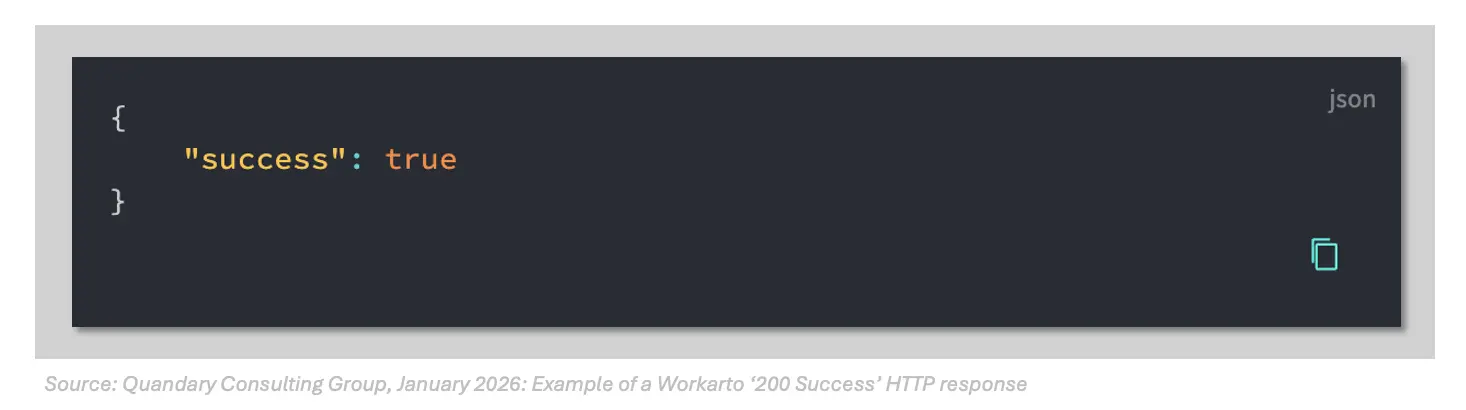
Provide your API client's API token in the request headers as a Bearer token.
Supported formats
- Workato API supports sending request bodies with the
application/jsoncontent-type. - All replies are also encoded in
application/json; charset=utf-8.
Workato HTTP Response Codes and What Each Response Means
An HTTP response code in Workato is a numeric status code returned by a web server after an HTTP request is made within a recipe (for example, when using a REST API connector or HTTP action). These codes tell Workato whether the request was successful, failed, or requires further action.
What HTTP Response Codes Are
HTTP response codes are part of the standard web protocol used across the internet. When Workato sends a request to an API (such as GET, POST, PUT, or DELETE), the server responds with a three-digit code that indicates the result of that request.
These codes are grouped into five main categories:
- 1xx (Informational): The request was received and is being processed.
- 2xx (Success): The request was successful.
- Example: 200 OK – The request worked as expected.
- Example: 201 Created – A new resource was successfully created.
- 3xx (Redirection): Additional action is needed to complete the request.
- 4xx (Client Errors): There was an issue with the request sent from Workato.
- Example: 400 Bad Request – The request was invalid.
- Example: 401 Unauthorized – Authentication failed.
- Example: 404 Not Found – The resource does not exist.
- 5xx (Server Errors): The server failed to process a valid request.
- Example: 500 Internal Server Error – A generic server failure.
- Example: 503 Service Unavailable – The server is temporarily down.
Why HTTP Response Codes Are Important in Workato
HTTP response codes are critical for building reliable automations in Workato because they determine how your recipes behave after making API calls.
- First, they help with error handling and debugging. By checking the response code, you can quickly identify whether a failure is due to a bad request, authentication issue, or server outage.
- Second, they enable conditional logic in recipes. Workato allows you to branch workflows based on response codes. For example, you can retry a request if you receive a 500 error or trigger a notification if a 404 error occurs.
- Third, they ensure data accuracy and integration reliability. Successful codes like 200 or 201 confirm that data was retrieved or created correctly, which is essential when syncing systems such as Salesforce, NetSuite, or Slack.
Finally, they support API monitoring and performance optimization. Tracking response codes over time helps identify unstable integrations, slow endpoints, or recurring failures.
Where can I view HTTP response codes in Workato?
You can view HTTP response codes in Workato within the job history or recipe execution logs. These logs show the response from each API call, including status codes and error messages.
1. Workato Job History (most common)
- This is the main place you’ll check.
- How to get there:
- Go to your Recipe
- Click the “Jobs” tab (top menu)
- Click on a specific job run (success, failed, or stopped)
- What you’ll see:
- A step-by-step breakdown of the recipe execution
- Each action (especially HTTP / API calls) is listed
- To find the HTTP response code:
- Click on the step that made the API call (e.g., “HTTP request”, “Custom action”, “Connector action”)
- Expand the “Output” or “Response” section
- Look for fields like:
statusstatus_codehttp_status- or similar
- Example: status_code: 200
2. Step Details
- You will use Step Details to deep dive into a specific action in Workato. When you click into a step in the job:
- You’ll usually see:
- Input (what was sent)
- Output (what came back)
- For HTTP connectors or custom API calls, the response often includes:
- Status code (e.g., 200, 401, 500)
- Response body (JSON/XML)
- Headers (sometimes)
Quick Tip from Workato Pros
- Search inside job output (Ctrl/Cmd + F) for:
statuscode
- If you don’t see it:
- The connector might be abstracting it (e.g., Salesforce, NetSuite)
- For custom APIs:
- Always inspect the raw response
Most Common Workato HTTP Response Code Meanings:
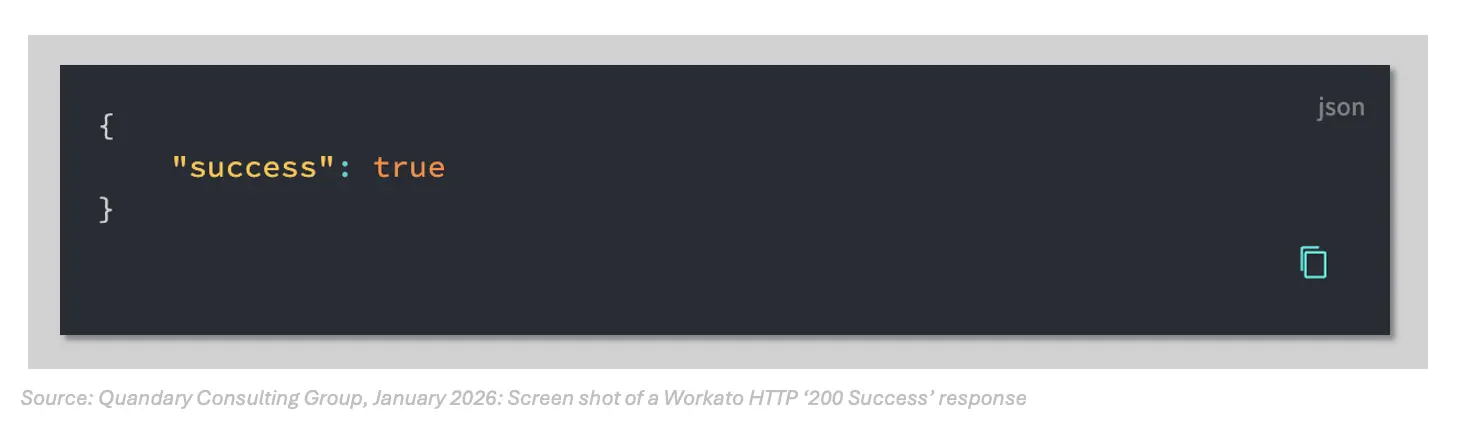
200 Success
- The
200 Successresponse indicates that the request was processed successfully by the server. The response body varies depending on the endpoint and operation performed, but it typically contains the requested data or a confirmation of the action performed. - What is the difference between 200 and 201 response codes?
- A 200 response code indicates a successful request with a returned result, while a 201 response code means a new resource was successfully created.
- In Workato, 201 is commonly seen when creating records via POST requests.
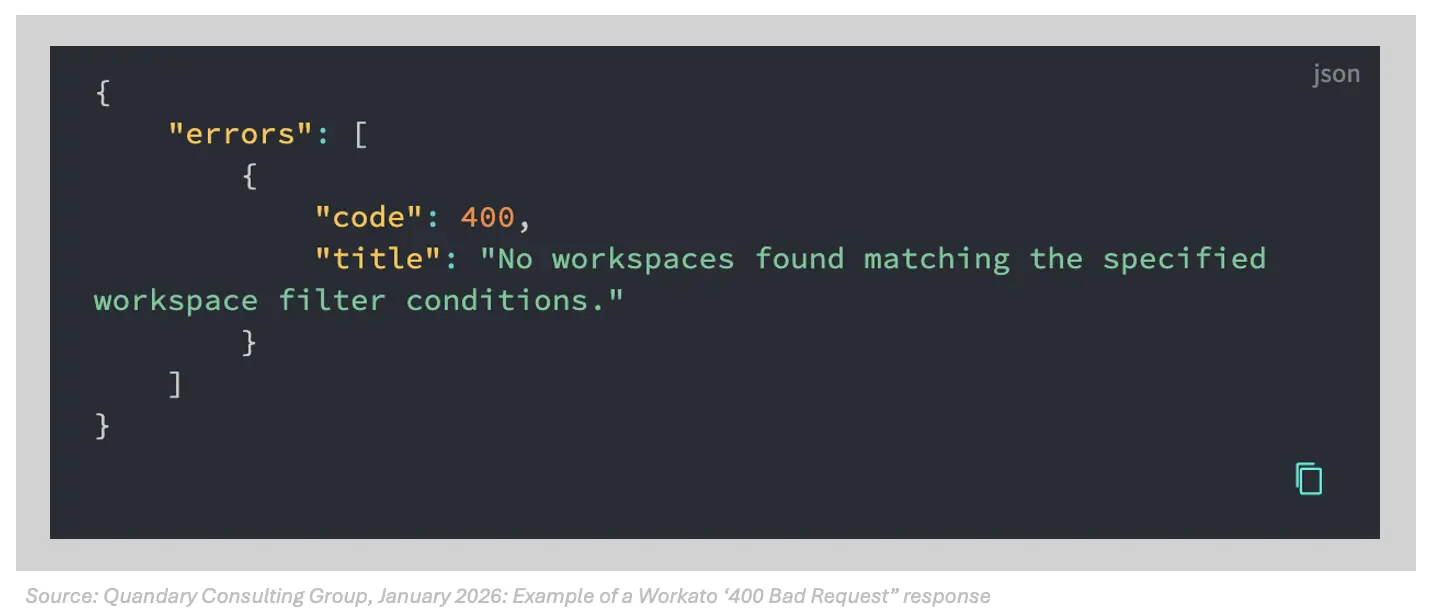
400 Bad Request
- The
400 Bad Requesterror indicates that the server couldn't process the request due to client-side issues. Common causes include malformed requests, invalid fields, or violations of field constraints, such as unsupported data types. 401 Unauthorized Error
- A 401 Unauthorized error indicates that authentication failed. To fix this in Workato, you should verify API credentials, tokens, or authentication settings in your connection and ensure they are valid and up to date.
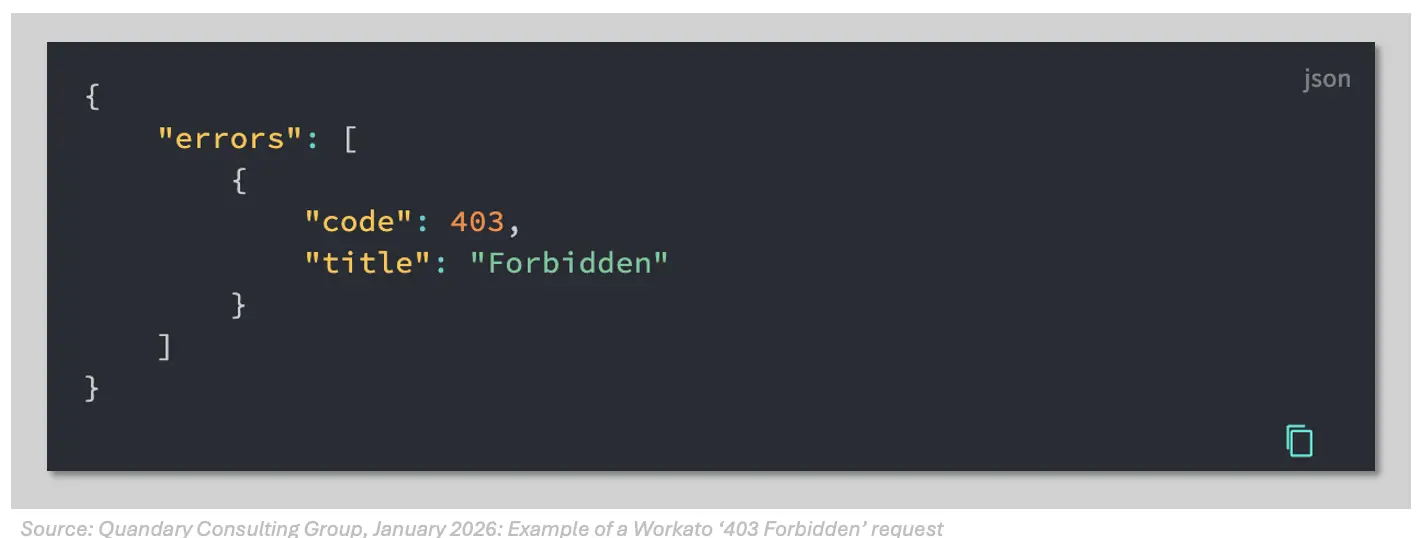
403 Forbidden
- The
403 Forbiddenerror indicates that the client is authenticated but doesn't have the necessary permissions to access the requested resource.
404 Not Found
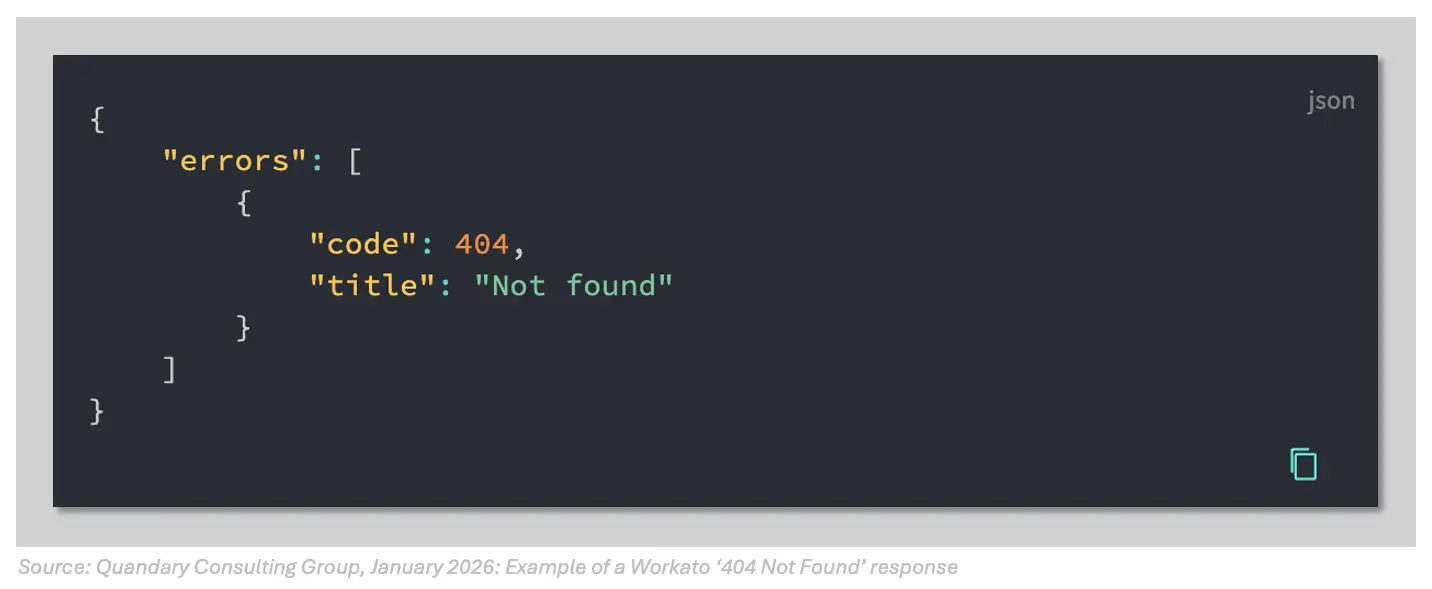
- The
404 Not Founderror is returned when the requested resource doesn't exist or can't be found. This can occur if the URL is incorrect or the resource has been deleted. 429 Too Many Request Error
- A 429 error occurs in Workato when an API rate limit is exceeded. In Workato, this means too many requests were sent in a short period. Implementing delays or retries can help resolve this issue.
500 Server Error
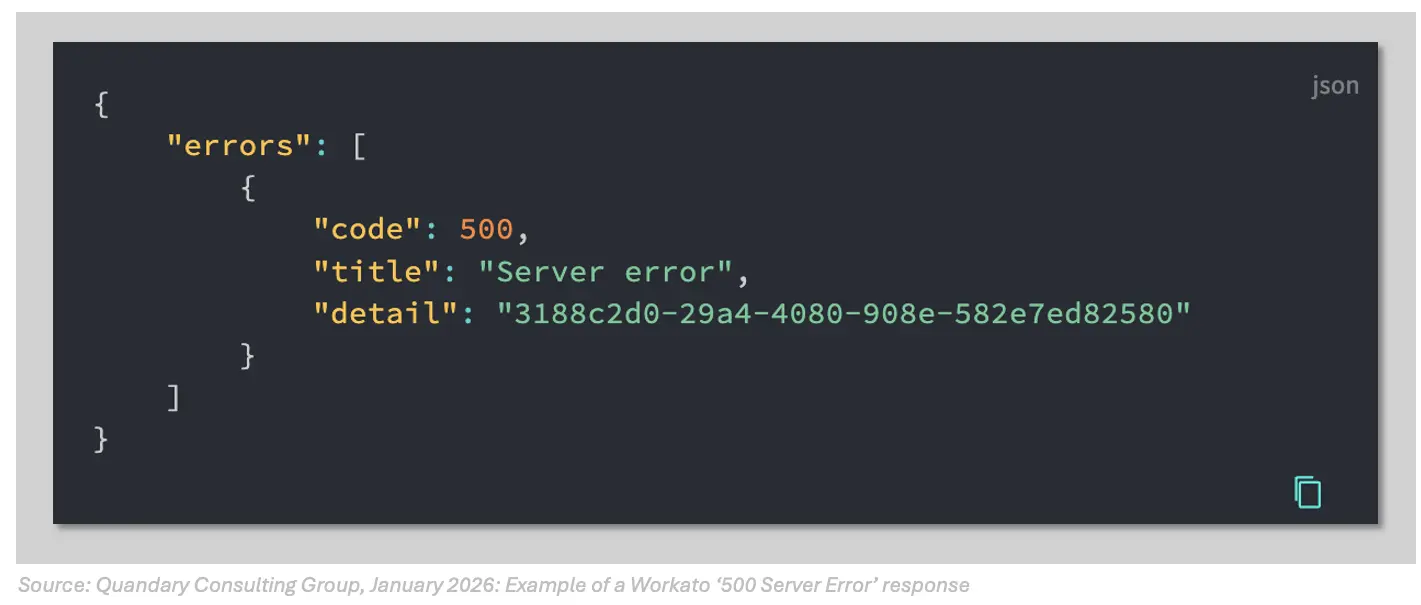
- The
500 Server Errorcode indicates that the server encountered an unexpected condition that prevented it from fulfilling the request. This error is usually caused by server-side issues.
Use x-correlation-ids
You can use a x-correlation-id with the Developer API to track and correlate requests. This improves debugging, traceability, and logging.
You can provide your own x-correlation-id in the request header, or Workato generates one for you. If you provide your own x-correlation-id, the response includes both your x-correlation-id and the x-correlation-id from Workato.
Looking to scale automation across your organization?
As a certified Workato Partner, Quandary Consulting Group delivers seamless automation solutions tailored to your business.
Schedule a call with a QCG Workato Consultant to learn how we can help you unlock the full potential of Workato.
- By: John Orsak
- Senior Solution Developer, Workato Integration Delivery Team
- Updated: April 5, 2026
- Email: jorsak@quandarycg.com
Frequently Asked Questions: HTTP Response Codes in Workato
1. What is an HTTP response code in Workato?
An HTTP response code in Workato is a three-digit status code returned by an API after a request is made within a recipe. It indicates whether the request was successful, failed, or requires additional action, helping users understand the outcome of their API calls.
2. Why are HTTP response codes important in Workato recipes?
HTTP response codes are important in Workato because they enable error handling, conditional logic, and reliable automation. By interpreting these codes, users can troubleshoot issues, trigger alternate actions, and ensure integrations between systems run smoothly.
3. How can I handle HTTP errors in Workato recipes?
You can handle HTTP errors in Workato by using conditional steps, error monitoring, and retry logic. For example, you can create branches based on response codes or use error handling features to log issues and notify users.
4. Can Workato automatically retry failed HTTP requests?
Yes, Workato can retry failed HTTP requests using built-in retry policies or custom logic. This is especially useful for handling temporary errors such as 429 (rate limits) or 503 (service unavailable).
5. How do HTTP response codes improve API integrations in Workato?
HTTP response codes improve API integrations in Workato by providing clear feedback on request outcomes. This allows users to build smarter workflows, reduce failures, and maintain data consistency across systems.
6. What are best practices for working with HTTP response codes in Workato?
Best practices include validating inputs before making requests, handling common error codes, implementing retry logic, and monitoring logs regularly. These practices help ensure stable and scalable Workato integrations.
7. How do HTTP response codes impact automation performance in Workato?
HTTP response codes directly impact automation performance by determining whether workflows succeed or fail. Proper handling of these codes ensures higher reliability, faster troubleshooting, and improved overall system performance.


Resources


© 2026 Quandary Consulting Group. All Rights Reserved.
Privacy Policy