
Knowledge Base
Articles In This Section
How to Create User Groups in QuickbaseHow to Add a New User Role in QuickbaseHow to Share your Quickbase Application with Everyone On The Internet (EOTI)How to Archive Records in Quickbase Using Role PermissionsHow to Adjust User Roles in QuickbaseHow to Switch Quickbase Developers and Admin User Roles in QuickbaseHow to Display Information for Certain Roles in QuickbaseHow to Add New Users to your Quickbase ApplicationHow to Modify or Deny a User's Access in QuickbaseSections
How to Use Conditional Filters in Quickbase for Role-Based Record Permissions
In Quickbase, you can control role-based record permissions by using conditional filters to grant or restrict access based on field values within a record. This allows you to create highly customized data access rules so users only see or edit the records relevant to them.
Quickbase also allows you to define permissions for each role at a granular level. For both view access and modify access, you can choose:
- All records
- Group records
- No records
- Custom rules using conditional filters
This article focuses on how to use custom rules (conditional filters) to manage record-level access.
When should you use conditional filters in Quickbase?
Conditional filters are ideal when you need dynamic, rule-based access control. Common use cases include:
- Allowing employees to view only their own timesheets
- Allowing project managers to edit only projects they created
- Restricting sales associates from viewing archived opportunities
These scenarios rely on field-based conditions to enforce secure, role-based visibility.
Example: Restrict users to view only their own records in Quickbase
In this guide, we’ll walk through a common use case: limiting users to view only their own timesheets.
The goal is to ensure that users in a specific role (such as Participants) can only access records where they are listed as the employee. This is a foundational pattern for implementing user-specific record visibility in Quickbase.
Let’s walk through how to set this up in this step-by-step guide on How to Use Conditional Filters in Quickbase for Role-Based Record Permissions.
How to Use Conditional Filters in Quickbase for Role-Based Record Permissions
Step 1: Go to your timesheet table and identify the field where the username is entered.
- In this example the field is called: ‘Employee’.
- Remember the name of your field.
Step 2: Navigate to table ‘Settings’
- Select the option ‘Access’ 3.
- In the participant role click the dropdown field in the ‘View’ column:
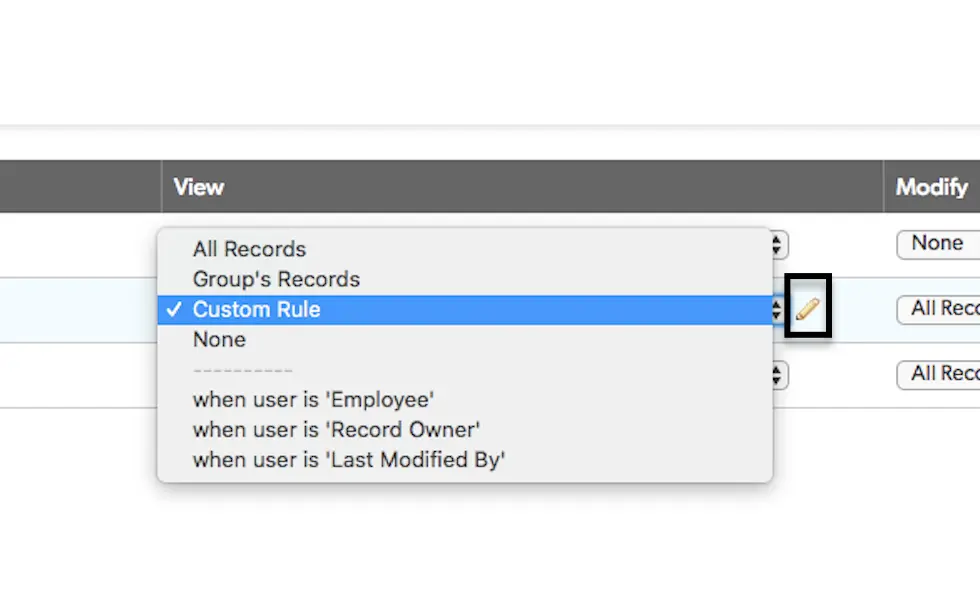
Step 3: For this example, we will select the condition ‘When the employee is the current user”.
- This means records will only be shown to a user if the user entered in the ‘Employee’ field is the same user they are logged in as.
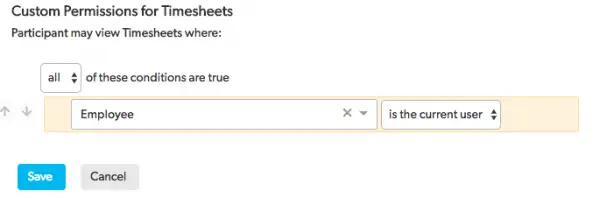
In some cases your organization may want to require timesheets be completed during the current week. We can set an additional level of custom access using the ‘Modify’ drop down.
Step 4: To do so: Start by creating a formula checkbox field named “Current Week?”
- Next, add the following formula (simply copy and paste the text below in to the formula checkbox field in Quickbase): FirstDayOfWeek([Date])=FirstDayOfWeek(ToDate([Today])) and
FirstDayOfMonth([Date])=FirstDayOfMonth(ToDate([Today])) and
FirstDayOfYear([Date])=FirstDayOfYear(ToDate([Today]))
Step 5: This will cause the field to be checked if the timesheet is entered during the same year, month and week.
Step 6: In the participant role click the dropdown field in the ‘Modify’ column and select ‘Custom’
Step 7: Now set the conditions as shown in the pic below:
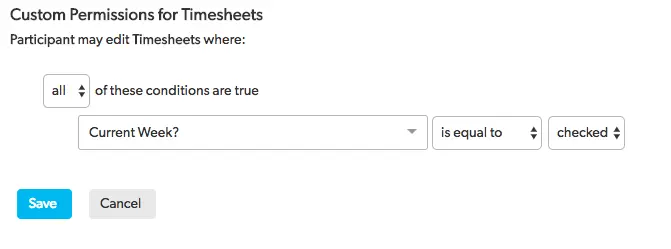
Step 8: Click "Save" and return to your time sheets.
- Now you will notice that you can no longer edit timesheets from previous weeks.
Top FAQs: Using Conditional Filters in Quickbase for Role-Based Record Permissions
1. What are conditional filters in Quickbase?
Conditional filters in Quickbase are rules that control which records users can see based on specific criteria, such as user role, record owner, or field values. They are commonly used to enforce role-based record permissions and limit data visibility.
2. How do conditional filters work for role-based permissions in Quickbase?
Conditional filters work by matching record data (like user, team, or status) with the logged-in user’s role or profile. This ensures users only see records they are authorized to access, improving both security and usability.
3. Where can you use conditional filters in Quickbase?
You can apply conditional filters in Quickbase in several places:
- Role-based table permissions
- Reports and dashboards
- Forms and lookup fields
They help customize data visibility across the entire app.
4. What is the difference between Quickbase role permissions and conditional filters?
Role permissions define what actions users can take (view, edit, delete), while conditional filters define which records those permissions apply to. Together, they create a complete role-based access control system in Quickbase.
5. How do I limit users to only see their own records in Quickbase?
To restrict users to their own records, create a conditional filter such as:
“Record Owner is the current user.”
This is one of the most common Quickbase permission rules for role-based access.
6. How do you reference the current user in a Quickbase filter?
Quickbase provides a built-in “Current User” variable that dynamically matches records to the logged-in user. This allows filters to automatically adjust per user without manual updates.
7. Can conditional filters be based on roles, teams, or departments?
Yes. Conditional filters in Quickbase can use fields like role, department, or team to control access. Many apps use a related Users table to manage these relationships more dynamically.
8. What happens if multiple conditional filters apply to a user?
Quickbase evaluates all applicable conditions. If a user meets the criteria for access, they may see the record depending on how the rules are configured. Careful rule design is important to avoid unintended access.
9. Do conditional filters affect Quickbase performance?
Yes, complex conditional filters on large datasets can impact performance. To optimize:
- Use indexed fields
- Keep logic simple
- Avoid unnecessary nested conditions
10. How can I test conditional filters in Quickbase?
You can test filters by:
- Previewing the app as another user (admin feature)
- Creating test roles
- Validating results in reports before applying permissions
Testing ensures your role-based record permissions work as intended.
11. Are conditional filters secure for sensitive data in Quickbase?
Conditional filters are secure when used with proper role permissions. For sensitive data, combine them with least-privilege access, strict role settings, and thorough testing.
12. What are common mistakes when using conditional filters in Quickbase?
Common mistakes include:
- Overlapping or conflicting rules
- Ignoring null or blank values
- Not testing across roles
- Using report filters instead of permission-level filters
Avoiding these issues helps maintain accurate and secure data access.
- Author: April Barragan
- Title: Solution Consultant | Quickbase
- Email: abarragan@quandarycg.com
- Date Updated: 03/03/2026


Industries
Resources


© 2026 Quandary Consulting Group. All Rights Reserved.
Privacy Policy