
Knowledge Base
Articles In This Section
How to Create User Groups in QuickbaseHow to Add a New User Role in QuickbaseHow to Share your Quickbase Application with Everyone On The Internet (EOTI)How to Archive Records in Quickbase Using Role PermissionsHow to Switch Quickbase Developers and Admin User Roles in QuickbaseHow to Display Information for Certain Roles in QuickbaseHow to Use Conditional Filters in Quickbase for Role-Based Record PermissionsHow to Add New Users to your Quickbase ApplicationHow to Modify or Deny a User's Access in QuickbaseSections
How to Adjust User Roles in Quickbase
A Quickbase application can have a variety of users who need different levels of access. Effective use of these permissions doesn’t just ensure everybody sees the right information. It’s also critical to the security and privacy of applications.
In this article, we’ll show you how to set up a role, create and edit custom access rules, and manage access permission for a role in Quickbase.
What Is a Quickbase Role?
Quickbase roles allow you to control numerous aspects of an application. The most common use of roles is to limit the records a user can view and modify based on table-level rules. Each role has rules for access to each table and the records in it.
What are the Default Roles (or "built-in" roles) in Quickbase?
Quickbase applications include three default roles:
- Administrator: The Administrator role is granted to the application owner by default. Users in this role have access to the application settings. Administrators typically have wide-ranging responsibilities within the application, including development, governance, compliance, and oversight roles.
- Viewer: The Viewer role has the ability to look at tables, records, and associated reports but cannot add or modify records.
- Participant: The Participant role has the same permission as the Viewer role and can add and modify records in the database.
- Custom Roles can also be created and tailored to meet the more granular access and security requirements of applications.
What is the Importance of Roles in a Quickbase Application?
You will use Quickbase roles each time you give access to a new user. These roles limit access to sensitive information, improve the user experience, and govern the behavior of users. It is just as important to think about what you are enabling the user to do as what you are restricting when designing user roles.
Quickbase Custom roles are often designed to only allow users to view the records they create or that have been assigned to them.
The following examples are provided to illustrate the importance of effective role design and management.
- In an HR application that automates the hiring and credentialing of employees, the product owner does not want everyone accessing the application to see sensitive data like salaries or performance reviews. Custom User roles are designed to prevent unauthorized access.
- In a project management application, you may improve the user experience and reduce errors, by restricting the roles to view and modify only the projects they are assigned.
- In a healthcare application, you want to limit the visibility of entire elements of the application. For example, you allow only licensed medical professionals to have access to PHI in compliance with defined HIPAA policies.
- You may want to limit access to a specific table or group of records, for example, an archive of legacy records subject to a data retention policy.
The decision of which user gets which role should be discussed with the product owner, and determined before the application goes live.
Role UI Overview for Quickbase Administrators
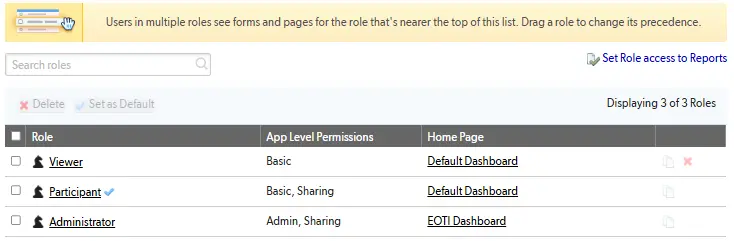
Roles are listed in order of precedence.
- Users in multiple roles have access to the role nearest the top of the list.
Participant is the default application role unless another role has been designated.
- The blue checkmark to the right of the role name signifies the default role.
The Quickbase default role can be changed by application administrators.
- To change the default role, you need to toggle the checkbox to the right of the role
- click the Set as Default button
- Note: the Set as Default button is hidden unless a change is pending
A Quickbase existing role can be copied to use as a starting point for a new role by clicking the copy icon located in the last column of the role record.
Add a new Quickbase role from scratch
- Click the New Role button in the upper right corner of the UI above the role list.
To modify an existing Quickbase role
- Click the role name to open the configuration UI for the role.
How to Modify Quickbase Role Permissions and UI Access?
The UI for managing roles consists of 3 pages utilizing tab navigation to organize the settings.
Understanding Quickbase Permissions Tab
You can set up the permissions to the app and individual tables for users in the selected role here. The screenshot below shows the Participant role. The key elements of the tab are as follows:
- Role Name (Edit on the Properties tab)
- Navigation Tabs
- App Access settings
- Table Access settings
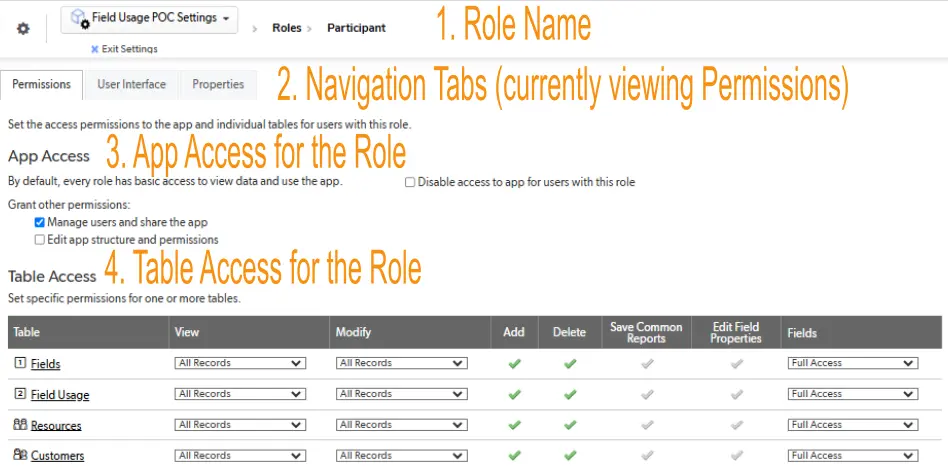
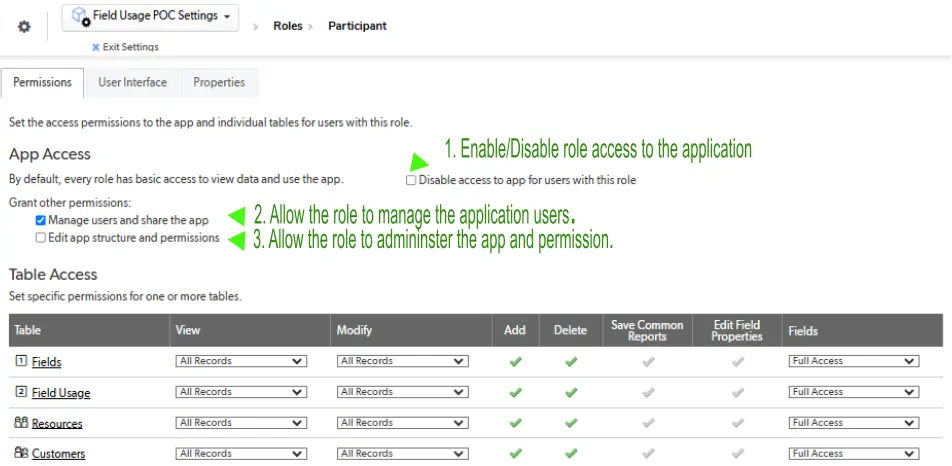
The App Access settings determine the role’s permission to:
Log in to the application:
- In the example screenshot below, the Participant role has access to the application.
- Unchecked by default. Enable the checkbox to deny access
Manage users and share the application: In the example screenshot below, the Participant role has permission to manage the users of the application.
- Enabled by default for the Participant and Administrator roles.
Change the application’s structure and permission: DOES NOT have permission to change the application structure (build) or permissions.
- The checkbox IS NOT enabled by default for the Viewer and Participant roles.
Understanding Table Access in Quickbase
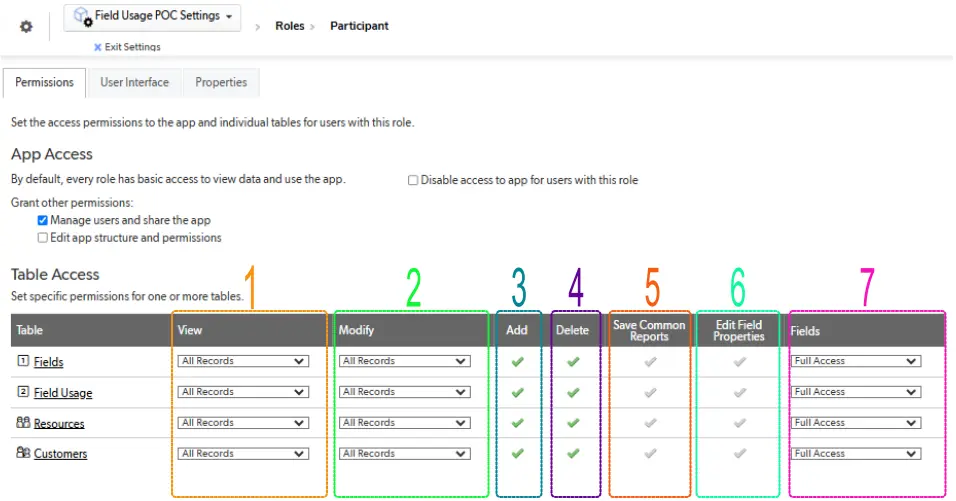
The Quickbase Table Access settings control table specific permission for the role. The UI is arranged in a matrix format. Each row of the matrix relates to the name of a table in the application. Settings in the row determine how the role interacts with the records, reports, and information in it.
In the example screenshot below, these are the table access permission settings of someone in the Participant role:
- View Records: has permission to view all records in all tables in the app.
- Modify Records: has permission to modify all records in all tables in the app.
- Add Records: has permission to add records to all tables in the app.
- Delete Records: has permission to delete records from all tables in the app.
- Save Common Reports: does not have permission to save common reports in any of the app tables. (All users can create reports for personal use.)
- Edit Field Properties: does not have permission to edit field properties in any of the app tables.
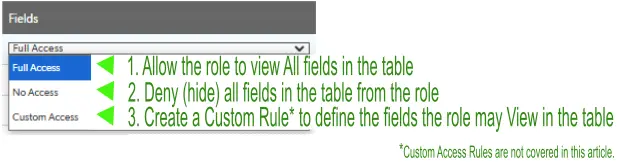
- Fields: has full access to all fields in all tables in the app.
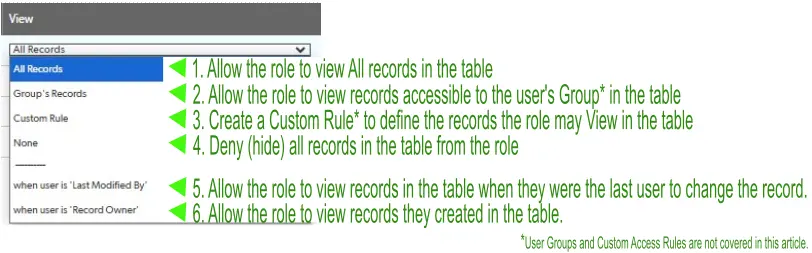
The View, Modify, and Fields settings utilize multiple choice “drop-down” style UI controls.
The View and Modify settings offer the choices as illustrated in the following screenshot.
The Fields setting offers the choices illustrated in the following screenshot.
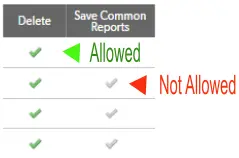
The Add, Delete, Save Common Reports and Edit Field Properties checkboxes are toggled on/off with a single mouse click.
The following illustration shows a detailed view of an enabled and disabled checkbox.
- When the option is enabled (Allowed) for the table, the checkbox is colored green.
- When the option is disabled (Not Allowed) for the table, the checkbox is “grayed out.”
Understanding Quickbase User Interface Tab
The settings and controls on the User Interface tab allow the UI to be customized to fit the needs of users in the selected role. This tab is densely populated with controls that can be easily overlooked.
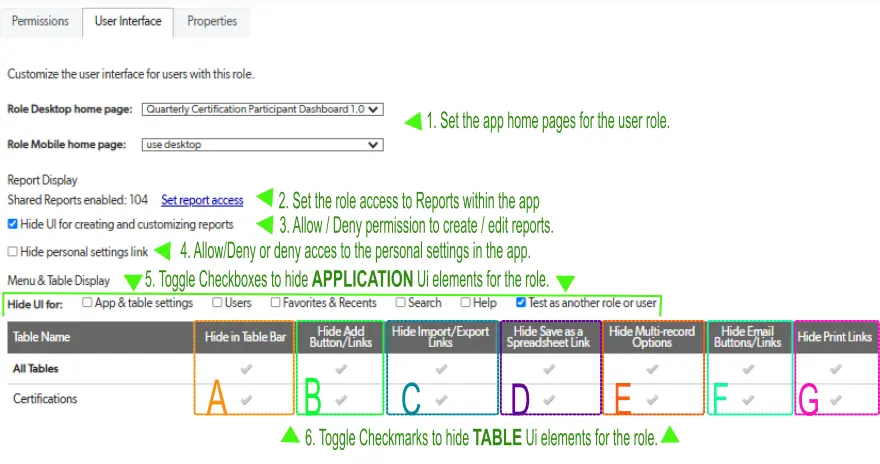
The example screenshot on the next page continues following the Participant role. It is labeled to show the location of each of the controls listed below:
Quickbase application homepage users in the role will see when logging in is set using the two dropdown fields on this tab.
- The home pages you have created inside of the current application will be available in each select list. In the example screenshot below, the role is using default settings.
Quickbase Desktop home page: for users that sign in from a desktop, laptop, notebook, etc.
Quickbase Mobile home page: for users that sign in with a mobile device.
Report Display settings include the number of reports the role has access to and a link to the admin UI for managing report access.
- Allow users to create and customize reports in the application.
- Allow users to manage personal reports, notifications, and other customized views within the application; essentially, controlling what data you see and how you interact with it on a personal level.
Quickbase Menu and Table Display settings hide application UI elements. Hiding in this context means denying the permission to use it. The application-level elements that can be hidden are:
- App and Table settings
- Users
- Favorites & Recents
- Search
- Help
- Text as Another Role
Quickbase Menu and Table Display settings hide table UI elements, such as:
- Table Bar
- Add Button/Links
- Import/Export Links
- Save as a Spreadsheet Link
- Multi-Record Options
- Email Button/Links
- Print Links
In the example screenshot below, the Participant role is using a custom home page for desktop and mobile devices. It has access to 104 reports but cannot customize them or create new ones. Access to personal links is allowed.
Within the UI, the role may not Test as another role or user. The role has full access to the table-level settings.
Understanding Quickbase Properties Tab
- The properties tab is where the role name and description can be set and modified.
- When using the default roles it isn’t necessary to enter a description.
- When creating custom roles you should always describe why the role exists in terms of what it can do that other roles cannot.
Best Practices for Using Roles in Quickbase
Using and adjusting roles in Quickbase is essential for maintaining application security, controlling data access, and supporting efficient workflows. Proper role management allows organizations to scale operations confidently while protecting sensitive information and reducing administrative risk.
Whether you are managing internal operations, customer portals, project management systems, or enterprise workflow automation, well-structured Quickbase roles are a key component of long-term platform success.
- Author: Jeff Richey
- Title: Senior Solution Consultant | Quickbase
- Email: jrichey@quandarycg.com
- Date updated: May 24, 2026
Top FAQs About How to Use and Adjust Roles in Quickbase
1. What Are Roles in Quickbase?
Roles in Quickbase determine what users can see and do within an application. They control permissions for:
- Viewing records
- Editing data
- Deleting records
- Running reports
- Accessing dashboards
- Managing app settings
Roles help organizations maintain security while ensuring users have the right level of access.
2. How Do I Access Roles in Quickbase?
To view or adjust roles:
- Open your Quickbase application
- Click Settings
- Select Roles
- Choose an existing role or create a new one
- From there, administrators can modify permissions and access settings.
3. Why Are Quickbase User Roles Important?
Quickbase roles are critical for:
- Data security
- Workflow management
- Compliance
- Operational efficiency
- Controlled collaboration
Without properly configured roles, users may gain access to sensitive information or accidentally modify critical data.
Industries like healthcare, construction, finance, and manufacturing rely heavily on role-based access control in Quickbase.
4. How Do I Adjust Permissions for a Quickbase Role?
Administrators can adjust permissions by editing a role and configuring:
- Table access
- Field permissions
- Record editing rights
- Form visibility
- Report access
- Dashboard permissions
- Administrative controls
Changes can be applied instantly across all users assigned to the role.
Best practice: Test permission changes before rolling them into production.
5. Can I Restrict Users to Certain Records in Quickbase?
Yes. Quickbase supports record-level permissions. You can limit access based on:
- User ownership
- Departments
- Teams
- Geographic regions
- Assigned projects
- Custom filters
Example: A project manager in Denver may only see Colorado-based projects, while executives can view nationwide operations.
6. What Is the Difference Between Roles and Permissions in Quickbase?
Permissions are individual access settings, while roles are groups of permissions assigned to users.
- Permission = ability to edit records in Quickbase
- Role = Project Manager role containing multiple permissions throughout the entire Quickbase realm (which includes the individual Quickbase applications within said realm).
Roles simplify administration by grouping related access controls together.
7. How Do I Create a Read-Only Role in Quickbase?
To create a read-only role:
- Create a new role
- Enable viewing permissions
- Disable Add/Edit/Delete capabilities
- Restrict administrative access
Read-only roles are commonly used for:
- Executives
- Auditors
- Clients
- External stakeholders
This helps organizations share information securely without risking accidental changes.
8. What Are Best Practices for Managing Quickbase Roles?
We recommended the following Quickbase role management best practices to our clients:
- Follow least-privilege access principles
- Avoid unnecessary admin rights
- Use clear role naming conventions
- Conduct regular permission audits
- Test changes in sandbox environments
- Document security policies
- Review user access quarterly
9. Can Quickbase Roles Be Automated?
Yes. Quickbase supports automated role management through:
- Quickbase Pipelines
- APIs
- Single Sign-On (SSO)
- Okta
- Azure Active Directory
- Identity management systems
Automation can:
- Speed up onboarding
- Reduce manual work
- Improve compliance
- Ensure consistent security policies
Example: New employees can automatically receive role assignments based on department or job title.
10. What Happens When You Change a User Role in Quickbase?
When a user’s role changes, their permissions update immediately. This may affect:
- Data visibility
- Editing rights
- Dashboard access
- Report access
- Administrative functions
Example: Promoting a team member from Viewer to Project Manager may allow them to edit records and manage workflows.
Best practice: Communicate permission changes to users to avoid workflow confusion.


Industries
Resources


© 2026 Quandary Consulting Group. All Rights Reserved.
Privacy Policy