
Knowledge Base
Articles In This Section
How to Create Multiple Records in a Quickbase Join Table How to Import Data into QuickbaseHow to do a Table-to-Table Import in QuickbaseHow to Create Tables, Fields, and Records in Quickbase How to Set Up Reverse Relationship in QuickbaseSections
How to Change Your Primary Key from Record ID# in Quickbase
When you create a new table in your Quickbase application several built-in fields are added automatically, one of which is Field Record ID#. The field Record ID# (or commonly referred to as 'Field ID') is referred to as your primary key or key field and is a unique numerical identifier for each record you create.
In Quickbase Record ID# is a sequential number starting at Record ID# 1.
- This is a useful way for you, and your Quickbase application, to keep track of records and make sure they all have at least one feature that makes them entirely unique.
For every record, the corresponding Record ID# is located in the upper left of the record:

Why Change Your Field Record ID in Quickbase
Changing a field ID in Quickbase isn’t something you typically want to do lightly—because field IDs are the system-level identifiers Quickbase uses behind the scenes, and they’re referenced in formulas, API calls, pipelines, and integrations.
That said, there are a few scenarios where someone might need or want to effectively change or replace a field ID:
Cleaning up a messy or legacy schema
If your app has evolved over time, you might have fields created in the wrong order or with poor naming conventions.
Since Quickbase assigns field IDs sequentially and doesn’t let you directly edit them, people sometimes recreate fields to get a cleaner structure.
Fixing broken or confusing integrations
If an integration (API, Pipelines, Make or Zapier, etc.) was built using the wrong field or an outdated one, you might replace the field entirely—resulting in a new field ID—to realign things properly.
Rebuilding a field with a different type
Quickbase doesn’t allow certain field type changes (e.g., text → reference or formula). So you create a new field with the correct type. That new field gets a new field ID, and you migrate data over.
Removing technical debt
Old fields that are referenced in formulas, reports, or automations can create clutter. Replacing them with new fields (new IDs) and updating dependencies can simplify maintenance.
Aligning with external systems
Sometimes teams want field mappings to match another system more cleanly. Recreating fields (and thus IDs) can help standardize integrations.
What are the Different Ways to Change a Field ID in Quickbase
You CANNOT directly change a field ID in Quickbase. The only way is to:
- Create a new field (new ID)
- Migrate data
- Update all references (formulas, reports, pipelines, API calls)
- Remove or deprecate the old field
How to Change Your Primary Key from Record Field ID# in Quickbase
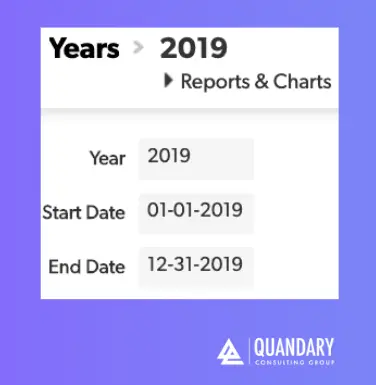
Step 1: Go to your ‘Years’ table.
- Make sure there is a field called ‘Year’.
Step 2: Create a record and fill in one record with the year ‘2019’
Step 3: Go to your table settings
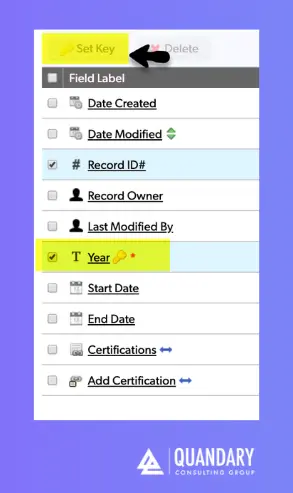
Step 4: Click ‘Fields’
Step 5: Note the Record ID# field has a key icon to the right of the field name
Step 6: Then click the checkbox next to the ‘Year’ field
- Click ‘Set Key’.
- ‘Years’ will now take the place of ‘Record ID#’ as the Key Field
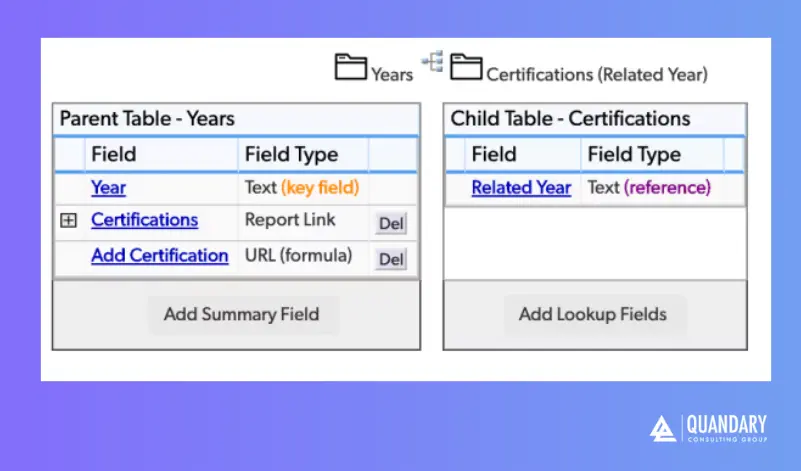
Step 7: Now, in the ‘Years’ table settings, go to table-to-table relationships and add a relationship to the ‘Credentials’ table, where there are many credentials to one year.
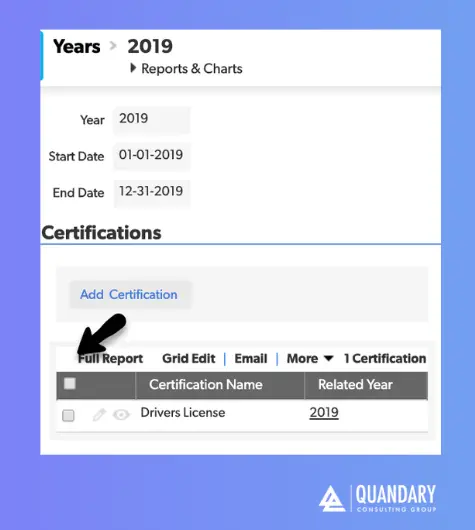
Step 8: In the ‘Credentials’ table, add a record and select a year of ‘2019’.
- Now, if you go to the year table, you’ll find the credential associate to you 2019 record.
Top FAQs -How to Change Your Primary Key from a Field ID# in Quickbase
1. Can you change a field ID in Quickbase?
No, you cannot directly change a field ID in Quickbase. Field IDs are system-generated and permanent. To “change” one, you must create a new field, migrate the data, and update all references such as formulas, reports, and integrations.
2. Why would someone need to change a field ID in Quickbase?
Users typically want to change a field ID when cleaning up outdated schema, fixing broken integrations, or rebuilding a field with a different data type. Since IDs can’t be edited, replacing the field is the only option.
3. What happens if a Quickbase field ID changes?
When a field is replaced, anything referencing the old field ID—like API calls, Pipelines, formulas, and reports—can break. That’s why careful auditing and updates are required during migration.
4. How do you safely replace a field in Quickbase?
To safely replace a field:
- Create a new field with the correct structure
- Copy or migrate existing data
- Update all formulas, reports, and integrations
- Test thoroughly before removing the old field
This process minimizes downtime and prevents data loss.
5. Does changing a field ID affect Quickbase integrations and APIs?
Yes, it can significantly impact integrations. Many APIs and automation tools rely on field IDs rather than field names. If the ID changes (via replacement), those connections must be updated to avoid failures.
- Author: April Barragan
- Title: Solution Consultant | Quickbase
- Email: abarragan@quandarycg.com
- Date updated: 01/04/2026


Industries
Resources


© 2026 Quandary Consulting Group. All Rights Reserved.
Privacy Policy