
Knowledge Base
How to Use Google Maps for Data Visualization
Maps are a very useful way to convey location details in your applications. Quick Base offers a native Map Report option which can be great for doing this, however, it does have some drawbacks.
- Limited to 100 locations. Will default to first 100 based on sorting filter.
- Only display data from a single table.
- Provide limited record details.
- Cannot drive workflow.
Using the Google Maps API in a Code Page removes these limitations and allows you to create awesome maps with more detail and workflow power. Including but not limited to the following:
- Unlimited number of locations can be displayed (use at your discretion, crowded maps tend to overwhelm the users).
- Display data from any table.
- Display any fields from any record.
- Drive workflow by allowing users to add/edit/delete data using the map UI.
EXAMPLE: Custom map using Quickbase data
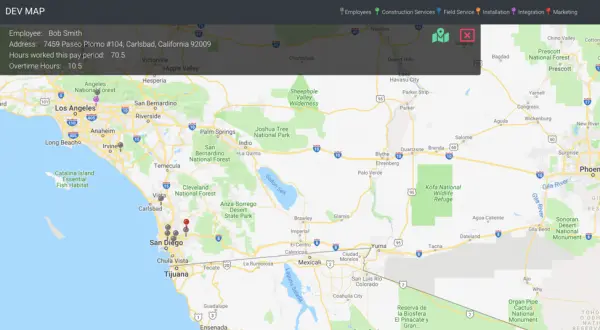
The map above combines data from an Employees table and a Projects table. Address fields are converted to lat/long values allowing the Quickbase records to become pins on the map.
- Project Managers can view locations and detailed information and assign Employees to Projects directly from the map interface.
- This is just one of the many ways custom maps can provide data visualization and drive workflow from a single interface.
Quickbase dashboards allow you to add Code Page widgets, meaning you can easily place a custom map on any user’s Home page.
- Check out our article on Adding Reports to Dashboards to learn how to get started.


Resources



© 2026 Quandary Consulting Group. All Rights Reserved.
Privacy Policy