
Knowledge Base
Articles In This Section
Quickbase Login Issues: Common Causes and Troubleshooting GuideEffective Storage & Archiving Methods for Heavy Quickbase UsageSections
Quickbase Knowledge Center
Getting Started in QuickbaseFields & Formulas Reporting & DashboardsNotifications & Subscriptions Roles & PermissionsTablesFormsQuickbase PipelinesQuickbase APIMaintenance & Monitoring
WorkatoOutside of the Quickbase BoxQuickbase NewsPipefy NewsWorkato NewsAI Knowledge CenterPipefy Knowledge CenterStrategies for Slow Quickbase Performance
January 26, 2026
STEP 1: Identify the Source of Slowness with the Performance Bar
The first step is to determine if the problem lies with your internet connection, Quickbase's service, or your browser.
- Open the Performance Bar
- On any Quickbase page, look for the small Performance Bar at the bottom of your browser window.
- If you don't see it, click the small icon (often a speedometer or a bar chart icon) to expand it.

- Analyze the Readings
- Quickbase's Performance Bar displays three important metrics:
- Browser: Time spent by your web browser processing the page. High numbers here might indicate a browser issue or too many complex client-side scripts.
- Quickbase Response Time: Time Quickbase's servers took to respond. High numbers here suggest a server-side app performance issue.
- Network: Time taken for data to travel between your computer and Quickbase.
- Quickbase's Performance Bar displays three important metrics:
- Run a Speed Test
- Click Run Speed Test, under the Network section to evaluate your network connection to Quickbase's data centers.
- If your Quickbase Response Time, has a consistently high number (e.g., over 500ms for simple actions), it's likely an app performance issue.
- Click Run Speed Test, under the Network section to evaluate your network connection to Quickbase's data centers.
STEP 2: Pinpoint Slow Actions with the Performance Analyzer
- Once you suspect an app performance issue, the Quickbase Performance Analyzer is your next stop.
- Enable Quickbase Performance Analyzer:
- Go to your app experiencing slowness, then:
- Navigate to App Settings > App management > Performance Analyzer.
- Click the, Start Performance Analyzer, button.
- Open Quickbase Visualizer:
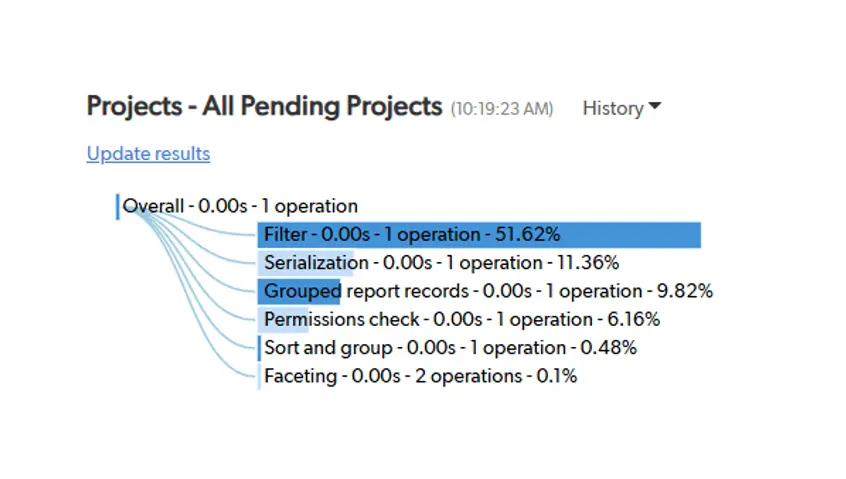
- The performance will show results on each action took and show the total time for each individual process.
- This breaks down the processes involved and how Quickbase is handling each.
Please Note: Filters are the single most time-consuming aspect. Quickbase Formula Filters like using contains and not using exact matches cause additional memory consumption, and it is best to avoid as much as possible.
STEP 3: Analyze Formula Complexity with the Quickbase Dependency Diagram
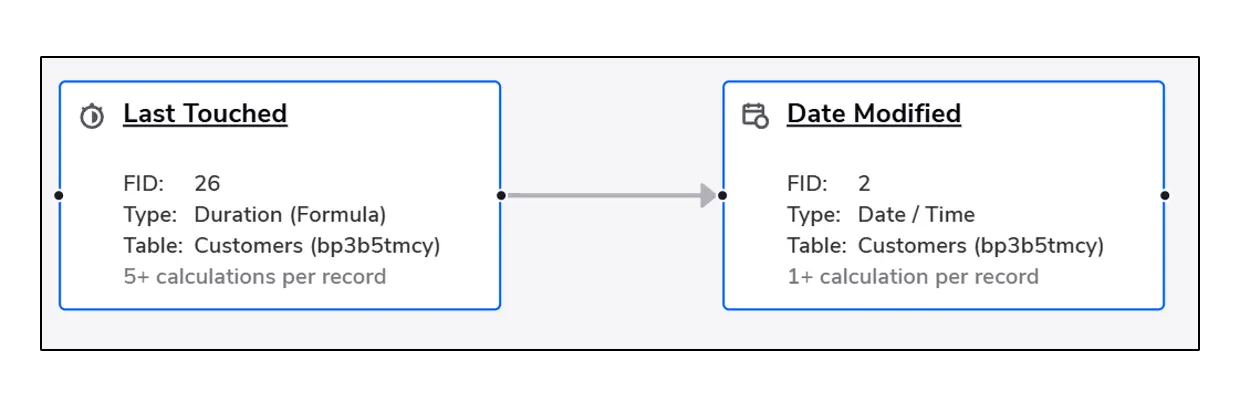
- If the Quickbase Performance Analyzer shows that a specific field is taking a long time to calculate, use the Dependency Diagram to see why.
- Open the Diagram:
- Go to Settings > Tables > [Select your Table] > Fields.
- Find the slow field and select the Dependency Diagram icon (looks like a flowchart).
- Activate the Hot Path:
- Click the Fire Icon in the diagram toolbar.
- This highlights the Hot Path —the specific fields or calculations that contribute to more than 20% of the total calculation load.
- Check your Quickbase Calculation Counts:
- Look at the numbers on the nodes.
- If a field has a high Calculation Count (e.g., 50+) this means every time that field is used, Quickbase is doing a massive amount of background work.
STEP 4: Deep-Dive with Quickbase Formula Checker
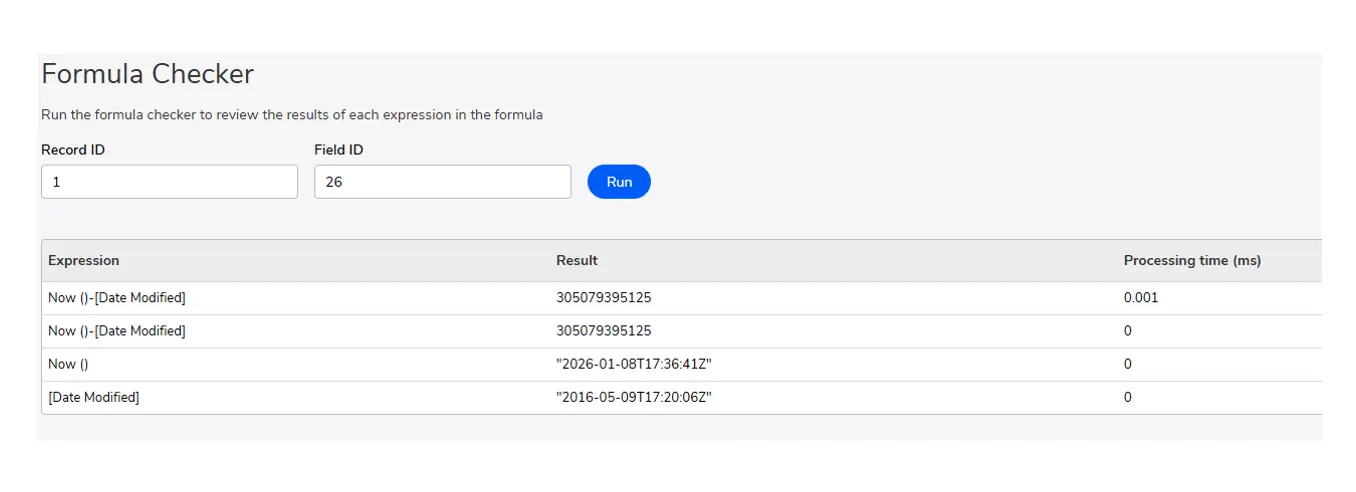
- For extremely complex formulas, use the Quickbase Formula Checker to see the processing time for every single line of code.
- Test the Formula:
- Within the field settings of a formula field, look for the Formula Checker section.
- Input a Record ID:
- Enter a valid Record ID from your table and click Check Formula.
- Identify Bottlenecks:
- The tool will return a list of every expression evaluated.
- Look for specific lines where the time (in milliseconds) jumps significantly.
- These are the parts of your formula you should simplify or replace with a summary field.
- The tool will return a list of every expression evaluated.
- Test the Formula:
STEP 5: High-Level Auditing with Performance Insights and Optimizer
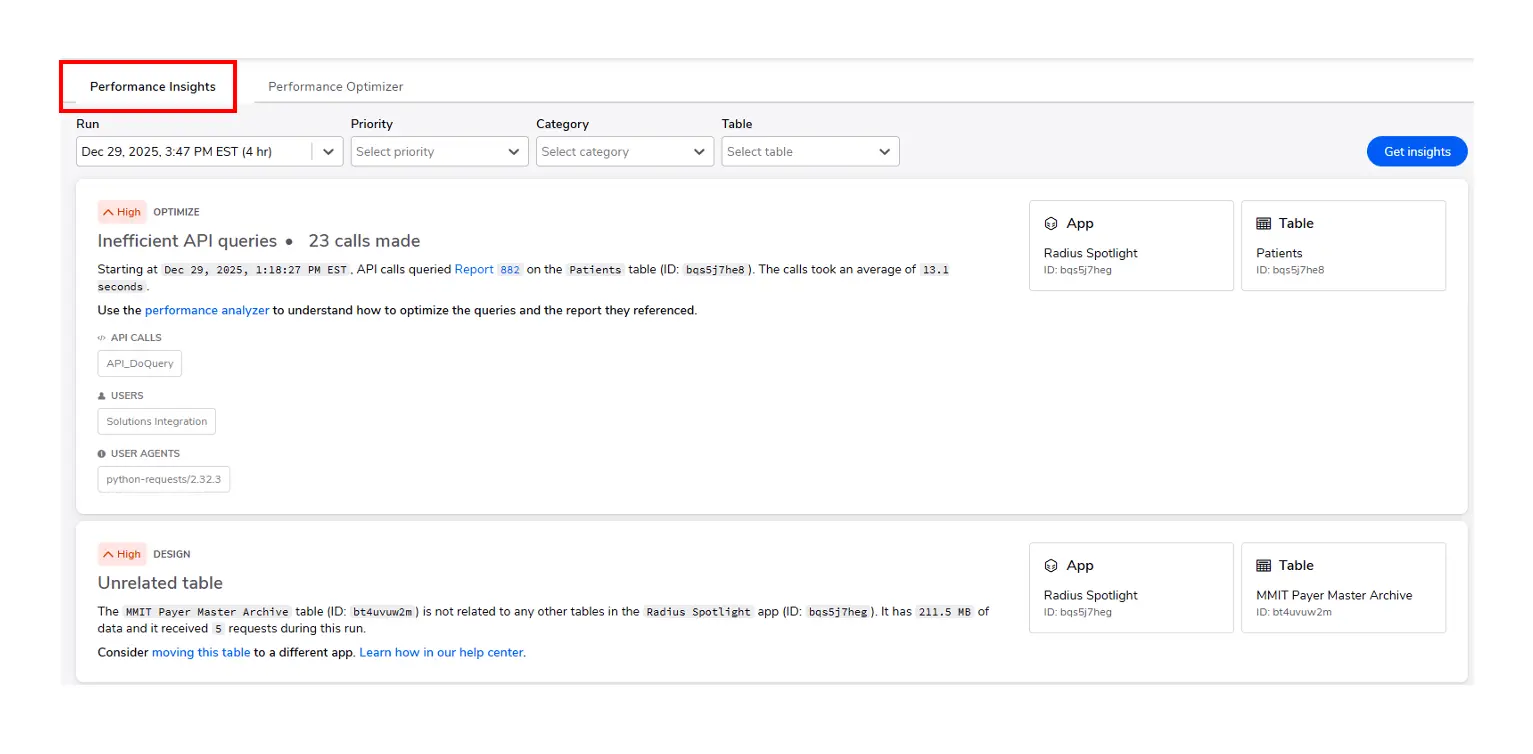
- If you are an Enterprise Quickbase user, you can audit the entire Quickbase app at once rather than checking individual fields.
- Run a Scan:
- Navigate to the Performance Insights tab in your Quickbase App Settings.
- Select a Duration:
- Choose a window (e.g., 'within the last 1 hour', etc.) to analyze all user traffic.
- Review Recommendations:
- Quickbase will group issues into High, Medium, and Low priority.
- It might suggest, 'Adding report caching', or 'Refactoring an API call', that is hitting the server too frequently.
- Quickbase will group issues into High, Medium, and Low priority.
- Quickbase Performance Insights:
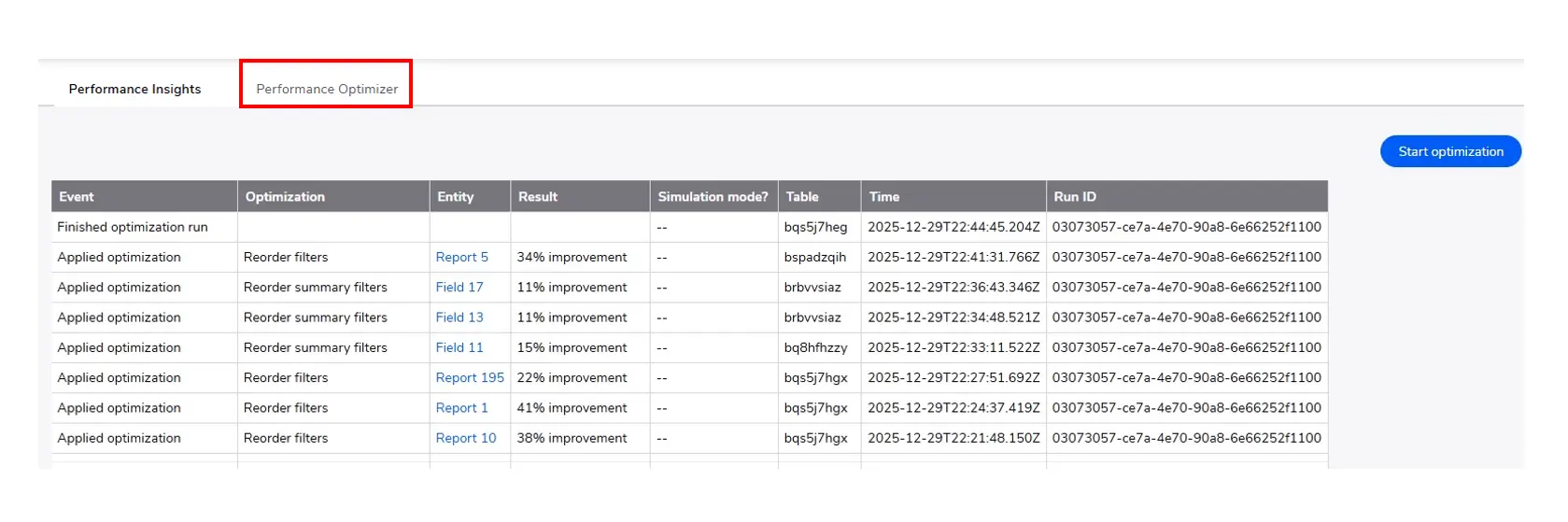
- Quickbase Performance Optimizer:
- The Quickbase Performance Optimizer performs a scan of the application, allowing the user to optimize in Sandbox Mode or allow the Quickbase Performance Optimizer to improve the efficiencies it outlines as suggests.
STEP 6: Other Insights
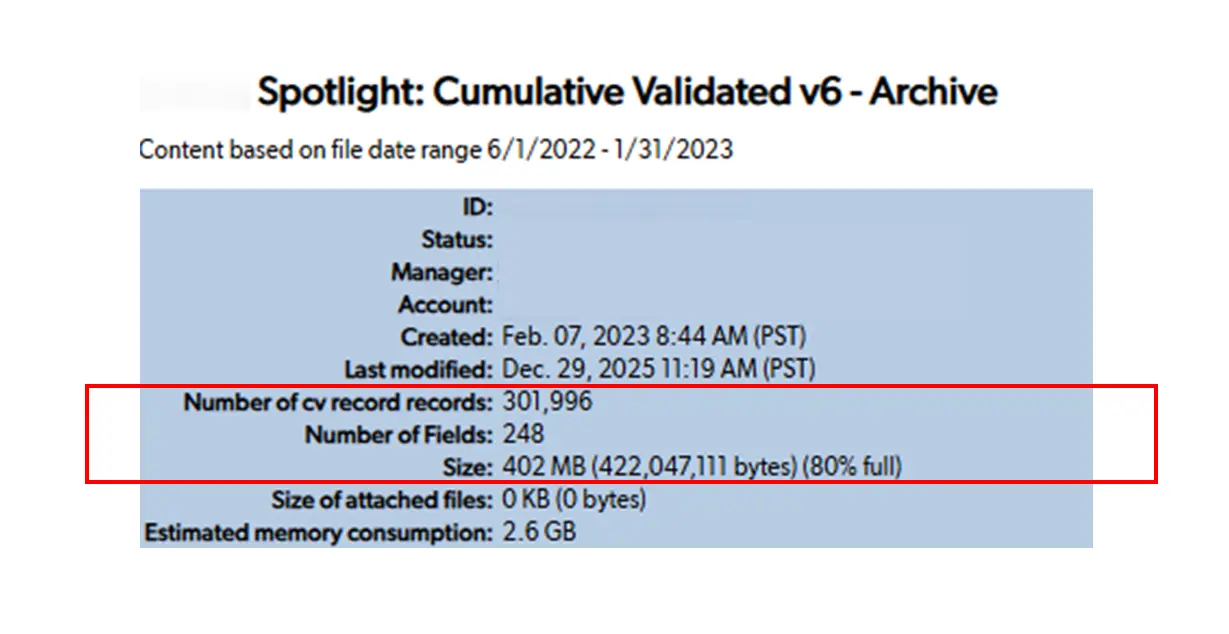
- Evaluating the memory of tables and app size limits provides insights to allow for proactive approaches in archiving data into historical apps or historical tables to provide better efficiencies in Quickbase.
- This can be found in the App Management > Show App Statistics.
- Typical table size limits are 500 MB and once filled up the table will no longer store data, which then requires the app to be refactored.
Faster Quickbase Application Checklist:
- Check the "Evaluate only when data has changed" box, in the settings of your most complex formula fields.
- Limit Sorting:
- Make sure to not sort or group reports by complex formula fields or formula-URL fields.
- Optimize Filters:
- Ensure your most restrictive filters (e.g., "Status is Open") are at the top of the report filter list.
- Archive Old Data:
- If a table has over 500,000 records, consider archiving old data to a separate "History" app for record keeping.
- Limit Sorting:
PLEASE NOTE: For Financial Service Users, we strongly suggest you check with your firm's Compliance Officer regarding how your firm handles 'Electronic Recordkeeping & Repository Requirements' before moving any historical data or records, to ensure you remain compliant with FINRA Rule 4511 and SEC Rules 17a-3/17a-4.
By: Logan Lott
Email: llott@quandarycg.com
Date: 01/26/2026


Resources


© 2026 Quandary Consulting Group. All Rights Reserved.
Privacy Policy