
Knowledge Base
Articles In This Section
How to Set Up API_DoQuery in QuickbaseAPI EditRecord | ADVANCEDHow to use API ImportFromCSV in QuickbaseHow to Use API_PurgeRecords in QuickbaseHow to Utilize API AddRecord in Quickbase (Guide)Sections
How to Copy Parent & Child Records in Quickbase Using API_CopyMasterDetail
Overview
Quickbase is a relational database, meaning data is often structured in parent-child relationships (e.g., Projects → Tasks → Activities, Invoices → Line Items).
By default, when you copy a record in Quickbase, only the parent record is duplicated—child records are not included.
The API_CopyMasterDetail feature solves this by allowing you to copy:
- A parent record
- Its related child records
- Even grandchild records (if needed)
This ensures your data structure remains intact when duplicating records.
When to Use API_CopyMasterDetail
Use this feature when you need to:
- Copy a record along with all related data
- Duplicate complex record structures (e.g., invoices with line items)
- Create templates with reusable child records
- Automate record duplication through workflows or integrations
Available Setup Options
There are two primary ways to use API_CopyMasterDetail:
- Built-in Quickbase button (recommended for most users)
- Custom API call (for advanced automation and integrations)
Being a relational database – Quickbase often has several layers of data working within a parent/child hierarchy.
- Projects will have many Tasks, Leads will have many Activities, Invoices have many Line Items, etc. etc. You might have found yourself in a position to ‘copy’ a record at some point, by clicking ‘More’ from a Quickbase form and selecting the copy link.
- The problem with this is that you only end up copying that record. None of the children copy with it.
- For example, you would wind up with a copy of your Invoice with no lines.
API_CopyMasterDetail.
This API call is unique in that is gives you the ability to have Quickbase copy the parent record, and then copy various child tables or grand-child tables as you decide. T
his way – you can truly copy a record in your system and keep the relational aspects of it intact.
There are two common ways you can set up and utilize API_CopyMasterDetail.
- Option 1 : Quickbase has a built in walk through to help you easily set up a button to invoke this API call on one of your tables.
- Option 2: You can configure the API call as a good old fashioned HTTP Request and use it in custom scripting, webhooks etc.
Both options will be discussed in detail below.
Option 1: How to Use Quickbase’s built in CopyMasterDetail setup
- From your app home page, select Settings > App Management > Copy master & detail records
- Select the table where the record you want copied is. This should be the ‘top’ of your hierarchy of the set up you want copied.
- So if you have a set up like: Projects have many Tasks, Tasks have many Activities – and you want to copy a Project and all of their related Activities, you will be copying from ‘Projects’
- Under the ‘Choose what to Copy’ – you have two options:
Copy the current Project and its detailed Records
- This method is when you truly want a copy of everything and have a perfect copy. This means every field and detail record will be copied
Always Import detail records from a specific Project
This method allows you to create your parent and have it be a little more unique – but then copy a template set of detail/children records.
- This is helpful in a situation like: Projects – where you set up and save a parent Project, with all new details and set up, but then you can Copy a blank template of detail records as new children to your Project instead of just copying everything wholesale from an existing one.
- In addition to the above – you can also configure the ‘Advanced Options’. This includes the options to:
- Copy detail records from all relationships
- Copy detail records from these relationships
The difference in these are that you may not want certain children to be copied. You may want a Project to copy with all of the Tasks – but not the ‘Documents’ that are also a child table to Projects.
- In addition – you can uncheck the ‘Copy all descendants of the detail records (details of details).
- This checkbox determines if Quickbase will copy your children’s children – or just stop at the first relationship.
So for example if you have Projects -< Tasks -< Activities, with this box checked, it will copy records from all 3 tables.
If you un-check it, only the Project and Tasks will copy, given Activity records are the detail records for Tasks (detail or details).
- Finally, give your button a field name, and click Create
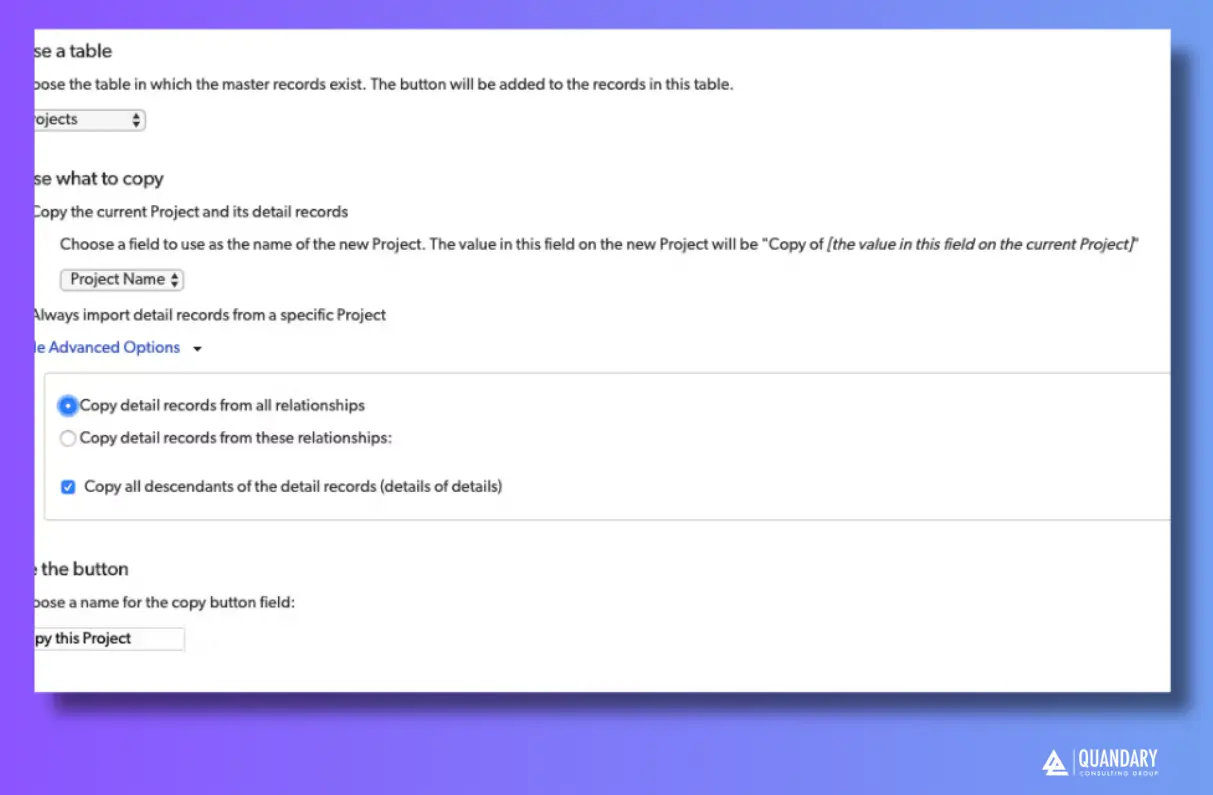
With that, you’re done. If you end up making a mistake or change your mind later about any of the steps from above, you can simply delete your button and start again.
Something to Consider: It should be noted that CopyMasterDetail will not allow circular references in your application setup for anything that is involved in a copy.
- This means that if any of your tables related directly or indirectly to the record you are copying create a ‘loop’, where somewhere in your chain, another becomes a parent to the table you are starting the copy from, Quickbase will fail to execute this call
Option 2: How to write your own API call for a webhook or custom set up
There might be several reasons you go this route as opposed to the above.
- You want to copy a record, and then automatically clear out or reset certain field values, by chaining an EditRecord call with it. This might look like creating an Invoice Record with all associated Invoice Lines, but then going back in to clear out the $ amounts
- Automatically do a CopyMasterDetail when a trigger event occurs, such as through a webhook
- Your copy function is initiated outside of Quickbase (i.e. a webhook from another system starts it as opposed to you clicking a button in Quickbase)
The set up for API_CopyMasterDetail is similar to an AddRecord or EditRecord, so for simplicity we’ll discuss it via the URL alternative that one might use in your own URL button or a GET request
The generic set up for the CopyMasterDetail url might look like: https://target_domain/db/target_dbid?a=API_CopyMasterDetail&destRID=0&sourcerid=1
©fid=6&recurse=1&relfids=7,9&ticket=auth_ticket&apptoken=app_token
- For brevity – we won’t cover the initial set up and defining the target domain, target dbid or Authentication/apptokens here.
What are the important Quickbase CopyMasterDetail Parameters
CopyMasterDetail has some unique parameters to this particular call:
destrid – REQUIRED
- The destrid is basically your way of telling Quickbase to create a new record, or copy the details of another. This will correlate above with step (3) in Option 1 – in regards to if you want to copy this exact record and its details – or copy detail records from a specific Project.
- There are two options with this, set destrid equal to 0, or set destrid equal to a specific record id in your table.
- By setting destrid=0, you will copy that exact record and its children. So if you have this call on Project with Tasks, and destrid=0, you will get a brand new copied Project and all of its Tasks. If you set destrid=5, you will copy all detail records from another Project to Project ID=5.
sourcerid – REQUIRED
- sourcerid is the specific record you want to actually copy. So if you want to copy an existing record to create a true copy, you would set this to the specific record you are on.
- If you are trying instead, to copy the details from a specific Project, you would set this to be the Record ID# of that particular template record. If there is a ‘template’ Project you set up, you would set your sourcerid to that particular Project, at which point it will copy the details from that template.
copyfid – REQUIRED
- This is the field ID of an existing field that Quickbase will write the words ‘copy of..’ to name your copy. For example – this might be the field id of the field ‘Project Name’ in your table.
- If you are copying a record name ‘Test Project’, then your new Project created would be ‘Copy of Test Project.’
recurse – OPTIONAL
- Using this param makes your Copy recursive, meaning that it will copy your details details. By default – this is true, so if in our example of Projects -< Tasks -< Activities, having recurse=1 will copy all 3 levels, so Activities will also copy. With recurse=0, only Tasks will copy, and Details of Details (Activities in this example) will not copy.
- By default – the copy will default to recurse being true.
relfids – OPTIONAL
- Relfids tells Quickbase which of your relationships you want to copy detail records for. With this, you can determine if all children get copied, or if only certain relationships do.
- Following a similar example from option 1, this is where you can set that you want to copy Projects and Tasks, but omit Documents, another child to Projects from following suit.
- The input for Relfids is a comma delimited set of Field IDs, that correspond to the relationships you want copied.
You’ll notice that in every new relationship, Quickbase will create a new ‘Report Link’ field that helps display and link your children to your parent, used often to display embedded reports on forms.
Those fields are relevant here, as they serve as the link for your API call to know which detail records to copy. You can pick and choose which relationships to copy by finding the field IDs of the specific report link fields in the relationships you want copied, and placing them in your relfids param.
By omitting this value – Quickbase will default to copy any and all relationships.
With that configuration, you can have the building blocks of your CopyMasterDetail API call.
- If you want to try and test Option 1 before tackling Option 2, you can open up the field properties of the button that is created in Option 1 as a result, and you will be able to see the Quickbase set up they provide when you follow their steps as well.
- Author: Logan Lott
- Email: llott@quandarycg.com
- Date Updated: 11/01/2025


Resources


© 2026 Quandary Consulting Group. All Rights Reserved.
Privacy Policy