
Knowledge Base
Articles In This Section
What Are Quickbase Dashboards How to Set Up Personalized Dashboards in QuickbaseHow to Create a Dashboard in QuickbaseHow to add a Webpage Widget (embedded iFrame) to your Quickbase DashboardHow and When to Use Calculated Columns for Quickbase Reports How to Create a Summary Report in QuickbaseHow to Utilize the Dashboard Side Bar in QuickbaseHow to Build an Operations Dashboard in Quickbase How to Color-Coding Rows for Quickbase Reports Using Automations to Log Approval Time and User in QuickbaseHow to Create External Stakeholder Forms, Reports, and Dashboards in QuickbaseHow to Update the Default Table and Report Columns in QuickbaseHow to Organize & Assign Groups to Quickbase ReportsHow to Link Dashboards Together in QuickbaseHow to Create Reports and Charts in QuickbaseHow to use Rich Text to Make your Quickbase Dashboard Dynamic Using Report Formulas as a Filter in a Report in QuickbaseHow to Create a Kanban Report in QuickbaseHow to Organize and Assign Groups to Quickbase ReportsHow to Use Report Formulas as a Filter in a Quickbase ReportHow to Create Subscription Emails in QuickbaseHow to Create an Audit or Change Logs with Automations How to Create a Pie Chart in QuickbaseHow to Build Standard Reports in QuickbaseHow to Add a Report to your Quickbase DashboardSections
How to Automate Approval Tracking in Quickbase
Many business processes require multiple levels of review before work can move forward. Whether you're managing projects, purchase requests, engineering changes, contracts, quality inspections, or healthcare workflows, knowing who approved a record and when they approved it is essential for accountability, reporting, and compliance.
Rather than asking users to manually enter their names and approval dates—which can lead to errors or inconsistent data—you can use Quickbase Automations to automatically capture this information whenever a record reaches a specific stage in your workflow.
In this article, you'll learn how to configure Quickbase Automations to automatically populate reviewer and approver information, creating a reliable audit trail while reducing manual data entry.
Why Automatically Capture Review and Approval Information in Quickbase?
Recording review and approval activity provides valuable operational insights and improves data integrity. Automatically tracking reviewers and approval dates helps organizations:
- Build an audit trail
- Increase accountability
- Reduce manual data entry
- Eliminate user error
- Improve reporting
- Measure workflow efficiency
- Support internal governance
- Strengthen compliance documentation
For example, organizations can easily answer questions like:
- Who approved this project?
- When was it approved?
- How long did review take?
- Which approvals are delayed?
- How many projects are awaiting approval?
Without automation, collecting this information consistently can be difficult.
Example Workflow
Imagine a simple project approval process.
Project Created → Under Review → Approved
Quickbase already captures:
- Record Owner
- Date Created
- Last Modified By
- Date Modified
However, most organizations also need to record:
- Reviewer
- Review Date
- Approver
- Approval Date
Automating these fields ensures they are populated accurately every time the workflow advances.
Step 1: Create the Required Fields
Before creating the Automation, ensure your table contains the following fields:
- Status
- Reviewer
- Review Date
- Approver
- Approval Date
Your Status field should contain values similar to:
- Draft
- Under Review
- Reviewed
- Approved
These status changes will trigger the Automation.
Step 2: Create a New Automation
From your application:
- Select Settings.
- Click Automations.
- Select + New Automation.
- Choose When Data Changes.
Step 3: Configure the Trigger
Configure the Automation to run when:
- A record is added
- A record is modified
Then select the table where your approval process occurs.
Next, configure the trigger condition.
- For example: Status changes to "Reviewed"
This ensures the Automation only runs when the review stage is completed.
Step 4: Add the Modify Record Action
Click Add Action.
Select: Modify Record
- Choose the same table used in the trigger.
- To ensure only the current record is updated, match:
Record ID# = Record ID# from the Trigger
This prevents the Automation from accidentally updating other records.
Step 5: Populate the Reviewer Information
Configure the Automation to update:
Reviewer
→ Last Modified By (New Value)
Review Date
→ Today
This automatically records who completed the review and when it occurred.
Step 6: Repeat the Process for Approval
Create a second Automation for the approval stage.
Configure the trigger: Status changes to "Approved"
Then populate:
- Approver = Last Modified By
- Approval Date = Today
Now every approval is automatically documented without requiring user input.
Your Finished Workflow (example)
Once complete, your workflow operates like this:
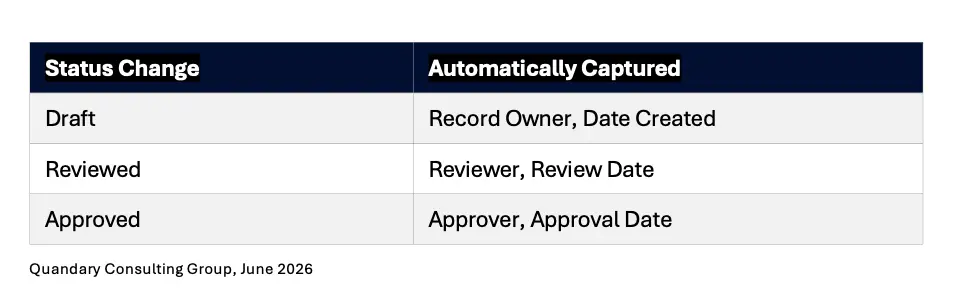
Each step is automatically logged as users move records through the workflow.
Why Use Automations Instead of Dynamic Form Rules?
- Dynamic Form Rules can also populate reviewer information, but they have an important limitation.
- Form Rules only execute when users edit records through the standard form.
If someone updates records using:
- Grid Edit
- Imports
- Certain integrations
- Some automated processes
Dynamic Form Rules may not run.
Quickbase Automations execute regardless of how the record is updated, making them a much more reliable solution for workflow tracking. For organizations that depend on accurate audit histories, Automations are the recommended approach.
Common Business Use Cases
This automation pattern is useful in nearly every industry.
- Project Management:
- Healthcare:
- Finance:
- Construction:
- Manufacturing:
- Human Resources: Document hiring approvals and employee onboarding milestones.
Quandary's Best Practice
Rather than creating separate Automations for every workflow stage, consider designing a standardized approval framework that can be reused across your application.
For example:
- Submitted By
- Submitted Date
- Reviewed By
- Reviewed Date
- Approved By
- Approved Date
- Rejected By
- Rejected Date
This creates a consistent audit trail throughout the application and makes reporting significantly easier as your solution grows.
Common Mistakes to Avoid
When building approval Automations, avoid these common issues:
- Forgetting to filter on Record ID, causing unintended updates.
- Allowing users to manually edit approval fields.
- Using Dynamic Form Rules when Grid Edit is commonly used.
- Triggering Automations on every modification instead of specific status changes.
- Failing to test approval workflows before deploying to production.
Properly configured Automations improve both reliability and data accuracy.
Quandary's Final Thoughts
Quickbase Automations make it easy to build reliable approval workflows without requiring users to manually enter reviewer names or approval dates.
By automatically recording who completed each workflow stage and when it occurred, organizations gain a complete audit trail that improves accountability, simplifies reporting, and supports governance initiatives.
Whether you're managing projects, financial approvals, engineering changes, quality inspections, or healthcare workflows, automating reviewer and approver tracking helps create more efficient, scalable, and trustworthy business processes.
- Author: Logan Lott
- Title: Solution Consultant | Quickbase
- Email: llott@quandarycg.com
- Date Published: June 19, 2026
Top 10 FAQs About Automatically Logging Reviewers and Approvers in Quickbase
1. How do I automatically track reviewers and approvers in Quickbase?
You can automatically track reviewers and approvers by creating Quickbase Automations that trigger when a record's status changes. For example, when a record moves to Reviewed, the Automation can populate the Reviewer and Review Date fields. When the record moves to Approved, a second Automation can populate the Approver and Approval Date fields. This eliminates manual data entry while creating a consistent audit trail.
2. Why should I automate reviewer and approver tracking in Quickbase?
Automating reviewer and approver tracking improves data accuracy, reduces manual work, and ensures every approval is consistently documented. Organizations also gain valuable reporting capabilities, allowing them to measure approval times, identify workflow bottlenecks, and maintain accountability throughout business processes.
3. What fields should I create for an approval workflow?
Most approval workflows include the following fields:
- Status
- Reviewer
- Review Date
- Approver
- Approval Date
Many organizations also add:
- Submitted By
- Submitted Date
- Rejected By
- Rejected Date
- Approval Comments
- Approval Reason
These fields provide a complete history of each record as it moves through the approval process.
4. Can Quickbase automatically record who approved a record?
Yes. Quickbase Automations can populate an Approver field using the Last Modified By value when a record's status changes to Approved. This automatically captures the user who completed the approval without requiring manual input.
5. Can Quickbase automatically record the date and time of an approval?
Yes. An Automation can populate a date or date/time field when a record enters a specific workflow stage. This provides an accurate timestamp for reviews, approvals, rejections, or any other workflow milestone.
6. Should I use Automations or Dynamic Form Rules for approval tracking?
Quickbase Automations are generally the preferred solution because they execute regardless of how records are updated, including Grid Edit, imports, and many integrations. Dynamic Form Rules only run when users edit records through the standard form, making them less reliable for capturing approval activity.
7. What business processes benefit from automated approval tracking?
Automated approval tracking is valuable for many workflows, including:
- Project approvals
- Purchase requests
- Contract reviews
- Budget approvals
- Change orders
- Engineering reviews
- Quality inspections
- Healthcare workflows
- Employee onboarding
- Compliance documentation
Any process requiring accountability and multiple approval stages can benefit from automation.
8. Can automated approval tracking support compliance requirements?
Yes. Automatically capturing reviewers, approvers, and approval dates helps organizations maintain accurate audit trails that support internal governance and regulatory requirements. While approval tracking alone does not ensure compliance with standards such as HIPAA or SOC 2, it strengthens documentation, accountability, and reporting as part of a broader compliance program.
9. How can I report on approval times in Quickbase?
Once reviewer and approval dates are automatically captured, you can create reports, dashboards, charts, and formulas to calculate:
- Average approval time
- Average review time
- Time between workflow stages
- Approval bottlenecks
- Outstanding approvals
- Department performance
- Individual reviewer workload
These insights help organizations identify opportunities to improve operational efficiency.
10. What are the best practices for building approval workflows in Quickbase?
Quandary recommends following these best practices:
- Use clearly defined workflow statuses.
- Automate reviewer and approver fields whenever possible.
- Prevent users from manually editing audit fields.
- Trigger Automations only when workflow statuses change.
- Test workflows thoroughly before deployment.
- Standardize approval fields across applications.
- Build dashboards to monitor approval activity.
- Regularly review workflow performance and approval metrics.
Following these best practices creates more reliable workflows while improving reporting, accountability, and long-term application maintenance.


Services
Industries




© 2026 Quandary Consulting Group. All Rights Reserved.
Privacy Policy