
Knowledge Base
Articles In This Section
How to Use Custom HTML as a Form Element in Quickbase How to Create Quickbase Form RulesWhen to Use Grid Edit in QuickbaseHow to Creat User-Friendly Forms in QuickbaseSections
How to Customize Radio Button Properties in Quickbase
Radio buttons in Quickbase improve user experience, reduce data entry errors, and enable faster form completion by allowing users to select one clearly visible option from a predefined list. They are ideal for simple, required fields and support automation workflows through standardized inputs.
This article focuses on a step-by-step process on how to take the default Quickbase radio buttons and alter their properties using a JavaScript rich-text formula field.
In addition, you will learn about some helpful rules on when to use either radio buttons versus drop-down menus when creating surveys, checklists, or forms.
Should You Use Radio Buttons vs. Drop-Down Menus in Quickbase
Two important controls in Quickbase are radio buttons and drop-down menus when building out forms, surveys and checklists.
Both of them can be used interchangeably when an input is required from a user and should be used in certain scenarios to make it easier for a user to select a given input.
Here are some rules to think about when to use radio buttons in Quickbase:
- When you have less than 5 options.
- Use radio buttons when you want to emphasize options.
- When visibility and quick response is a priority.
Here are some rules to think about when to use drop-down menus in Quickbase:
- When default option is the recommended option.
- When a large number of familiar options are available.
- When you have more than 7 options.
Since forms can be very long with large number of options, it becomes tedious for users if he/she has to make extra clicks to fill-in information.
The given set of rules above will help you to decide between two controls, radio buttons and drop-down menus, while designing your forms in Quick Base.
Using Radio Buttons in Quickbase Surveys, Checklists, and Forms
Surveys, checklists, and forms in general can all benefit from radio buttons. Using radio buttons decreases clicks, and speeds up completion.
If you are using them on a mobile device, it can help provide a better user experience.
However, there are times that radio buttons can make your forms not as functional or visually pleasing as it could be as shown below.

The upcoming steps will cover how to setup a rich-text formula field to alter the appearance and default properties of radio buttons.
Here is a preview of what to expect:
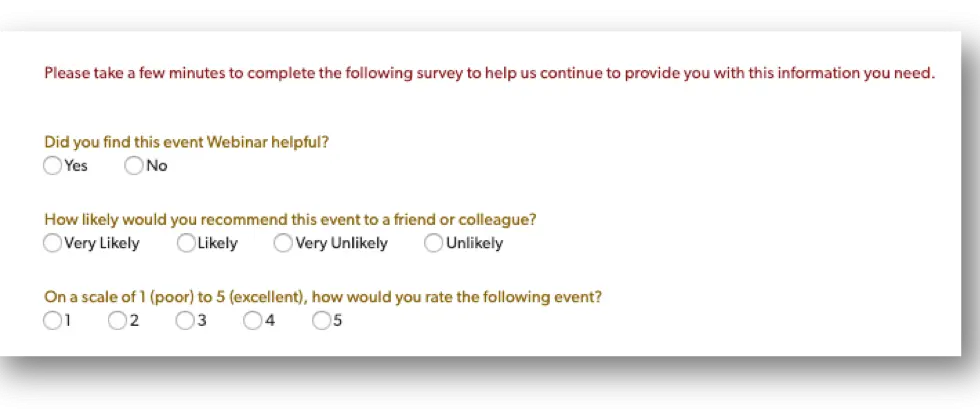
- Remove the None of the Above as an option.
- Realign the radio buttons to be horizontal instead of vertical
How to Customize the Default Properties of Radio Buttons in Quickbase
Step 1: Create a formula rich-text field. By using JavaScript and the image onload technique, you will be able to get the look and positioning of the radio buttons.
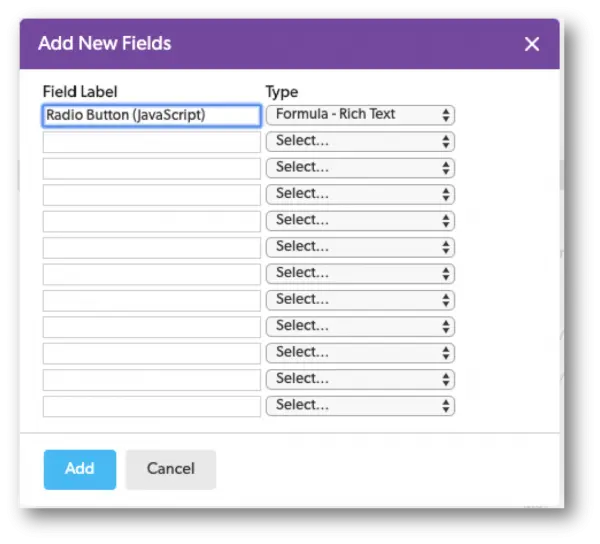
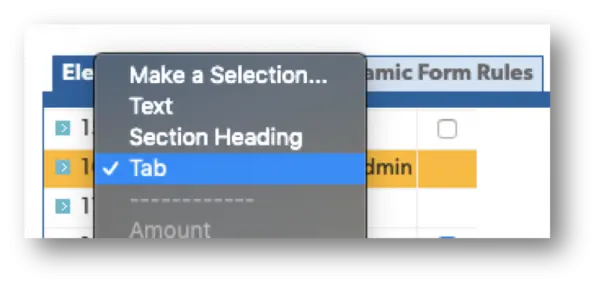
Step 2: On the form, create a new tab and name it ‘Admin’.
- This tab will be used to store the formula rich text field created in the previous step (If you like, you can set up dynamic form rules to hide this tab on your form).
Step 3: Since we are using the image onload technique
- The first line is an image source of what our radio button(s) will look like on the form.

Step 4: Next, we want to define our ‘onload event’.
- The onload event is most often used within the body element to execute a script once a web page has completely loaded all content (including images).
- In this case, our form page in Quickbase

Step 5: In lines three and four of our script, we are making a declaration to one
- Create break between each one of our radio buttons by changing the position of our radio buttons to be horizontal oppose to vertical
- Next, remove the ‘None of the Above’ as an option for users to select
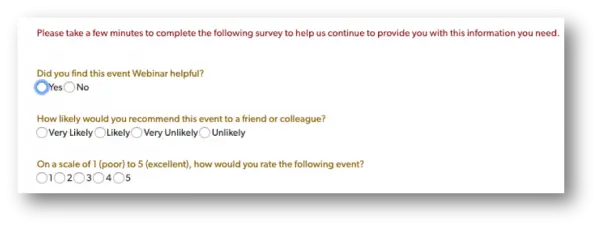
Step 6: The last line of our script uses css to help with formatting and spacing between our radio button choices. I
- f you were to comment this out, the radio buttons would look like they are on top of each other as shown below.

After implementing the rich-text field with the JavaScript outlined above, you should have a similar result shown below:
Top FAQs about Quickbase Radio Buttons
What are radio buttons in Quickbase?
Radio buttons in Quickbase are a field type that allows users to select one option from a predefined list. All options are displayed at once, making it easier to choose quickly and accurately.
When should I use radio buttons in Quickbase?
You should use radio buttons when:
- There are fewer than 5 options
- Users need to make quick selections
- Options should be visible at all times
They are ideal for fields like status, priority, and yes/no decisions.
What is the difference between radio buttons and drop-downs in Quickbase?
- Radio buttons: Show all options and allow one selection (best for small lists)
- Drop-downs: Hide options until clicked (best for long lists)
Radio buttons improve speed and usability, while dropdowns save space.
Do radio buttons improve data accuracy in Quickbase?
Yes. Radio buttons improve data accuracy by restricting input to predefined values, which:
- Eliminates typos
- Prevents inconsistent entries
- Standardizes data for reporting and automation
Can radio buttons trigger automation in Quickbase?
Yes. Radio button selections can trigger:
- Quickbase Pipelines
- Notifications
- Conditional rules
- Workflow automation
Because the values are standardized, they are highly reliable for automation logic.
Are radio buttons better for mobile Quickbase apps?
Yes. Radio buttons are more mobile-friendly because:
- They are easier to tap than dropdown menus
- They reduce extra clicks
- They improve speed for field users
How many options should a radio button field have in Quickbase?
Best practice is 2–5 options maximum.
If you have more than 5 options, a dropdown is usually a better choice to avoid clutter.
Can users select multiple options with radio buttons in Quickbase?
No. Radio buttons allow only one selection.
If you need multiple selections, use checkboxes instead.
What are common use cases for radio buttons in Quickbase?
Common use cases include:
- Status tracking (New, In Progress, Complete)
- Priority levels (Low, Medium, High)
- Approval workflows (Approved, Rejected)
- Yes/No fields
Do radio buttons improve Quickbase form usability?
Yes. Radio buttons improve usability by:
- Making options visible
- Reducing clicks
- Simplifying decision-making
This leads to faster and more intuitive form completion.
What are the limitations of radio buttons in Quickbase?
Limitations include:
- Not ideal for long lists of options
- Can take up more space on forms
- Only supports single selection
How do radio buttons support reporting in Quickbase?
Radio buttons improve reporting by ensuring:
- Consistent data values
- Clean datasets
- Easier filtering and grouping
This results in more accurate dashboards and analytics.
Can radio buttons be required fields in Quickbase?
Yes. You can make radio button fields required to ensure users must select an option before submitting a form.
How do I choose between radio buttons and checkboxes in Quickbase?
- Use radio buttons when only one option should be selected
- Use checkboxes when multiple selections are allowed
Where can I get help optimizing Quickbase forms and fields?
If you need help designing better Quickbase applications, Quandary Consulting Group provides Quickbase consulting and optimization services in Denver, Colorado and across the United States, helping organizations improve data quality, usability, and automation.
- Author: Alistair Marsden
- Title: Solution Consultant | Quickbase
- Email: amarsden@quandarycg.com
- Date updated: 01/22/2026


Industries
Resources


© 2026 Quandary Consulting Group. All Rights Reserved.
Privacy Policy