
Knowledge Base
Articles In This Section
How to Automatically Import CSV Files into Quickbase Using SyncHow to Use Google Maps for Data VisualizationHow to use the Quickbase Power BI connectorHow to Create High-Quality Quickbase Forms10 Quickbase Application Best Practices How to Use Formulas + Webhooks for Dynamic Quickbase Record CreationHow to Set Up Notifications in Quickbase How to Log Quickbase Emails using WorkatoHow to Use Automate PDF Data Extraction into Quickbase How to Create a Quickbase WebhooksHow to Use Formulas + Webhooks for Dynamic Quickbase Record CreationHow to Implement a Custom Import in QuickbaseSections
How to Customize a Quickbase Home Page (Legacy Guide)
Quickbase Dashboards have largely replaced Home Pages as the preferred way to present information to users. Dashboards provide significantly greater flexibility, richer visualizations, cross-application reporting, and a more modern user experience.
For most new Quickbase applications, we recommend using Dashboards unless your application has a specific requirement for a traditional Home Page.
Many existing Quickbase applications that were built before June 2024, still rely on Home Pages, making it important for administrators and developers to understand how they work, how to customize them, and when they remain an appropriate solution.
What Is a Quickbase Home Page?
A Quickbase Home Page is a customizable landing page that displays key information, reports, navigation tools, and other application resources in one centralized location.
For users of legacy Quickbase applications, the Home Page is often the first screen they see after signing in. A thoughtfully designed Home Page helps users quickly access the information, reports, and actions they need to perform their daily work.
Although Home Pages remain supported, organizations building new applications should generally prioritize Dashboards, which offer more powerful reporting, improved layouts, and the ability to display information from multiple applications simultaneously.
When to Use Home Page Instead of a Quickbase Dashboard
While Dashboards are the preferred choice for most organizations, Home Pages can still be useful in certain situations.
Home Pages are well suited for:
- Legacy Quickbase applications
- Simple applications requiring minimal navigation
- Single-application reporting
- Lightweight user interfaces
- Quick access to frequently used buttons and links
Dashboards are generally the better option when you need:
- Cross-application reporting
- Executive dashboards
- Advanced visualizations
- KPI monitoring
- Role-specific analytics
- Enterprise reporting
If you're building a new Quickbase application today, Dashboards will typically provide the greatest long-term flexibility.
How to Design a Quickbase Home Page Specifically for Your Users
An effective Home Page should support the daily responsibilities of the people using your application. Application administrators should work closely with stakeholders, department leaders, and end users to identify:
- The reports users access most frequently
- Common daily tasks
- Required navigation shortcuts
- Important announcements
- Frequently used searches
- Business metrics users need immediately upon login
Because different users have different responsibilities, many organizations create multiple Home Pages tailored to specific user roles.
Examples include:
- Executive Home Page
- Project Management Home Page
- Finance Home Page
- Operations Home Page
- Inventory Home Page
- Customer Service Home Page
Providing role-specific landing pages improves productivity while reducing unnecessary navigation.
How to Access Home Pages in Quickbase
Application Administrators can manage Home Pages by navigating to: App Settings → Pages. Within the Pages section, administrators can create, edit, organize, and manage all page types within the application, including:
- Home Pages
- Dashboards
- Custom Pages
- Code Pages
- Other application pages
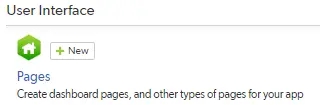
How to Create a New Quickbase Home Page
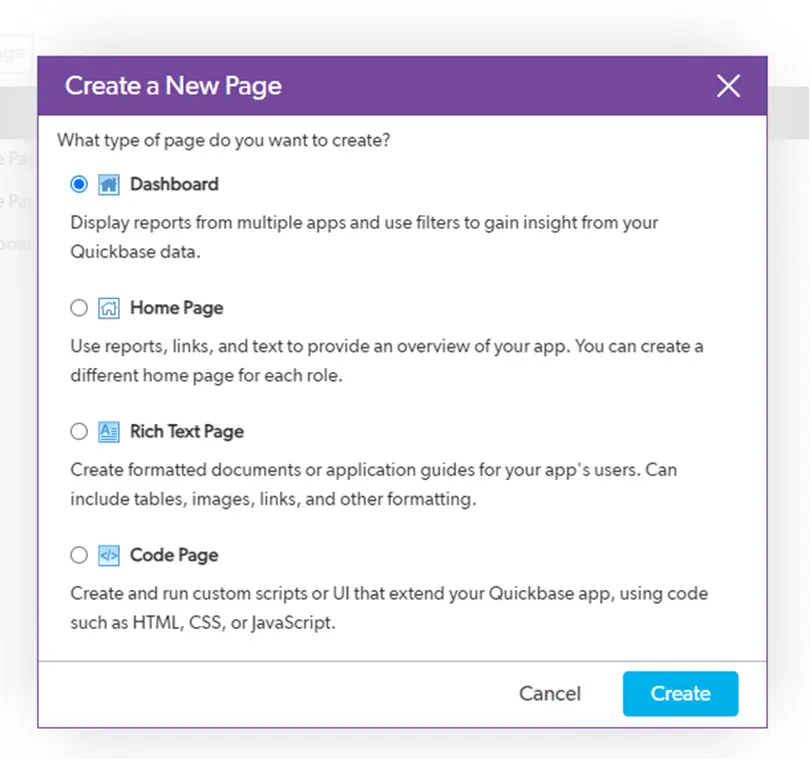
To create a Home Page in Quickbase:
- Navigate to App Settings → Pages.
- Click + New Page.
- Select Home Page from the list of available page types.
- Click Create.
- Give your Home Page a clear, descriptive name.
- Begin adding widgets and organizing your layout.
Using descriptive names makes future maintenance significantly easier, particularly in applications containing multiple Home Pages.
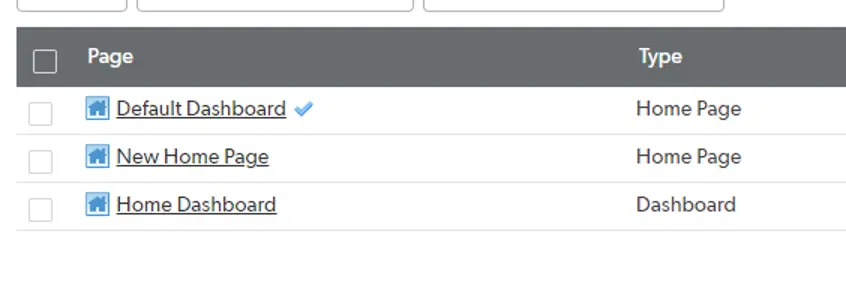
How to edit an Existing Quickbase Home Page
Existing Home Pages can be modified at any time. Simply select the desired Home Page from the Pages list to begin editing.
From there, administrators can:
- Add widgets
- Remove widgets
- Rearrange layouts
- Update reports
- Modify navigation
- Refresh content
How to Customize your Quickbase Home Page with Widgets
Home Pages are built by dragging and dropping widgets into the page layout. Quickbase provides several widget types that allow developers to customize the user experience.
Quickbase Report or Chart Widget
The Report or Chart widget allows you to display existing reports and charts directly on the Home Page. This is one of the most commonly used widgets because it provides immediate visibility into operational data without requiring users to navigate elsewhere.
Organizations commonly display:
- Open projects
- Active work orders
- Sales pipelines
- Support tickets
- Financial summaries
- Inventory levels
Quickbase allows up to three reports or charts per row and a maximum of nine reports or charts on a Home Page.
Quickbase Text Widget
The Text widget is ideal for displaying:
- Welcome messages
- Instructions
- Announcements
- Images
- Company branding
- Helpful tips
- Documentation links
Many organizations use this area to provide onboarding guidance or communicate important operational updates.
Quickbase Button Bar Widget
Button Bars provide users with one-click access to frequently performed actions. Buttons can be configured to:
- Create new records
- Open reports
- Navigate to other application pages
- Launch external websites
- Open custom forms
- Execute custom workflows
Button Bars help reduce clicks while improving user productivity. Administrators can customize:
- Button colors
- Alignment
- Order
- Labels
Quickbase Link Bar Widget
The Link Bar functions similarly to the Button Bar but displays standard text hyperlinks instead of graphical buttons.
It is useful for:
- Documentation
- Training resources
- Internal websites
- Frequently used reports
- External systems
Quickbase Search Widget
The Search widget enables users to search specific tables, reports, or fields directly from the Home Page. Administrators can configure searches to focus on:
- Individual tables
- Specific reports
- Selected fields
- Business-specific records
Adding search capabilities significantly improves navigation in larger applications.
Quickbase Reports List Widget
The Reports List automatically displays a collection of reports available within the application. Administrators may configure the widget to display:
- All reports
- Reports from selected tables
- Report groups
- Department-specific reports
This provides users with a centralized navigation menu for reporting.
Quickbase Web Page Widget
The Web Page widget embeds external web content directly within the Home Page. Common use cases include:
- Internal company websites
- Documentation portals
- Business intelligence tools
- Training resources
- Corporate announcements
Keep in mind that some websites restrict embedding through browser security settings (iframe restrictions).
How to Organize Your Quickbase Home Page Layout
Widgets can be repositioned using drag-and-drop functionality. As you move widgets across the page, Quickbase displays a green placement indicator showing exactly where the widget will appear.
Thoughtful widget placement improves readability and helps users quickly locate important information
Using the Sidebar
Most Home Page widgets can also be placed within the left sidebar. The sidebar is an excellent location for:
- Search
- Navigation
- Links
- Buttons
- Announcements
Please note: Reports and charts cannot be placed within the sidebar.
Assigning Home Pages to User Roles
Quickbase allows different user roles to see different Home Pages when they log in. Role-specific Home Pages provide a more personalized user experience while reducing unnecessary navigation.
To assign a Home Page to a User:
- Navigate to User Roles.
- Select the desired role.
- Open the User Interface tab.
- Select the appropriate Home Page.
- Save your changes.
Quickbase Home Pages Best Practices
Even though Dashboards are now the recommended interface, many organizations continue to use Home Pages successfully. Following these best practices can improve usability and long-term maintainability.
- Use Dashboards for new applications whenever possible.
- Design each Home Page around a specific user role.
- Display only the most important reports and KPIs.
- Avoid cluttering the page with excessive widgets.
- Keep navigation simple and intuitive.
- Group related reports together.
- Use clear, descriptive page names.
- Include quick-action buttons for common tasks.
- Regularly review Home Pages to ensure reports remain relevant.
- Consider migrating legacy Home Pages to Dashboards as applications evolve.
Although Quickbase Dashboards have become the preferred solution for modern application design, Home Pages continue to play an important role in many existing Quickbase environments. When thoughtfully designed, they provide users with quick access to reports, navigation, and essential business information in a simple, centralized interface.
For organizations maintaining legacy applications—or gradually transitioning to Dashboards—well-organized Home Pages can continue to improve usability, streamline workflows, and support day-to-day operations.
If you're modernizing your Quickbase environment, Quandary Consulting Group, a Quickbase Elite Partner, can help evaluate your existing Home Pages, redesign user experiences, and migrate legacy interfaces to modern Dashboards that improve performance, visibility, and user adoption.
- Author: Jeff Richey
- Title: Solution Consultant | Quickbase
- Email: jrichey@quandarycg.com
- Date updated: June 16, 2026
Top FAQs about Quickbase Home Pages
1. What is a Quickbase Home Page?
A Quickbase Home Page is a customizable landing page that displays reports, charts, navigation buttons, searches, links, and other widgets within a single Quickbase application.
Home Pages provide users with quick access to the information and actions they need most frequently. While Home Pages remain available, Quickbase recommends using Dashboards for most new applications because they offer greater flexibility and can display information across multiple apps.
2. What is the difference between a Quickbase Home Page and a Dashboard?
A Home Page is designed to display information for a single application and provides a relatively simple user interface. Dashboards are significantly more powerful, allowing organizations to combine reports, charts, KPIs, and widgets from multiple applications into one centralized view.
Dashboards also provide improved layouts, greater customization options, and enhanced reporting capabilities, making them the preferred choice for modern Quickbase development.
3. Should I use a Home Page or a Dashboard in Quickbase?
For new Quickbase applications, Dashboards are almost always the better option because they offer more advanced functionality, improved scalability, and better visualization capabilities.
Home Pages are still appropriate for many legacy applications or simple solutions that require only basic navigation and reporting. Organizations modernizing existing applications often migrate Home Pages to Dashboards over time.
4. Can I create different Home Pages for different user roles?
Yes! Quickbase allows administrators to assign different Home Pages to different user roles. This enables each department or team to see information that is most relevant to their responsibilities. For example, executives may view high-level KPIs, while project managers see active projects and task reports, and customer service representatives access support cases and customer records.
5. What widgets can I add to a Quickbase Home Page?
Quickbase Home Pages support several built-in widgets, including:
- Reports and Charts
- Text
- Button Bars
- Link Bars
- Search
- Reports Lists
- Embedded Web Pages (or iFrames)
These widgets can be arranged using drag-and-drop functionality to create a customized experience for each group of users.
6. How many reports and charts can a Quickbase Home Page display?
A Quickbase Home Page can display up to nine reports or charts, with a maximum of three reports or charts displayed side-by-side in a single row. Organizations that need to display a larger number of visualizations or combine data from multiple applications should consider using Dashboards instead.
7. How do I customize a Quickbase Home Page?
Application administrators can customize Home Pages by navigating to App Settings → Pages, selecting the desired Home Page, and adding or rearranging widgets using drag-and-drop functionality. Administrators can update reports, configure navigation buttons, embed web content, and modify layouts without affecting the underlying application data.
8. Can I add buttons that create records or navigate users to other areas?
Yes. The Button Bar widget allows administrators to create buttons that perform common actions such as:
- Creating new records
- Opening reports
- Navigating to other Quickbase pages
- Opening Dashboards
- Launching external websites
- Opening custom pages
Quick-action buttons help reduce clicks and improve overall user productivity.
9. What are the best practices for designing a Quickbase Home Page?
An effective Home Page should focus on helping users complete their daily work quickly and efficiently. Best practices include:
- Displaying only the most important reports
- Grouping related information together
- Providing clear navigation buttons
- Minimizing clutter (or 'over-developing on features)
- Create role-specific Home Pages
- Regularly reviewing content to ensure it remains relevant
- For new applications, consider implementing Dashboards instead of Home Pages whenever possible to take advantage of newer functionality.
10. Can I migrate from Quickbase Home Pages to Dashboards?
Yes. Many organizations transition legacy Home Pages to modern Quickbase Dashboards as part of application modernization initiatives.
Dashboards provide a richer user experience, support multiple applications, improve executive reporting, and offer greater flexibility for displaying business metrics and operational data. Migrating to Dashboards can improve user adoption while creating a more scalable and maintainable Quickbase environment.
11. Can a Quickbase consulting partner help modernize legacy Home Pages?
Absolutely. Organizations with older Quickbase applications often benefit from a Home Page assessment before migrating to Dashboards.
A Quickbase Elite Partner, such as Quandary Consulting Group, can evaluate existing Home Pages, redesign the user experience, optimize reports and navigation, implement role-based Dashboards, and modernize application architecture. This approach helps improve performance, increase user adoption, and ensure your Quickbase applications continue to scale with your business needs.


Industries
Resources




© 2026 Quandary Consulting Group. All Rights Reserved.
Privacy Policy