
Knowledge Base
Articles In This Section
How to Optimize High-Volume Quickbase EnvironmentsHow to Optimize your Quickbase for Faster PerformanceSections
How to Resolve Quickbase Login Issues
This article outlines the most common issues users experience when logging into Quickbase and provides step-by-step troubleshooting guidance. We suggest following the recommendations outlined below before escalating to your Quickbase administrator or IT team.
Common Quickbase Login Issues and Recommended Methods for Best Resolutions
1. Incorrect Username or Password
Symptoms
- “Invalid username or password” error
- Repeated failed login attempts
Resolution
- Ensure Caps Lock is off.
- Confirm there are no extra spaces before or after your email address.
- Verify you are using the correct email (work vs. personal).
- Select “Forgot password?” to reset your password.
- If your organization uses Single Sign-On (SSO), do not enter a password—select your SSO provider instead (e.g., Google, Microsoft, Okta).
2. Single Sign-On (SSO) Issues
Symptoms
- Redirect loop during login
- “Account not found” message
- Stuck on company login screen
Resolution
- Confirm you are selecting the correct SSO provider.
- Log out of other active sessions in your identity provider (Google, Microsoft, etc.).
- Open a new Incognito/Private browsing window and attempt login again.
- Clear cookies and cache for:
quickbase.com- Your organization’s SSO provider domain
- Verify your Quickbase account has been provisioned by your administrator.
If the issue persists, contact your IT or Quickbase administrator, as SSO settings are managed at the organization level.
3. Browser-Related Issues
Symptoms
- Blank page
- Login button not responding
- Page fails to load
Resolution
- Refresh the page (Ctrl/Cmd + R).
- Clear browser cache and cookies.
- Disable browser extensions (especially ad blockers).
- Try a different browser (Google Chrome is recommended).
- Ensure your browser is updated to the latest version.
4. Multi-Factor Authentication (MFA) Problems
Symptoms
- Not receiving verification code
- Authenticator app code not working
Resolution
- Check spam/junk folder (if using email-based MFA).
- Confirm your phone’s time is set automatically (important for authenticator apps).
- Use saved backup codes if available.
- If you no longer have access to your MFA device, contact your Quickbase administrator to reset MFA.
5. Quickbase Account Locked or Disabled
Symptoms
- “Account locked” message
- “User inactive” notification
Resolution
- Wait 15–30 minutes if locked due to multiple failed attempts.
- Contact your Quickbase administrator to:
- Reactivate your account
- Confirm your user license is still assigned
6. Network or Firewall Restrictions
Symptoms
- Login page does not load
- “Access denied” message
Resolution
- Try connecting from a different network (e.g., mobile hotspot).
- Disconnect from VPN and retry.
- Ask IT to allowlist:
*.quickbase.com
7. Incorrect Quickbase Realm or URL
- Quickbase accounts are tied to a specific realm (e.g.,
company.quickbase.com).
Symptoms
- Login appears successful but redirects incorrectly
- “Realm not found” message
Resolution
- Confirm you are using the correct company URL.
- Check previous Quickbase emails for your realm link.
- Ask a colleague for the correct login URL.
Quandary's Recommended Troubleshooting Checklist
Before contacting support, complete the following:
- Use an Incognito/Private browser window
- Clear cookies and cache
- Confirm correct SSO method
- Reset password (if applicable)
- Try a different browser
- Try a different network
How to Know When to Escalate?
Contact your Quickbase Administrator (or Quandary Consulting Group if you are a client) if any of the following occurs:
- MFA needs to be reset
- Your account is disabled or inactive
- SSO is not recognizing your account
- You need confirmation of your realm URL
Contact Quickbase Support if:
- You receive system/server errors
- The Quickbase platform appears to be down
How to Open a New Support Case in Quickbase
How to submit a new support case to Quickbase:
- Select the help button on the global bar near your username.
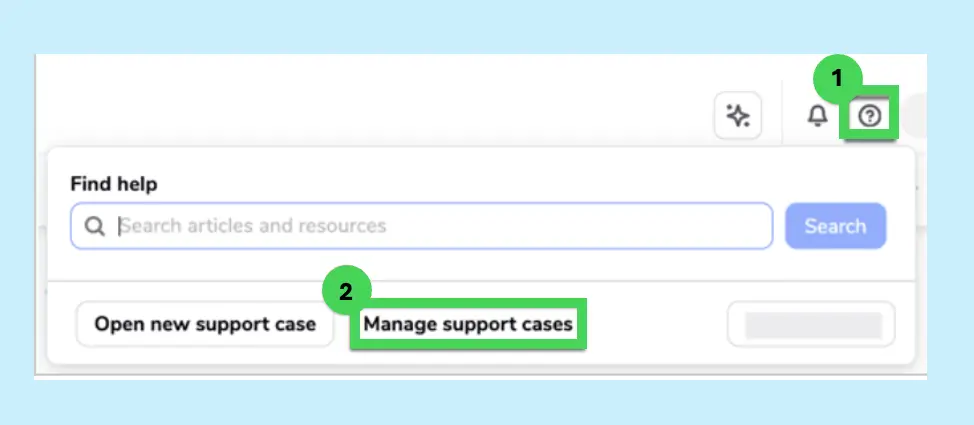
- Then select Open new support case.
- Enter a subject that describes your issue.
- Fill out the Details section by explaining the issue you’d like help with.
- To expedite your ticket and ensure the best experience with our Technical Support Team, include as many of the following details as possible:
- Account number
- App(s) affected (by app ID or link)
- Tables affected (by table ID or link) (if applicable)
- Pipeline ID and Tech Support access code (if applicable)
To find the Tech Support access code, navigate to Pipelines, select your profile, then select Support access. - Exact text of any errors (or upload a screenshot)
- Link to the relevant area of the issue (for example, a link to the report, notification, or record).
- Time(s) when the issue was encountered
- Your level of access (do you have Administrator level access or can it be gained?)
- Who the issue affects (all users or specific users)
- If specific, list users by email and affected roles
- Any troubleshooting steps already taken
- Choose the issue type, level of impact, and your preferred method of contact.
- To attach any screenshots or videos of the behavior, select Upload Files or drop your files on the page.
Attach up to 10 attachments.- Maximum size for each attachment is 2GB.
- Select Create Case to submit your case.
After creating a case, the case number, status, and other details appear on the same page in the Details section. You will also receive an email confirmation with your case details.
- To learn more about how Quickbase handles support in general, visit: Quickbase Technical Support
- To learn earn more about enabling your pipelines for tech support, visit: enabling Tech Support access in Pipelines.
How to Manage a Existing Quickbase Support Case
To find and update an existing case:
- Select the help button on the global bar near your username.
- Then select Manage support cases.
- You can also bookmark the Manage Support Cases page at: https://target_domain/qb/support/ListCases
- Replace target_domain with your account's domain
- for example, mydomain.quickbase.com
- Replace target_domain with your account's domain
- Select a case. By default, open cases are listed in order by date, before closed cases.
- You can also search your cases using the search box under the page title. Searches can find a case by number, subject, or details, but not activities.
- Select Upload Files to add any attachments to your case.
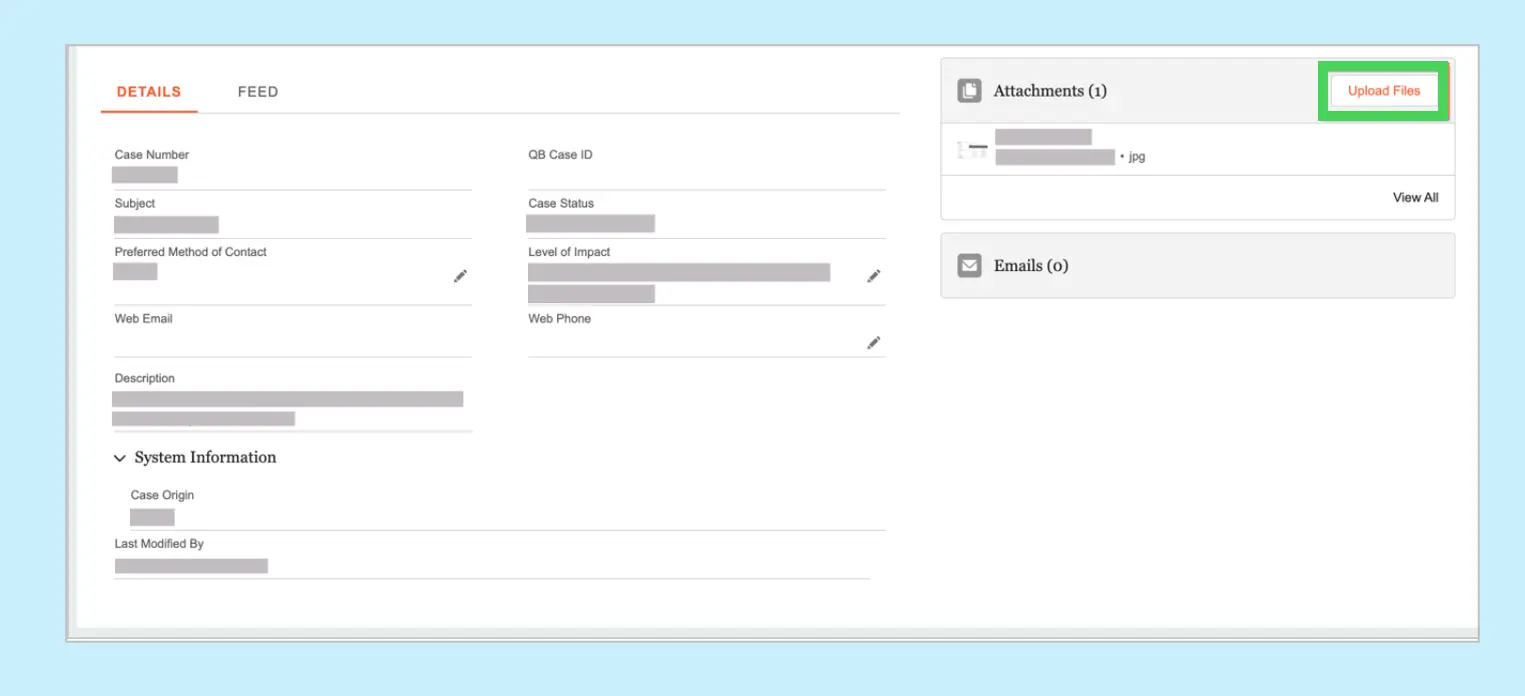
- You can add a maximum of 10 attachments to a support case. Each attachment can be up to 2GB in size.
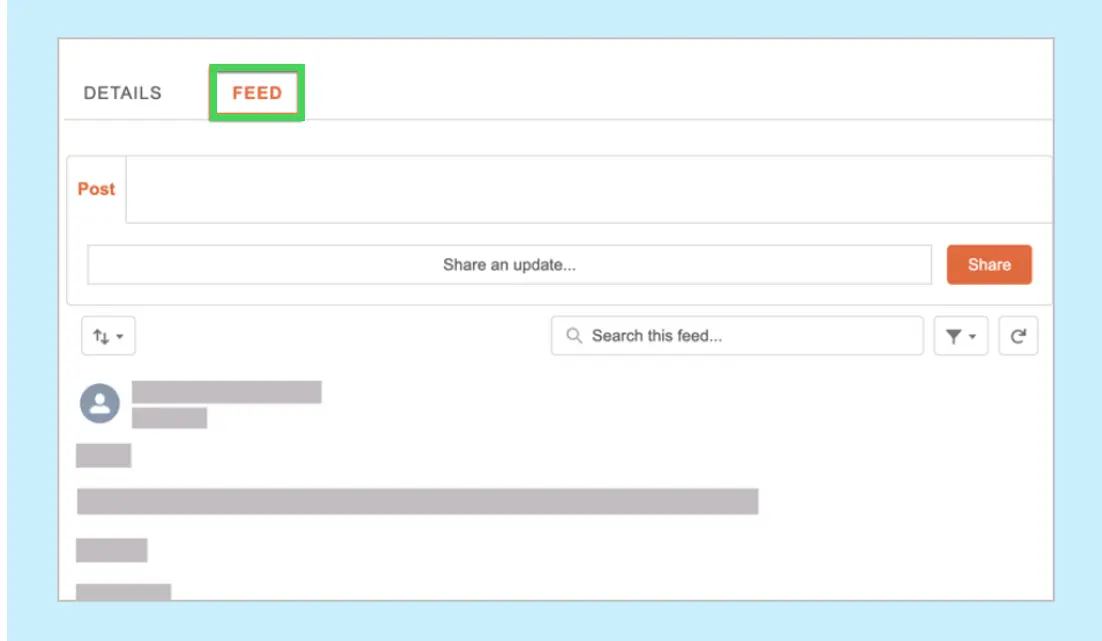
- Use the Feed tab to see the latest activity on your case and to communicate with your Quickbase Technical Support representative.
- Author: Logan Lott
- Title: Solution Consultant | Quickbase
- Email: llott@quandarycg.com
- Date Published: June 8, 2026
Top 10 FAQs About Troubleshooting Quickbase Login Issues
1. Why can I not login to my Quickbase realm?
There are several reasons why you may be unable to log in to Quickbase. The most common include entering an incorrect email address or password, using an expired password, Single Sign-On (SSO) authentication issues, browser cache problems, or an inactive user account. If your organization uses an identity provider such as Microsoft Entra ID (Azure AD), Okta, or Google Workspace, the issue may originate with your identity provider rather than Quickbase itself.
Before contacting your administrator, verify your credentials, clear your browser cache, try a private browsing window, and confirm that the Quickbase service is operational.
2. How do I reset my Quickbase password?
If your organization uses Quickbase-managed authentication, select Forgot Password on the Quickbase login page and follow the password reset instructions sent to your registered email address.
If your organization uses Single Sign-On (SSO), your Quickbase password is managed by your organization's identity provider. In that case, you'll need to reset your password through your IT department or identity management system.
3. Why does Quickbase keep saying my password is incorrect?
An incorrect password message may appear because:
- Your password was recently changed.
- Caps Lock is enabled.
- Your browser is autofilling an outdated password.
- Your account has been locked after multiple failed login attempts.
- Your organization recently enabled Single Sign-On.
Try manually entering your credentials, clearing saved passwords, or using another browser before requesting a password reset.
4. Why am I getting a Single Sign-On (SSO) error in Quickbase?
Single Sign-On errors typically occur when there is a communication issue between Quickbase and your organization's identity provider.
Common causes include:
- Expired corporate password
- Incorrect user permissions
- Expired authentication tokens
- Identity provider outage
- Incorrect SAML or OpenID Connect configuration
If multiple users are experiencing the same issue, contact your IT administrator to verify your organization's authentication settings.
5. Why is Quickbase asking me to log in repeatedly?
If Quickbase continually returns you to the login page, the issue is often related to browser cookies or session management.
Possible causes include:
- Disabled cookies
- Browser extensions blocking authentication
- Corrupted browser cache
- Expired authentication session
- VPN or network security settings
Clearing cookies, enabling third-party cookies (if required), or testing in an incognito window often resolves the problem.
6. How do I unlock my Quickbase account?
Quickbase accounts may become temporarily locked after multiple unsuccessful login attempts as a security measure.
Depending on your organization's authentication settings, you may need to:
- Wait for the lockout period to expire.
- Reset your password.
- Contact your Quickbase administrator.
- Contact your IT department if using Single Sign-On.
Administrators can also verify whether your account has been deactivated or suspended.
7. Why can I not access my Quickbase application after logging in?
Successfully logging in does not necessarily mean you have permission to access every application.
This issue may occur if:
- You haven't been invited to the application.
- Your role was changed.
- Your permissions were removed.
- The application was archived.
- Your license was reassigned.
Your Quickbase administrator can verify your role, permissions, and application access.
8. Which browsers work best with Quickbase?
Quickbase is optimized for modern web browsers, including:
- Google Chrome
- Microsoft Edge
- Mozilla Firefox
- Apple Safari
For the best experience:
- Keep your browser updated.
- Enable JavaScript.
- Allow cookies.
- Disable browser extensions that interfere with authentication.
- Avoid using unsupported or outdated browsers.
9. How can I troubleshoot Quickbase login problems before contacting support?
Before opening a support ticket, try these troubleshooting steps:
- Verify your email address.
- Confirm your password.
- Reset your password if necessary.
- Clear your browser cache and cookies.
- Open Quickbase in a private browsing window.
- Try another supported browser.
- Disable browser extensions temporarily.
- Verify your internet connection.
- Check with coworkers to determine whether the issue affects multiple users.
- Confirm whether your organization uses Single Sign-On.
These steps resolve many common login issues without requiring technical support.
10. When should I contact Quickbase Support?
You should contact Quickbase Support when:
- Password resets do not work.
- You receive unexpected authentication errors.
- Login failures continue across multiple browsers and devices.
- Your account appears to be disabled.
- Your administrator cannot resolve the issue.
- You suspect a security or account compromise.
- Quickbase services appear unavailable.
If your organization works with a Quickbase Elite Partner like Quandary Consulting Group, your implementation partner can often diagnose configuration, authentication, permissions, and integration issues before escalation to Quickbase Support.
11. How can Quandary Consulting Group help resolve Quickbase login and access issues?
Quandary Consulting Group helps organizations troubleshoot both user-level and enterprise-level Quickbase authentication challenges. Our certified Quickbase consultants assist with:
- Single Sign-On (SSO) configuration
- User provisioning and deprovisioning
- Role and permission troubleshooting
- Identity provider integrations (Microsoft Entra ID, Okta, Google Workspace, and others)
- Multi-factor authentication (MFA) setup
- Application access management
- User onboarding workflows
- Enterprise security best practices
- Quickbase governance
- Ongoing Quickbase administration and support
Whether you're experiencing isolated login problems or need assistance optimizing your organization's authentication strategy, our team can help ensure your Quickbase environment remains secure, accessible, and easy to manage.


Industries
Resources



© 2026 Quandary Consulting Group. All Rights Reserved.
Privacy Policy