
Knowledge Base
Articles In This Section
How to Use Sync to Automatically Import CSV Files into Quickbase How to Use Google Maps for Data VisualizationHow to use the Quickbase Power BI connectorHow to Create High-Quality Quickbase FormsTop 10 Quickbase Development Best Practices for 2025How to Automate CSV Imports into Quickbase Using WebhooksHow to Log Quickbase Emails using WorkatoHow to Create a Quickbase WebhooksHow to Customize a Quickbase Home Page (Legacy Guide)How to Implement a Custom Import in QuickbaseSections
How to Use Automate PDF Data Extraction into Quickbase
PDF data extraction is the process of automatically identifying, reading, and capturing information from PDF documents using Optical Character Recognition (OCR), Artificial Intelligence (AI), or Intelligent Document Processing (IDP) technologies.
Instead of manually copying information into Quickbase, software extracts the required fields and inserts them directly into your application.
Common fields that are extracted into Quickbase are:
- Customer names
- Invoice numbers
- Purchase order numbers
- Dates
- Addresses
- Product information
- Quantities
- Pricing
- Payment terms
- Contract values
- Serial numbers
- Medical record information
- Custom business fields
How PDF Data Extraction Works with Quickbase
A typical automated workflow follows these steps:
- A PDF is uploaded to Quickbase, SharePoint, Box, Google Drive, or another document repository.
- OCR or AI-powered document processing extracts the required information.
- Business rules validate the extracted data.
- The validated information is automatically written into Quickbase.
- Optional workflows notify users, trigger approvals, generate reports, or update connected systems.
The entire process can take only a few seconds compared to several minutes of manual data entry.
Common Use Cases
Accounts Payable: To accelerate invoice processing while reducing manual entry errors, you can automatically capture:
- Vendor information
- Invoice numbers
- Purchase orders
- Payment amounts
- Due dates
Healthcare: Automation reduces administrative workload while improving data accuracy and patient experience. Extract information from
- Patient intake forms
- Referral documents
- Insurance authorizations
- Medical records
- Laboratory reports
- Consent forms
Construction: Project managers receive faster access to operational data without manually entering information. Automatically process such as:
- Daily field reports
- Safety inspections
- Equipment logs
- Change orders
- Contracts
- Permit documentation
Financial Services: Automated processing reduces turnaround times while improving regulatory compliance, to capture information from
- Loan applications
- Tax documents
- Financial statements
- Compliance forms
- Customer onboarding documents
Manufacturing: Automation improves supply chain visibility and operational efficiency by extracting
- Bills of materials
- Quality inspections
- Shipping manifests
- Supplier invoices
- Production reports
Key Benefits of Automating PDF Extraction in Quickbase
Organizations implementing automated document processing typically experience significant operational improvements.
Benefits include:
- Elimination of repetitive manual data entry
- Faster document processing
- Improved data accuracy
- Reduced processing costs
- Shorter approval cycles
- Better customer service
- Improved compliance
- Increased employee productivity
- Standardized document handling
- Greater scalability as document volumes increase
Best Practices
To maximize success when implementing PDF extraction into Quickbase:
- Standardize document formats whenever possible.
- Validate extracted information before writing to Quickbase.
- Store original PDFs for auditing and compliance.
- Use confidence scores to identify records requiring human review.
- Secure sensitive documents using encryption and role-based permissions.
- Build exception-handling workflows for incomplete or unreadable documents.
- Monitor extraction accuracy and continuously improve AI models.
Why Integrate PDF Extraction with Quickbase?
Quickbase serves as the operational hub for many organizations. Automating document intake eliminates one of the largest sources of manual work while ensuring business data enters the system quickly and accurately.
Combined with Quickbase Pipelines, Workato, or AI-powered document processing platforms, organizations can create end-to-end workflows that transform static PDF documents into structured, actionable business data.
The result is faster operations, higher-quality information, improved compliance, and a more scalable digital workflow.
Key Method to Automate PDF Data Extraction into Quickbase
To streamline this process, you can use a combination of two key technologies:
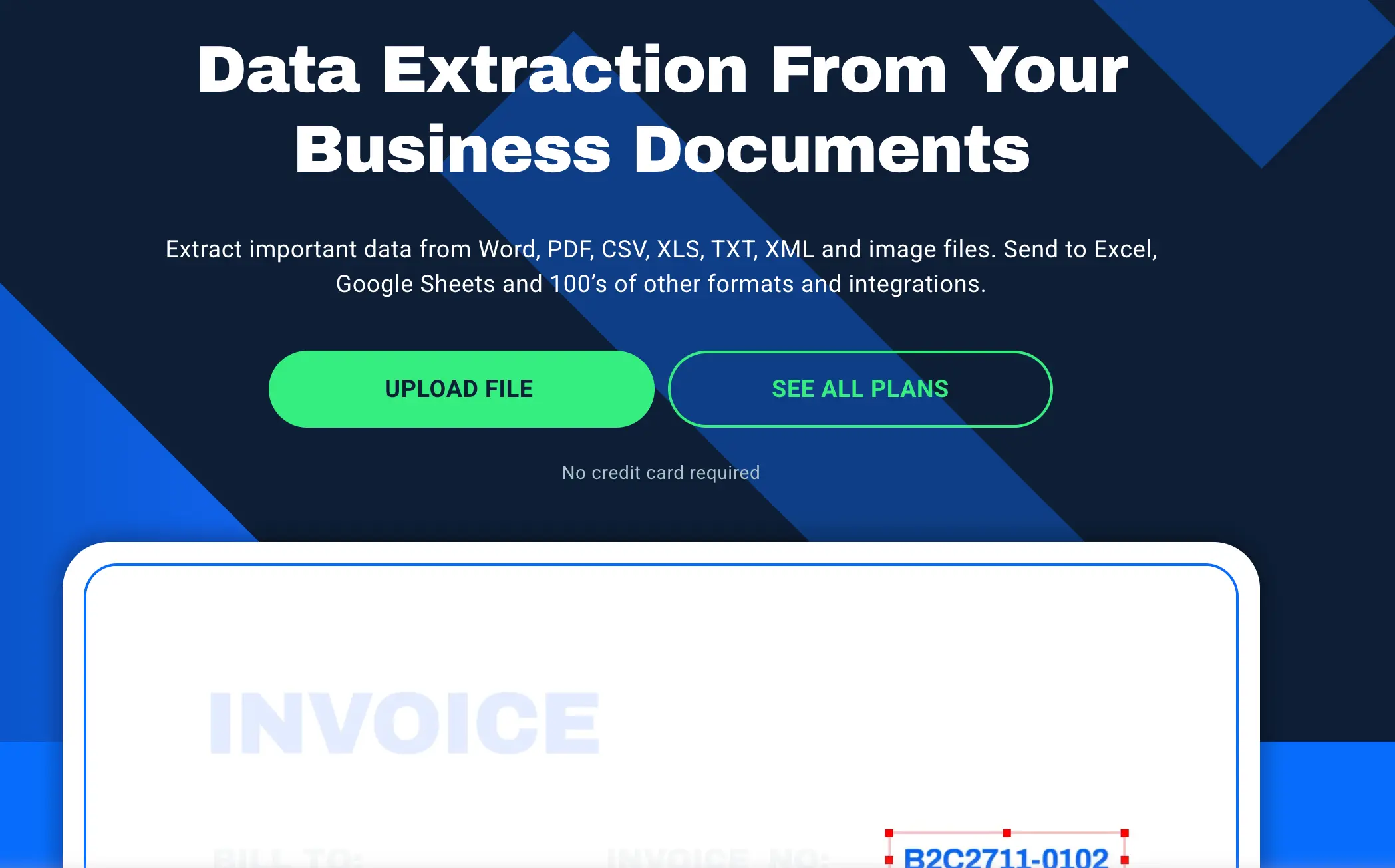
What is Docparser?
Docparser is a document data extraction tool—basically, software that pulls structured data out of documents like PDFs, Word files, or scanned images.
Instead of manually copying info (like invoice numbers, dates, totals, or contact details), Docparser uses parsing rules and AI to automatically extract that data and turn it into usable formats like Excel, JSON, or direct integrations with other apps.
Here’s what that means in practice:
- You upload documents (invoices, receipts, contracts, forms, etc.)
- You define what data you want (e.g., “Invoice Number,” “Total Amount”)
- Docparser identifies and extracts those fields
- The data can then be exported or sent to tools like Google Sheets, Zapier, CRMs, or accounting software
Top Use Cases for Docparser
- Invoice and receipt processing (accounts payable)
- Data entry automation
- Lead capture from forms
- Contract or legal document parsing
- Logistics/shipping document processing
There are typically two approaches inside tools like Docparser:
- Rule-based parsing (you define exact positions or patterns)
- AI-based parsing (it learns from document structure, better for variable layouts)
What is Workato?
Workato is an enterprise integration and automation platform (iPaaS) that enables organizations to connect applications, automate business processes, orchestrate AI agents, and synchronize data across their entire technology ecosystem—without the complexity of traditional custom integrations.
Unlike simple automation tools that focus on one or two applications, Workato is designed for enterprise environments where hundreds of applications, APIs, databases, AI models, and business workflows must work together securely and reliably.
What Does Workato Do?
At its core, Workato helps organizations:
- Connect cloud and on-premises applications
- Automate repetitive business processes
- Synchronize data across systems
- Build API integrations
- Orchestrate AI-powered workflows
- Eliminate manual data entry
- Improve operational efficiency
- Accelerate digital transformation
Think of Workato as the "connective tissue" between your business applications.
For example, instead of an employee manually copying information from Salesforce into Quickbase and then notifying accounting through Microsoft Teams, Workato can automate the entire process.
How Workato Works with Quickbase
Workato is an integration platform (iPaaS) that connects Docparser to Quickbase. Once data is extracted, Workato can automatically:
- Map parsed data fields
- Create new records in Quickbase
- Trigger workflows and updates
How to Use Docparser + Workato to Automate PDF Data Extraction into Quickbase
Outlined below is a Workato recipe that will take the information extracted from the pdf via Docparser and create the corresponding Quickbase records.
Step 1: Set up a Document Parser and create the Parsing Rules in docparser
Step 2: Create a trigger in Workato to “Fetch parsed data in Docparser"

Step 4: Create a list to capture the data from the Document Parser;

Step 5: Add items to the list that correspond to the fields in your Quickbase table;
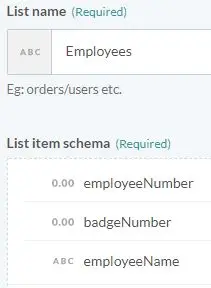
Step 6: Create a loop and pass the information from the Document Parser into the list created in step 3 above;
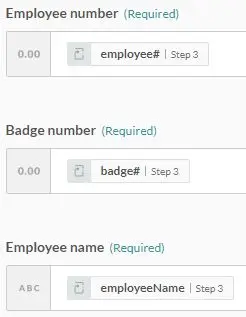
Step 7: Compose a CSV from the list created earlier in your Workato recipe;

Step 8: Create and update records in Quickbase from the CSV file created in step 6

Key Benefits of Using Docparser + Workato in Quickbase
- Save hours of manual data entry
- Reduce human error
- Scale data processing from PDFs
- Improve operational efficiency
- Enable automation without system access
When Should You Use This Approach?
This solution is ideal if:
- Clients or partners only provide PDF documents
- You lack API or system access
- You process repetitive, structured documents
- You want to automate Quickbase data entry
By leveraging Docparser and Workato, teams can bridge that gap—turning static documents into automated workflows. This approach not only improves accuracy but also frees up valuable time for higher-impact work.
- Author: Alistair Marsden
- Title: Solution Consultant | Quickbase
- Email: amarsden@quandarycg.com
- Date Updated: June 17, 2026
Top FAQs about How to Use Docparser + Workato to Automate PDF Data Extraction into Quickbase
1. What is a Workato recipe for PDF data extraction into Quickbase?
A Workato recipe is an automated workflow that extracts data from PDF files using OCR or document parsing tools and sends that structured data into Quickbase tables. This eliminates manual data entry and improves accuracy.
2. How do I automatically extract data from PDFs into Quickbase?
To automate PDF data extraction into Quickbase:
- Upload or receive a PDF (email, cloud storage, etc.)
- Use Workato’s document processing/OCR connector
- Map extracted fields (e.g., invoice number, date, totals)
- Send data into Quickbase via API or connector
- Trigger the recipe automatically
3. What tools are required for PDF data extraction in Workato?
You typically will need:
- Workato (automation platform)
- OCR or document parsing service (e.g., AWS Textract, Google Vision, or Workato Document AI)
- Quickbase connector or REST API
- Cloud storage or email trigger (optional)
4. Can Workato read scanned PDFs and extract data?
Yes, Workato can process scanned PDFs using OCR integrations. These tools convert images into text and extract structured fields like names, totals, and dates.
5. How accurate is PDF data extraction with Workato?
That is a tricky questions, becauase accuracy depends on numerous variables, such as:
- PDF quality (clean vs. scanned)
- Consistency of document format
- OCR engine used
However, a well-structured documents can reach 90–99% accuracy, while unstructured PDFs may require validation steps.
6. What are common use cases for PDF to Quickbase automation?
- Invoice processing
- Purchase order entry
- Contract data extraction
- Expense tracking
- Healthcare forms processing
- Logistics/shipping documents
7. How do I map extracted PDF fields to Quickbase?
Inside Workato:
- Use the recipe editor
- Select extracted fields from OCR output
- Map them to Quickbase table fields
- Apply transformations if needed (e.g., formatting dates or currency)
8. Can I validate or clean data before sending it to Quickbase?
Yes. Workato allows:
- Conditional logic (if/else)
- Data formatting
- Validation rules
- Duplicate checks
This ensures only clean, accurate data enters Quickbase.
9. Is coding required to automate PDF extraction with Workato?
No. Workato is a low-code platform. Most workflows can be built using drag-and-drop steps, though APIs can be used for advanced customization.
10. How do I trigger a Workato recipe for PDF processing?
Common triggers include:
- New email attachment
- File uploaded to Google Drive, Dropbox, or S3
- Webhook/API call
- Scheduled batch processing
11. How secure is PDF data automation with Workato and Quickbase?
Workato supports:
- Encryption (in transit and at rest)
- Role-based access control
- Compliance standards (SOC 2, GDPR, etc.)
Quickbase also provides enterprise-grade security for stored data.
12. Can Workato handle multiple PDF formats?
Yes, it can; however, performance is best when:
- Documents follow consistent templates
- You train the extraction model (if supported)
Highly variable PDFs may require additional parsing logic.
13. What are the key benefits of automating PDF data entry into Quickbase?
- Saves time (hours → seconds)
- Reduces human error
- Improves data consistency
- Enables real-time reporting
- Scales operations efficiently
14. How do I troubleshoot a Workato PDF extraction recipe?
- Check OCR output structure
- Validate field mappings
- Review logs in Workato
- Test with sample PDFs
- Adjust parsing rules
15. Can I use AI for smarter PDF data extraction in Workato?
Yes. Workato integrates with AI-powered tools that:
- Recognize document types
- Extract complex fields
- Improve accuracy over time


Industries
Resources


© 2026 Quandary Consulting Group. All Rights Reserved.
Privacy Policy